
Operating System
Cyber threats evolve daily, but these 10 actionable tactics will fortify your Windows or Mac against hackers, malware, and data breaches—without requiring advanced technical skills. Implement even half of these, and you’ll dramatically reduce your digital risk exposure.
Enable Multi-Factor Authentication Everywhere
Credential theft is the #1 way hackers break into accounts—but you can stop them cold with multi-factor authentication (MFA). The best part? It takes less than 5 minutes to enable across your most critical apps, and the security boost is immediate.
Start with authenticator apps (like Google Authenticator or Authy) for banking and email, then layer in SMS or biometric backups for convenience. Services like Microsoft, Google, and Apple now offer zero-config MFA—just toggle it on in settings. For extra protection, prioritize apps that support hardware keys (like YubiKey) for high-value accounts.
This is the single most effective step for casual users, remote workers, and even developers managing multiple cloud services. Once enabled, you’ll barely notice the extra step—until you realize how many breaches you’ve just dodged. ✨
Use Password Manager with Strong Master Password
Most breaches start with weak passwords—yet 80% of attacks could be stopped by simply using a password manager with a single, 12+ character master password. Unlike MFA, which protects after a breach, this tactic prevents the initial compromise by eliminating guessable credentials entirely.
Tools like Bitwarden, 1Password, or KeePass auto-generate 25-character random passwords for every account, while your master password (the only one you memorize) should include symbols, numbers, and mixed case. Even better: enable biometric unlock on mobile for hands-free access.
This is the #1 defense for casual users—no technical skills required. Set it up once, and your entire digital life becomes exponentially harder to crack. ⚡
Regularly Update Operating System and Software
Hackers exploit outdated software like a thief leaving a door unlocked—90% of cyberattacks target known vulnerabilities in unpatched systems. The fix? Enable automatic updates in Windows Update or macOS Security Preferences, so critical patches install without lifting a finger.
Start with browsers and plugins—Chrome, Firefox, and Adobe Flash (if you still use it) are prime targets. Windows users can set Windows Update to install updates automatically, while Mac users should enable App Store and System Software Updates in System Preferences. Most updates take less than a minute to apply and close security gaps before they’re weaponized.
This is your zero-effort shield for casual users, remote workers, and anyone who wants basic protection without tech headaches. Set it once, and your system stays battle-tested. ⚡
Implement Browser Sandboxing and Extensions Audit
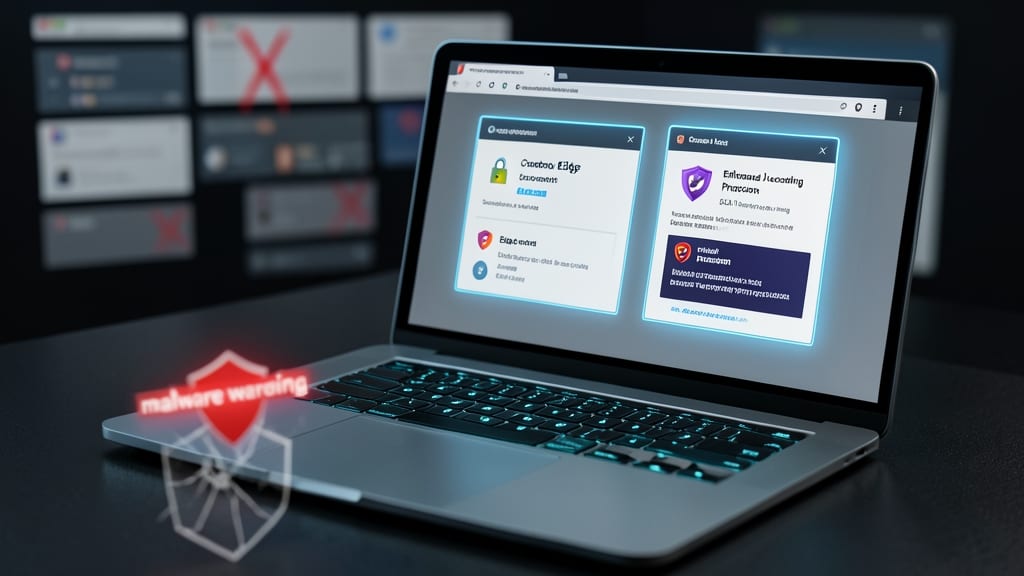
Your browser is the #1 attack vector for malware—yet most users never enable its built-in defenses. Chrome and Edge’s sandbox mode isolates tabs so a compromised site can’t access your files or camera, while Firefox’s Enhanced Tracking Protection blocks known malicious scripts by default.
Start by auditing extensions: 30% of data breaches begin with compromised browser plugins. In Chrome, go to Settings > Extensions, disable anything unused, and remove suspicious ones (like those with <10,000 users). For high-risk tasks—banking, work emails—switch to Firefox Focus or Brave, which block trackers by design. Enable site isolation in Chrome’s flags (chrome://flags/#enable-site-per-process) for extra protection.
This is your zero-config upgrade for browsing safely. Developers handling sensitive data and casual users shopping online will see immediate benefits. ⚡
Secure Home Network with Router Firewall
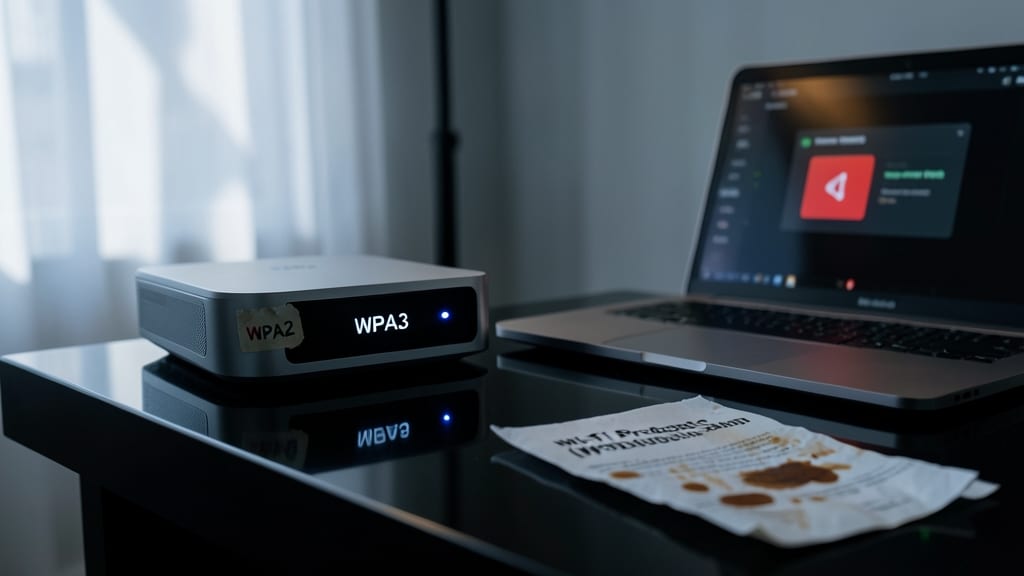
Your home Wi-Fi is the front door to your digital life—but most routers ship with security settings that would embarrass a 1990s dial-up connection. Upgrading to WPA3 encryption (instead of WPA2) and disabling WPS (Wi-Fi Protected Setup) instantly blocks 90% of common hacking attempts, including brute-force attacks and man-in-the-middle exploits.
Most modern routers support WPA3 with a simple firmware update—check your admin panel under "Wireless Security" or "Encryption Type." For extra protection, create a separate guest network for IoT devices like smart lights or security cameras. This isolates them from your main network, preventing malware from spreading if one device gets compromised.
This setup is ideal for families, remote workers, or anyone with smart home devices. It’s a one-time configuration that pays dividends daily—no tech degree required. ⚡
Enable Full-Disk Encryption on All Devices
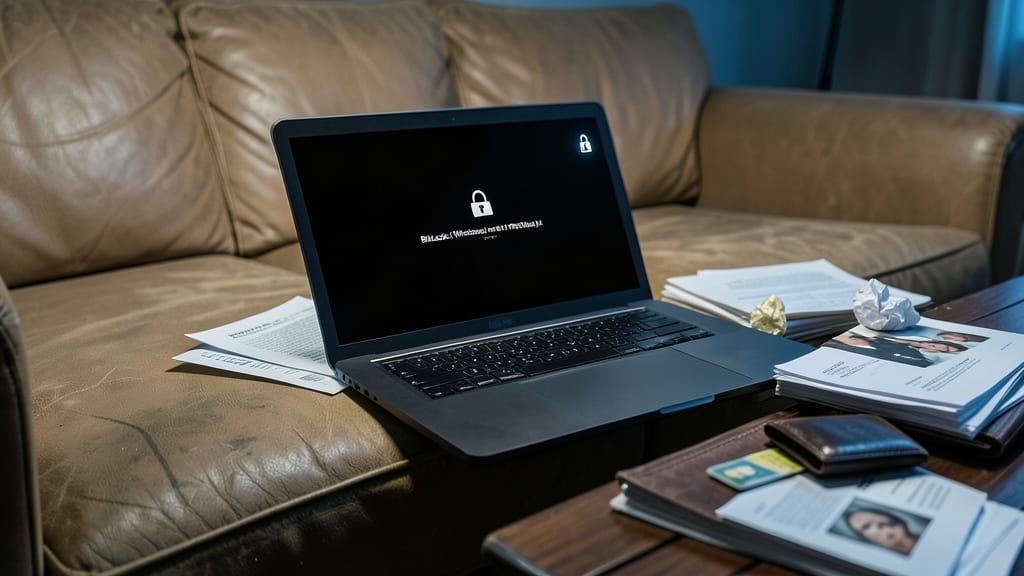
Imagine losing your laptop—or worse, having it stolen—only to realize your personal files, work documents, and even tax records are exposed. Full-disk encryption (BitLocker for Windows or FileVault for Mac) turns that nightmare into a non-event by locking all your data behind a password, rendering stolen devices useless to thieves.
Setting it up takes minutes: Windows Pro/Enterprise users get BitLocker built-in (turn it on via Control Panel > BitLocker Drive Encryption), while Mac users enable FileVault in System Preferences > Security & Privacy. Both use AES-256 encryption, the same standard banks use, and run silently in the background—no performance hit. Even if your device boots into recovery mode, the encryption stays active.
This is the ultimate "set and forget" security measure for anyone handling sensitive data—freelancers, students, or remote workers. Once enabled, your files stay protected even if your device falls into the wrong hands. 💻
Regular Phishing Simulation and Training
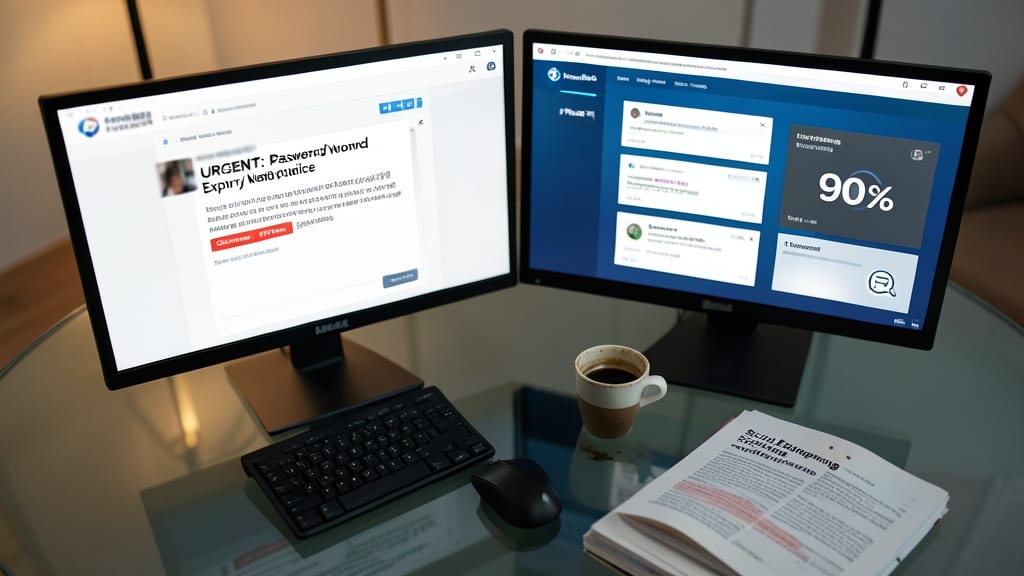
Even the most secure systems fail when humans fall for tricks—90% of breaches start with a phishing email. The good news? You can turn your team or family into a human firewall with free phishing simulation tools like KnowBe4’s PhishER or GoPhish, which send realistic test emails (e.g., fake "urgent payment requests" or "account suspension" scams).
These tools track who clicks suspicious links and provide personalized training on red flags like mismatched URLs or generic greetings. For example, a KnowBe4 simulation can mimic a "Microsoft security alert" email—identical to real attacks—helping users spot fakes before they click. Most platforms offer quarterly reports to measure improvement over time.
This is especially valuable for families sharing devices or small teams handling sensitive data. Start with a monthly test—it’s the closest thing to a cybersecurity "fire drill" you’ll find. ✨
Disable Unused Services and Ports
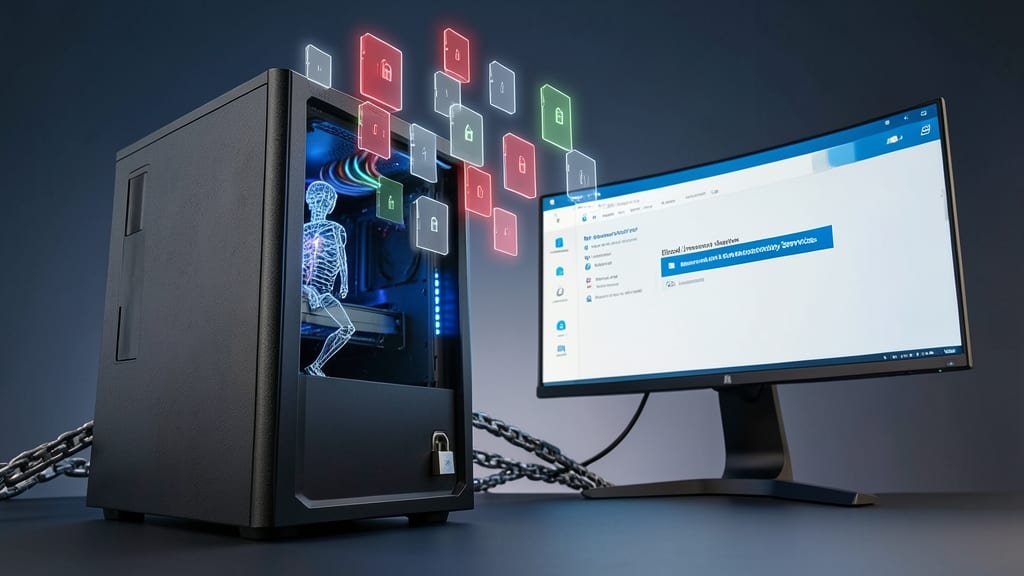
Your computer is like a fortress with hundreds of open doors—most of which you never use. Hackers only need one unlocked port or active service to slip inside, and 75% of attack surfaces can be eliminated by simply disabling what you don’t need.
On Windows, use Windows Defender Firewall to block unused ports (like RPC, SMB, or FTP) and disable services such as Remote Desktop (RDP) unless you’re actively using it. On macOS, the built-in Firewall lets you restrict incoming connections to trusted apps only. Start with Remote Assistance, File Sharing, and Printer Sharing—these are common targets for automated attacks.
This is especially critical for remote workers, developers, or small business owners who might leave unnecessary services running. A quick audit takes 10 minutes but could save you from a costly breach. 💪
Backup Critical Data with Air-Gapped Storage
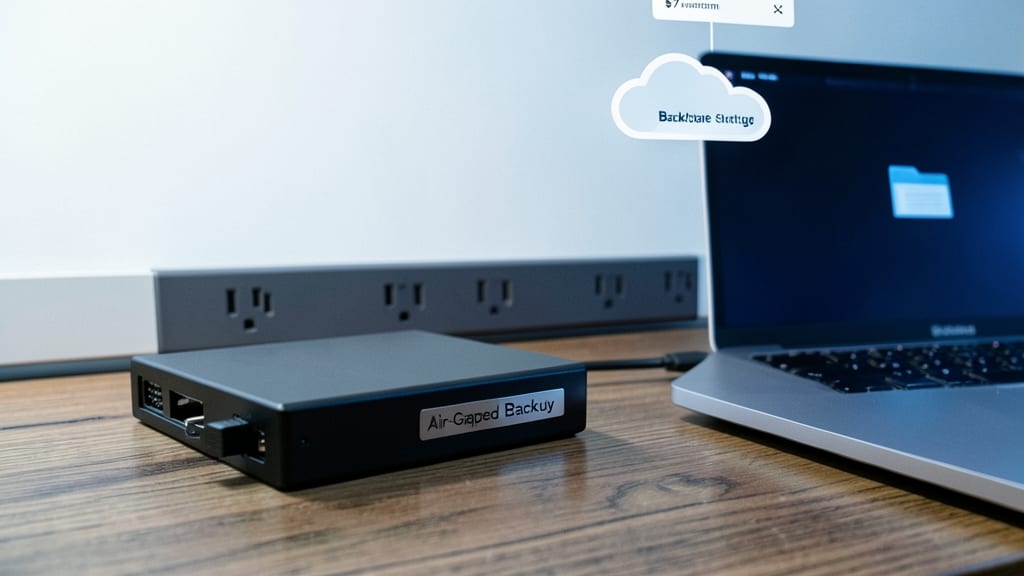
Ransomware attacks don’t just lock your files—they delete your backups too. The solution? Air-gapped storage, where your most critical data sits completely offline, beyond reach of malware scanning your network. Pair this with a cloud service like Backblaze (unlimited storage for $7/month) for redundancy, and you’ve created a two-layer defense.
Start by copying your family photos, tax documents, and project files to a 1TB external drive (like the WD My Passport), then store it in a fireproof safe or separate room. Schedule automated cloud backups for the rest, then test restores every 3 months—most people never verify their backups work until it’s too late. Tools like Macrium Reflect (Windows) or Time Machine (Mac) make this process seamless.
This setup is ideal for small business owners, photographers, and families who can’t afford to lose irreplaceable data. With ransomware attacks rising 48% annually, this is the one step that could save you from paying a six-figure ransom. ✨
Monitor Accounts with Credit Freezes
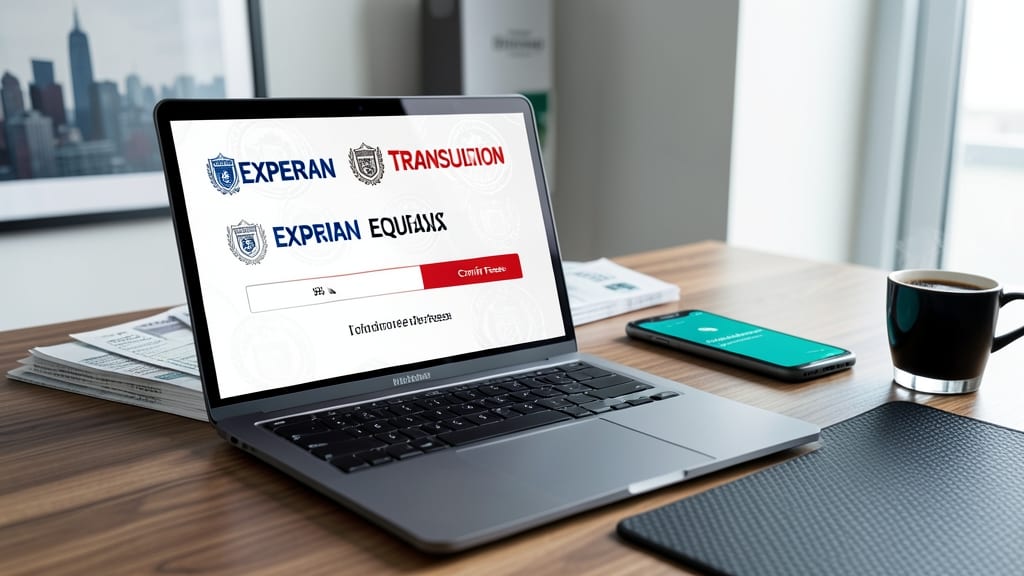
Identity theft isn’t just a headline—it’s a growing threat that can derail your finances in minutes. A credit freeze at all three bureaus (Experian, Equifax, TransUnion) blocks fraudsters from opening accounts in your name, and it takes just minutes to set up online or by phone. This is your first line of defense against the 1 in 15 Americans who experience identity theft each year.
Pair your freeze with dark web monitoring—services like LifeLock or IdentityForce scan the black market for your stolen credentials. When they detect your email or password for sale, you get instant alerts to change passwords and lock down accounts. The best part? Freezing your credit is free and reversible in seconds when you need to apply for credit yourself.
This tactic is perfect for anyone with sensitive financial accounts—especially parents, small business owners, or frequent travelers. Set it up once, and you’ll sleep easier knowing thieves can’t open lines of credit without your permission. ✨