
Tip & Trick
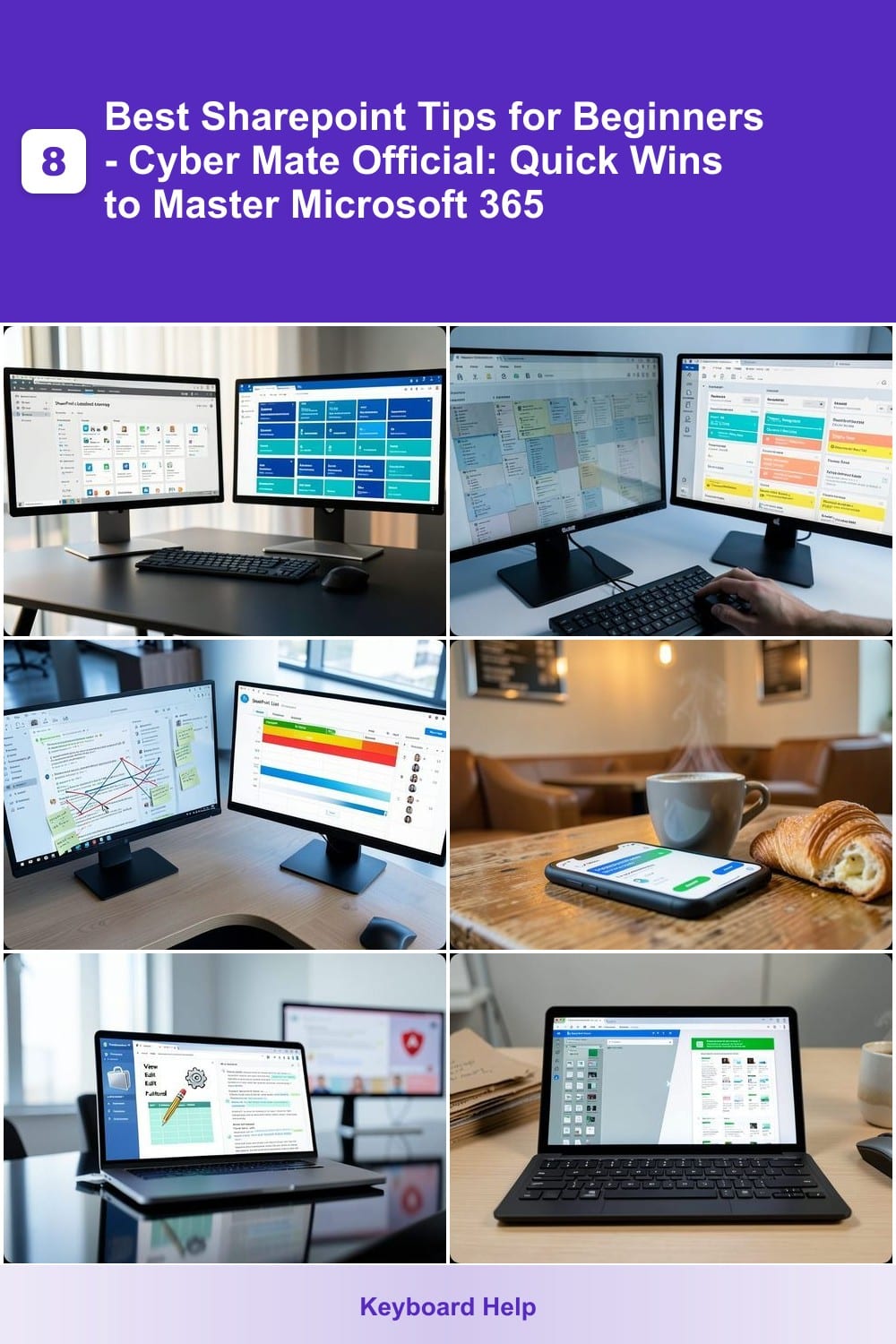
Microsoft SharePoint can feel overwhelming for new users, but these eight beginner-friendly tips will help you master collaboration in Microsoft 365 faster than you think. Learn quick wins that boost productivity and simplify document management without technical headaches.
Master SharePoint Homepage Customization Basics
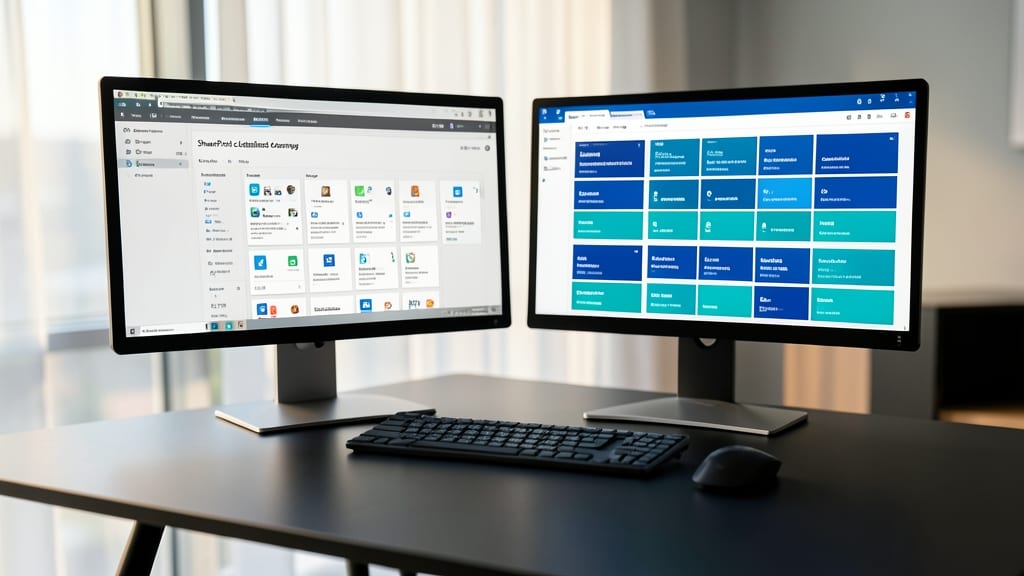
Tired of wasting time digging through SharePoint’s default homepage to find your most-used tools? A customized homepage can cut your navigation time by 40%—and it’s easier than you think. With just a few clicks, you can turn your SharePoint landing page into a powerhouse dashboard tailored to your workflow.
Start by editing the homepage layout in SharePoint Online (click the gear icon → "Edit" → "Add a section"). Drag and drop web parts like the Quick Links tool to pin your favorite sites, or add the News web part to highlight updates. For extra efficiency, use the Search Box web part to embed a mini-search bar for instant access to documents. Pro tip: Save your layout as a template to restore it instantly if you accidentally break something.
This trick is a game-changer for project managers, team leads, and power users who juggle multiple sites daily. Spend less time clicking—more time getting work done. ⚡
Use Modern Document Libraries Effectively
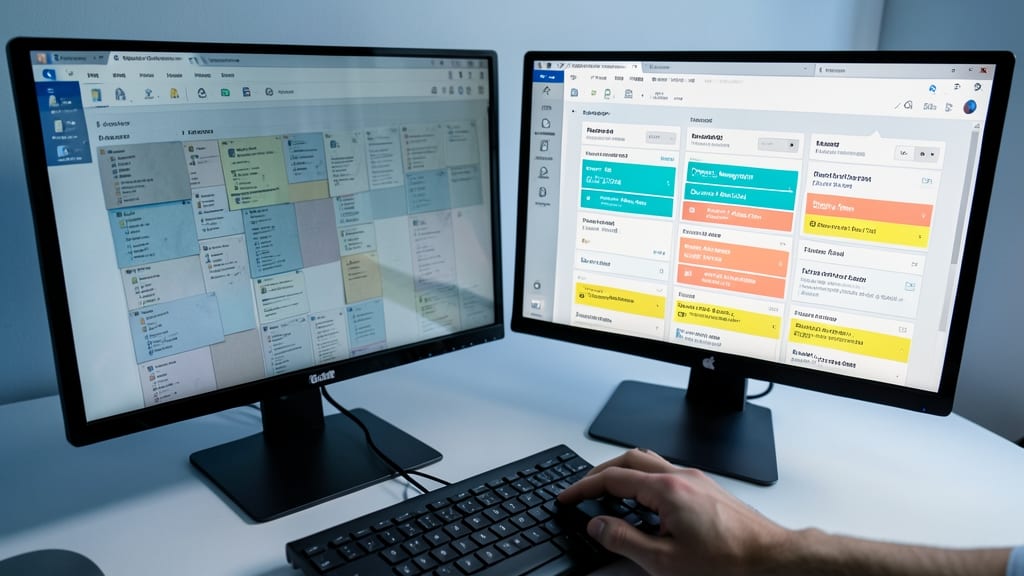
Tired of digging through endless folders to find the right document version? Modern SharePoint document libraries turn chaos into clarity with built-in tools that most users overlook. Instead of relying on folder structures, leverage metadata columns (like "Project," "Owner," or "Status") to tag files with searchable details, making retrieval effortless.
Enable versioning to automatically save every edit, so you never lose progress—critical for team projects where multiple contributors are working simultaneously. The co-authoring feature lets colleagues edit the same document in real time, with changes syncing instantly. For example, a marketing team can collaborate on a campaign deck without emailing drafts back and forth.
This setup is ideal for project teams, HR departments, or any group managing shared files. With just a few clicks, you'll transform disorganized document storage into a battle-tested collaboration hub. ✨
Create SharePoint Lists for Task Tracking
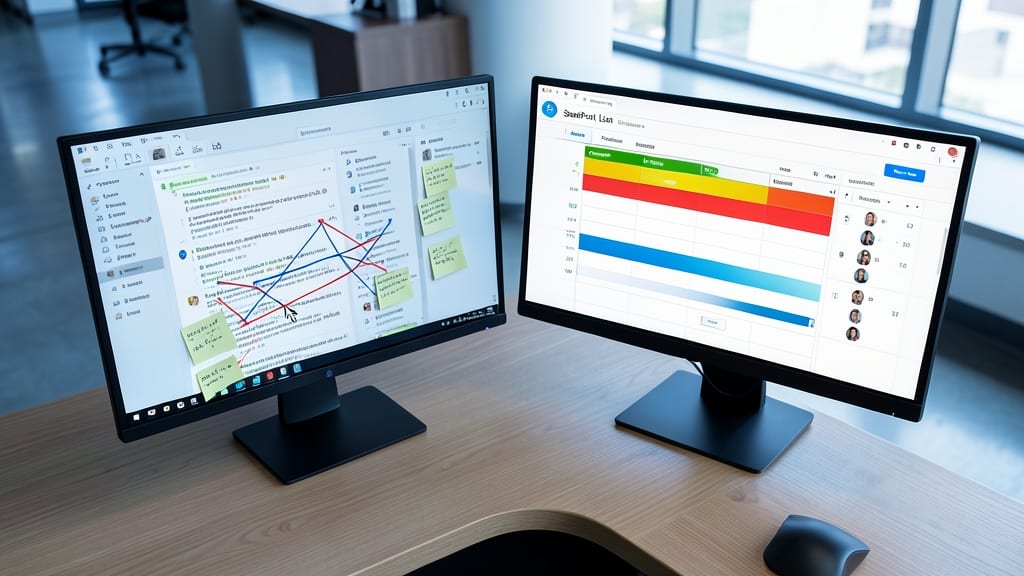
Tired of digging through endless email threads to track project progress? SharePoint Lists turn disorganized tasks into a structured, searchable system—no more lost follow-ups or forgotten deadlines.
Start by creating a list with custom columns like Status (To Do/In Progress/Complete), Assignee, and Due Date. Use the built-in calendar view to visualize deadlines, or set up alerts to notify team members when tasks are overdue. The mobile app even lets you update tasks from anywhere—no desktop required.
This is your secret weapon for project managers drowning in emails or team leads coordinating cross-department tasks. Say goodbye to the chaos and hello to clarity! ✨
Leverage SharePoint Mobile App Features

Your phone doesn’t need to stay in your pocket—turn it into your SharePoint command center with the official mobile app. Whether you’re waiting for a flight or grabbing coffee, you can review documents, approve workflows, and receive real-time alerts without ever opening a laptop.
The app delivers instant access to libraries, lists, and approvals with offline capabilities, so you’re never stuck without critical files. Push notifications for document updates or task assignments ensure you stay on top of changes, while the mobile-friendly interface simplifies navigation. For managers, the approval workflows feature lets you sign off on requests from anywhere—no more waiting until you’re back at your desk.
Perfect for field teams, remote workers, or anyone who’s always on the move, this app keeps productivity flowing 24/7. ⚡
Set Up Basic SharePoint Permissions Correctly
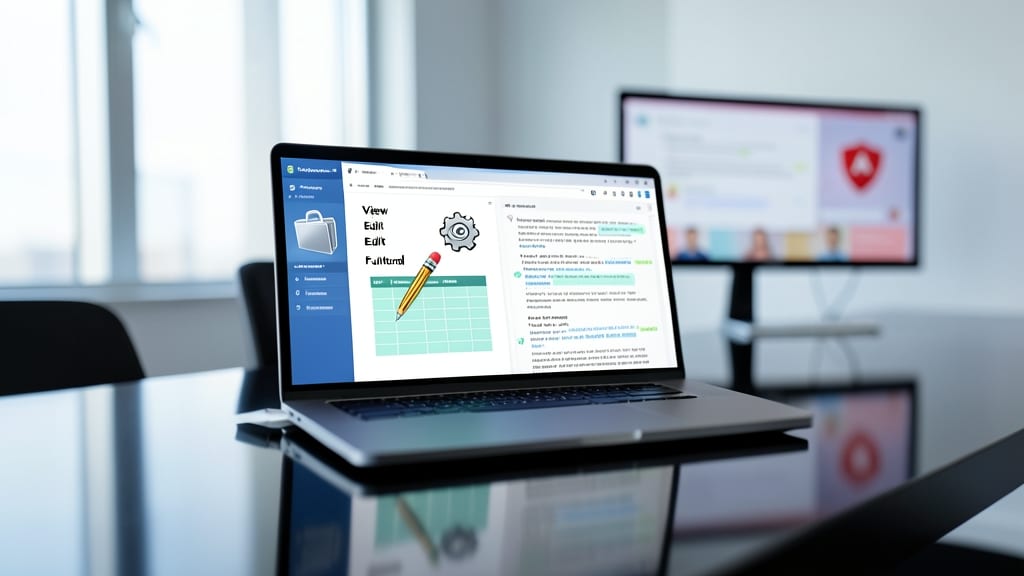
Struggling to balance security and teamwork in SharePoint? The three core permission levels—View, Edit, and Full Control—are your secret weapons. Misconfigured permissions often lead to headaches like accidental edits or locked documents, but mastering these levels keeps your workspace secure and collaborative.
Start by assigning View to external partners or read-only teams—they can access files without risking changes. For internal teams, Edit lets them modify documents while keeping version history intact. Reserve Full Control only for admins or trusted contributors who need to manage permissions or delete files. Pro tip: Use permission inheritance to apply settings site-wide, then break inheritance only for specific folders needing unique access.
This setup is perfect for project managers juggling client access and internal edits, or HR teams sharing sensitive policies with approved stakeholders. Secure your documents without the guesswork! ✨
Use SharePoint Search Like a Pro
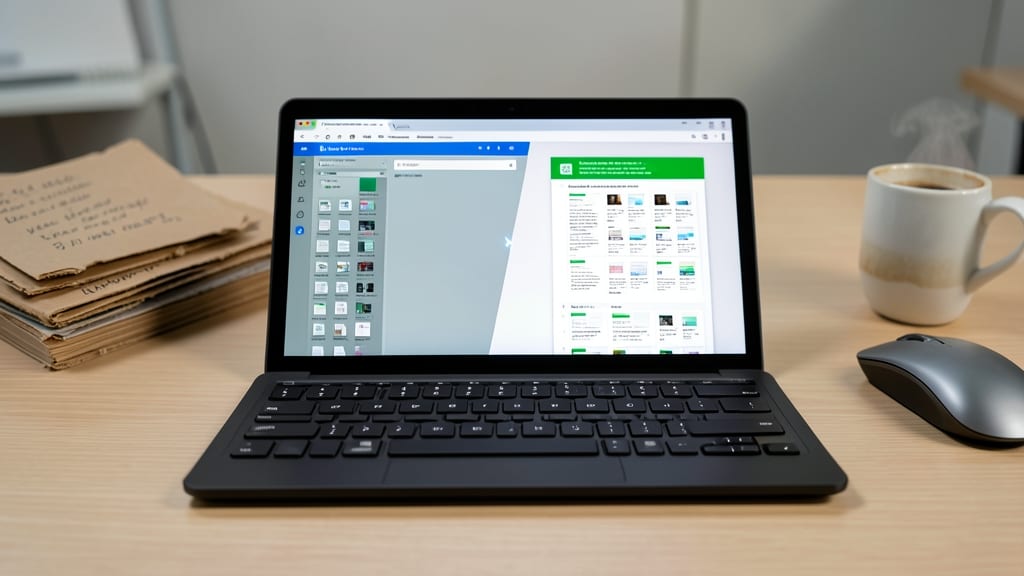
Tired of wasting time digging through folders when you could find documents in seconds? SharePoint's built-in search engine is a hidden powerhouse—once you know how to use it right. Forget manual navigation and embrace advanced search syntax to pinpoint files instantly, even across large libraries.
Start with keyword refinements like contentclass:STS_ListItem to target specific document types, then combine terms with operators (AND, OR, NOT). Use content source filters to search only in certain sites or libraries, and leverage metadata filters (like Author:John or Modified:This Week) to narrow results. Pro tip: Try the search preview feature to see document snippets before opening files—saving you clicks and time.
This technique is a game-changer for marketing teams managing campaigns, HR departments tracking policies, or project managers chasing down approvals. With practice, you’ll recover that lost time and focus on what matters. ⚡
Automate Simple Workflows with Power Automate

Tired of chasing down approvals or drowning in repetitive requests? Power Automate turns manual busywork into automated workflows with just a few clicks—no coding required.
Start with pre-built templates for approvals, notifications, or file organization. For example, set up an "Email notification when a new document is added" workflow in minutes, or automate "Pending Approval" requests that route to managers automatically. The SharePoint integration ensures seamless data flow between lists, libraries, and external apps like Outlook or Teams.
Perfect for admins, project coordinators, or anyone tired of email ping-pong. Cut repetitive tasks by 30% and reclaim hours weekly—without writing a single line of code. ✨
Sync SharePoint Libraries to Your Computer
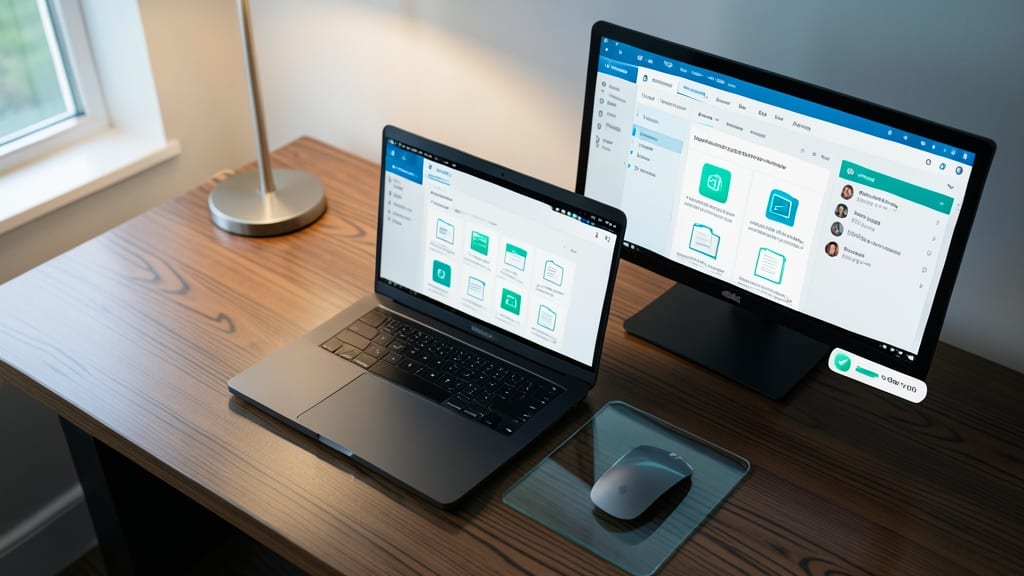
Tired of waiting for internet access to review or edit your SharePoint documents? The Sync to Computer feature creates a seamless offline workspace that updates automatically when you reconnect. This two-way sync ensures your local files stay current with SharePoint's version history, so you never miss a critical update.
To get started, simply navigate to your SharePoint library, click the Sync button in the top-right corner, and choose a local folder. The OneDrive sync engine handles all conflicts intelligently - you'll get alerts only when manual decisions are needed. Perfect for travelers, remote workers, or anyone who needs to edit files without relying on constant connectivity.
This tip is ideal for field teams, freelancers, or anyone juggling multiple projects across devices. Your documents stay accessible while SharePoint remains the single source of truth. ✨