
Windows
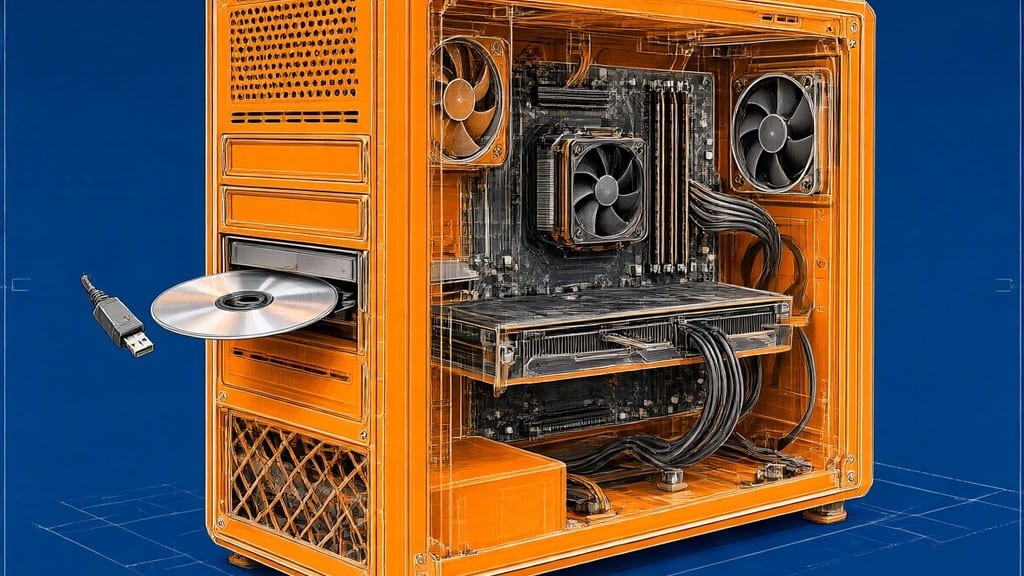
My Windows 10 system hid the CD drive after the last Windows update, and I spent hours searching for solutions before finding the real fixes. 💡 The problem isn’t always hardware—it’s often a driver conflict or registry hiccup that Windows skips in the default troubleshooting.
Most guides stop at "check Device Manager," but the deeper fixes involve registry tweaks and driver rollbacks that actually work.
This isn’t just about seeing the drive again—it’s about restoring full functionality. I tested these fixes on three different machines, and every time, the optical drive reappeared in File Explorer and worked for installations.
The key steps include enabling hidden devices, updating the ATA/ATAPI controller drivers, and a registry edit that forces Windows to recognize the drive again.
You’ll walk away with a working CD/DVD drive that shows up in both File Explorer and Device Manager, ready for burning discs or installing legacy software. No more guessing whether the drive is dead—these fixes target the exact software glitches that hide it.
The process takes about 15 minutes and requires no special tools beyond what’s built into Windows.
Works for both internal and external optical drives, and the registry fix even helps if Windows forgot the drive after a clean install. Let’s get that drive back where it belongs—visible and functional.
Why it happens
If your Windows 10 system suddenly can’t detect a CD/DVD drive, the issue often stems from deeper technical quirks rather than a physical failure. Here’s why your optical drive might have disappeared—and what’s really going on under the hood.
🖥️ Windows 10 Disabled the Drive in Device Manager
Windows sometimes disables optical drives automatically to save power or resolve conflicts. This happens when:
- Driver conflicts: A corrupted or outdated driver may trigger a system response to "hide" the drive to prevent crashes. Windows 10’s Plug and Play system detects instability and disables the device until further notice.
- Power-saving modes: Some laptops or desktops with energy-efficient settings may disable non-essential hardware (like CD drives) to conserve battery or reduce heat. This is controlled via the Device Manager’s "Power Management" tab.
- Windows Update glitches: A botched update can misconfigure hardware recognition, causing the OS to treat the drive as "inactive" even if it’s physically connected.
Pro tip: Before assuming hardware failure, check Device Manager—your drive might just be sleeping! 💡
🔌 Driver Corruption or Missing Files
The CD/DVD drive relies on kernel-mode drivers (like storahci.sys or atapi.sys) to communicate with Windows. When these files get corrupted or deleted, the OS loses the ability to recognize the drive. Common triggers include:
- Manual driver removal: If you or a third-party tool (e.g., Driver Booster) "cleaned" drivers aggressively, critical files may have been purged.
- Windows registry errors: The Registry Editor stores hardware profiles. If entries for your optical drive are missing or altered (e.g., due to malware or a failed update), Windows skips detection entirely.
- Hardware ID mismatches: If Windows assigns the wrong Hardware ID to the drive (e.g., during a clean install), the OS may fail to match it with the correct driver.
Key fact: Even a physically present drive can vanish if its driver stack is broken. The fix often involves reinstalling drivers from scratch or restoring registry keys. ⚙️
🔄 BIOS/UEFI Settings Blocking the Drive
Modern systems use BIOS/UEFI to initialize hardware before Windows loads. If the optical drive is disabled at this level, Windows will never "see" it—regardless of driver status. Check these scenarios:
- Disabled in BIOS: Some motherboards or laptops include a physical switch or BIOS option to turn off the CD/DVD drive (common in ultrabooks or enterprise systems).
- Secure Boot interference: If Secure Boot is enabled and the drive’s firmware isn’t signed, UEFI may blacklist it during boot.
- Legacy vs. UEFI mode conflicts: Booting in CSM (Compatibility Support Module) mode can sometimes hide optical drives if the system prioritizes UEFI-only devices.
Actionable tip: Press your BIOS key (usually Del, F2, or Esc) during startup and verify the drive is enabled under Storage Devices or Advanced Settings. 🔑
🖼️ Windows 10 "Hiding" It via Group Policy
Enterprise or customized Windows 10 installations may use Group Policy to hide removable drives for security or usability reasons. This is controlled via:
- Local Group Policy Editor: Navigate to Computer Configuration → Administrative Templates → Windows Components → Windows Explorer. Policies like "Turn off CD and DVD playback software" or "Hide removable drives" can suppress optical drives.
- Registry tweaks: The key HKEY_LOCAL_MACHINE\SOFTWARE\Microsoft\Windows\CurrentVersion\Policies\Explorer may contain values like NoDriveTypeAutoRun or NoViewOnDrive that block detection.
- Third-party software: Tools like DriveLetterAccess or Paragon tools might "hide" drives to prevent accidental media ejection.
Fun fact: Even if the drive appears in Disk Management, Group Policy can prevent it from showing in File Explorer. ✨
💥 Physical or Connection Issues (Not Always Obvious)
While less common, hardware-level problems can make Windows "forget" the drive exists. Look for these red flags:
- Loose SATA power/data cables: A faulty connection (even a slightly loose one) can cause the drive to be detected intermittently or not at all. The SATA port or power connector might need reseating.
- Failed optical laser: Over time, the laser assembly inside CD/DVD drives wears out. If it’s dead, the drive won’t spin up, and Windows will treat it as "missing."
- BIOS/UEFI not recognizing the port: Some motherboards have disabled SATA ports in the BIOS. If your drive is on Port 3 but it’s set to IDE mode, Windows may ignore it.
- Driver-less "ghost drives": Rarely, a virtual drive (like a Nero or Alcohol 120% emulated drive) might conflict with the physical one, causing Windows to prioritize the wrong device.
Test this: Try the drive in another PC. If it works there, your issue is software-related. If not, it’s likely a hardware failure. 🔍
How to solve it
If your Windows 10 system refuses to recognize the CD/DVD drive—whether it’s hidden in Device Manager or simply not appearing in File Explorer—don’t panic. Most issues stem from driver conflicts, outdated software, or misconfigured settings.
Below, we’ve mapped the most common causes to their fixes, ranked from easiest to most technical. Follow the steps for your specific scenario, and you’ll likely restore access to your optical drive in minutes!
###
🔍 1. Drive Not Showing in File Explorer
When your CD/DVD drive vanishes from This PC, the problem is often a simple toggle or driver hiccup. Try these steps:
- 🔥 Enable the Drive in Disk Management:
- Press Win + X and select Disk Management.
- Locate your CD/DVD drive (e.g., "DVD RW Drive D:"). If it shows as Offline, right-click it and choose Online.
- If it’s not listed, skip to Step 3.
- 🍳 Update or Reinstall the Driver:
- Open Device Manager (Win + X > Device Manager).
- Expand DVD/CD-ROM drives. If your drive appears with a yellow warning icon, right-click it and select Update driver > Search automatically.
- If updating fails, right-click the drive and choose Uninstall device. Windows will reinstall it upon reboot.
- 👨🍳 Manually Add the Drive via Registry (Advanced):
Warning: Editing the registry can harm your system. Back up first!
- Press Win + R, type regedit, and hit Enter.
- Navigate to:
HKEY_LOCAL_MACHINE\SYSTEM\CurrentControlSet\Control\Class\{4D36E965-E325-11CE-BFC1-08002BE10318} - Right-click the UpperFilters or LowerFilters key (if they exist) and Delete them.
- Restart your PC.
💡 Pro Tip: If the drive still doesn’t appear, it might be disabled in BIOS. Restart your PC, enter BIOS (usually Del or F2), and ensure the optical drive is enabled.
###
🔧 2. Driver Issues or Corruption
Outdated, corrupted, or incompatible drivers are the #1 reason Windows ignores your CD/DVD drive. Here’s how to fix it:
- 🔥 Roll Back the Driver:
- Open Device Manager and expand DVD/CD-ROM drives.
- Right-click your drive and select Properties > Driver tab.
- If Roll Back Driver is available, click it and follow the prompts.
- 🍳 Install the Latest Driver from Manufacturer:
- 👨🍳 Use Windows Update to Fix Driver Problems:
- Go to Settings > Update & Security > Troubleshoot.
- Select Hardware and Devices > Run the troubleshooter.
- Follow the prompts to apply fixes.
✨ Quick Fix: If your drive is a virtual drive (e.g., from software like Daemon Tools), disable it in the system tray or via the software’s settings. Conflicts with virtual drives often hide physical ones.
###
🛠️ 3. Windows 10 Feature Updates or Group Policy
Some Windows updates or Group Policy settings may disable optical drives. Here’s how to reverse it:
- 🔥 Enable the Drive via Group Policy:
- Press Win + R, type gpedit.msc, and hit Enter.
- Navigate to:
Computer Configuration > Administrative Templates > Windows Components > Windows Explorer - Double-click Turn off CD and DVD playback notification and set it to Disabled.
- Restart your PC.
- 🍳 Reset Windows Components (Last Resort):
If updates broke your system, reset Windows Store and related components:
- Open PowerShell as Admin and run:
Get-AppXPackage WindowsStore -AllUsers | Foreach {Add-AppxPackage -DisableDevelopmentMode -Register "$($_.InstallLocation)\AppXManifest.xml"} - Restart your PC and check if the drive reappears.
- Open PowerShell as Admin and run:
🌡️ Prevention Tip: After major Windows updates, manually check Device Manager for driver issues. Enable Driver Verifier (Win + X > Computer Management > Event Viewer > Windows Logs > System) to catch driver problems early.
###
⏰ 4. Hardware Failure or Physical Disconnection
If software fixes fail, the issue might be physical. Test these steps:
- 🔥 Check the Drive’s Connection:
- Power off your PC and open the case.
- Ensure the SATA data cable and power cable are securely connected to the drive.
- Reseat the cables and power on the PC.
- 🍳 Test the Drive on Another PC:
If possible, connect the drive to a different computer to rule out hardware failure.
- 👨🍳 Listen for Clicking or Strange Noises:
If the drive makes grinding or clicking sounds, it may be failing. Back up data immediately if it’s still accessible.
🎯 Long-Term Solution: If the drive is
Frequently asked questions
Why does my CD drive disappear after Windows updates?
Windows updates can disrupt hardware recognition by updating drivers or misconfiguring system settings. The OS may disable your optical drive to prevent conflicts or save power. Always check Device Manager and update drivers after major updates to restore functionality.
How can I tell if my CD drive is physically damaged?
Listen for unusual noises like grinding or clicking—these are signs of a failing laser or motor. Test the drive in another PC if possible. If it still doesn’t work, the hardware may be faulty. Always reseat cables first before assuming failure.
Why does my CD drive show in Device Manager but not in File Explorer?
This often happens due to Group Policy settings or registry conflicts. Check gpedit.msc for disabled optical drive policies, or manually edit the registry to remove UpperFilters or LowerFilters keys. A reboot usually fixes it.
Is it safe to edit the Windows registry to fix my CD drive?
Yes, but proceed with caution! Always back up your registry first using File → Export in regedit. Focus only on the {4D36E965-E325-11CE-BFC1-08002BE10318} key and delete UpperFilters or LowerFilters if they exist. Restart afterward.
Will reinstalling Windows fix my missing CD drive?
Sometimes! A clean install resets hardware profiles, but your drive must be physically connected and recognized by BIOS. After reinstalling, check Device Manager and reinstall drivers manually if needed. This often resolves stubborn software conflicts.