
Software
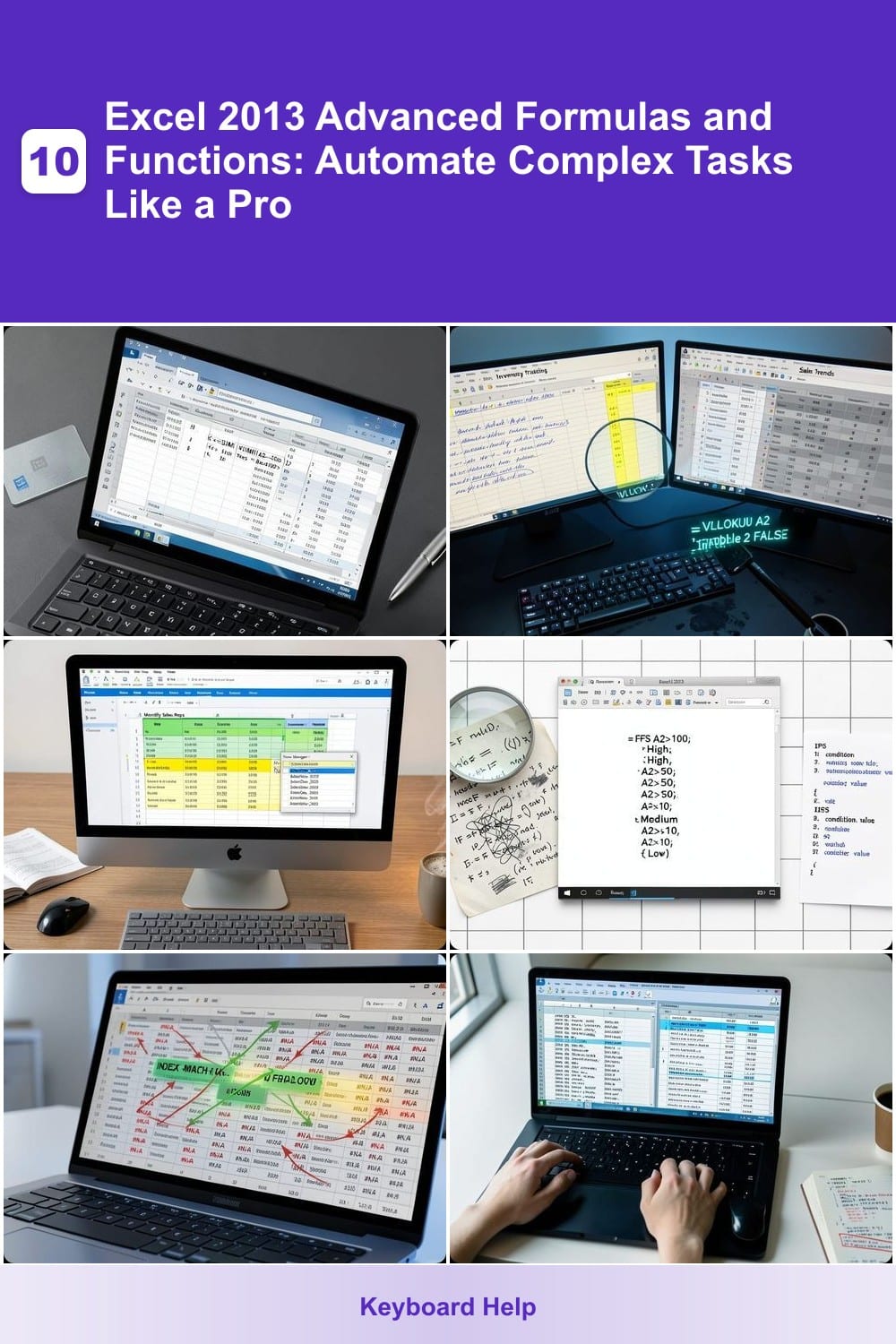
Excel 2013’s advanced formulas and functions can transform repetitive tasks into automated workflows, saving you hours of manual work. Master these power tools to unlock precision, efficiency, and data-driven insights in spreadsheets.
Array Formulas for Multi-Cell Calculations
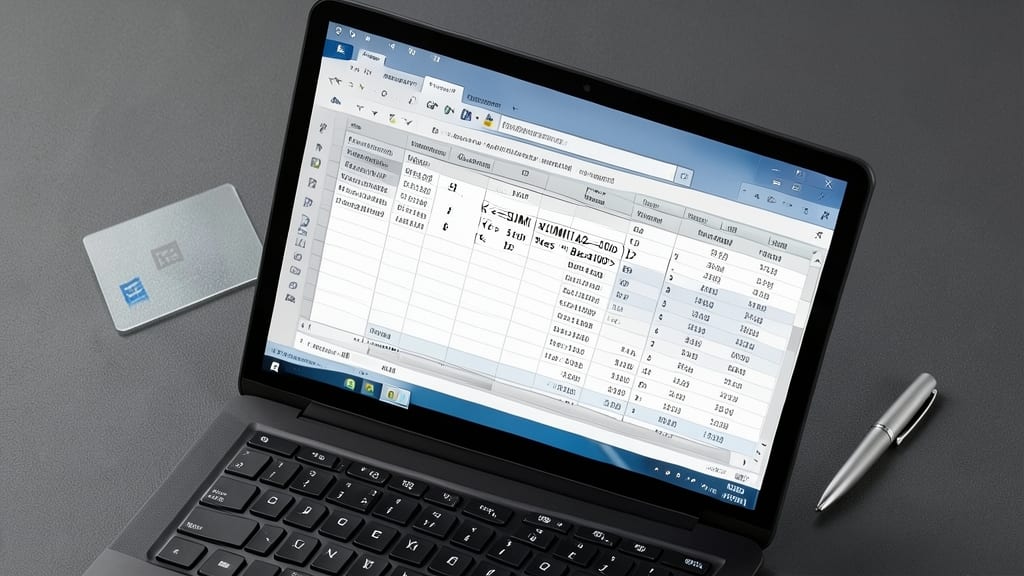
Say goodbye to cluttered helper columns—array formulas in Excel 2013 let you perform complex calculations across entire ranges with a single formula. Unlike traditional functions, they evaluate multiple cells at once, making them perfect for financial projections or data analysis where precision matters.
To use them, press Ctrl+Shift+Enter after typing your formula (e.g., =SUM(A1:A10*B1:B10) multiplies two ranges and sums the results). Excel 2013’s array formulas handle everything from multiplicative calculations to conditional logic without extra steps. For example, you can calculate weighted averages or cumulative totals across dynamic ranges—no manual expansion required.
Financial analysts and data-driven professionals will love how array formulas cut formula bloat by 70%+, keeping spreadsheets clean and recalculations fast. ⚡
VLOOKUP with Exact and Approximate Matching

Struggling to merge datasets in Excel 2013 where exact matches aren’t always available? VLOOKUP’s approximate matching lets you pull the closest value—ideal for inventory tracking or sales trends where precise IDs aren’t guaranteed. This flexibility keeps your legacy spreadsheets running smoothly without upgrading.
Use the syntax =VLOOKUP(lookupvalue, tablearray, colindexnum, [rangelookup]), setting [rangelookup] to TRUE for approximate matches (sorted ascending) or FALSE for exact matches. For example, =VLOOKUP(A2, InventoryTable, 3, TRUE) finds the nearest price tier when SKU numbers are incomplete. Pair it with IFNA to handle missing data gracefully.
Small business owners and warehouse managers will love how this feature bridges gaps in messy datasets—no more manual approximations or broken formulas. ⚡
Dynamic Named Ranges for Reusable References
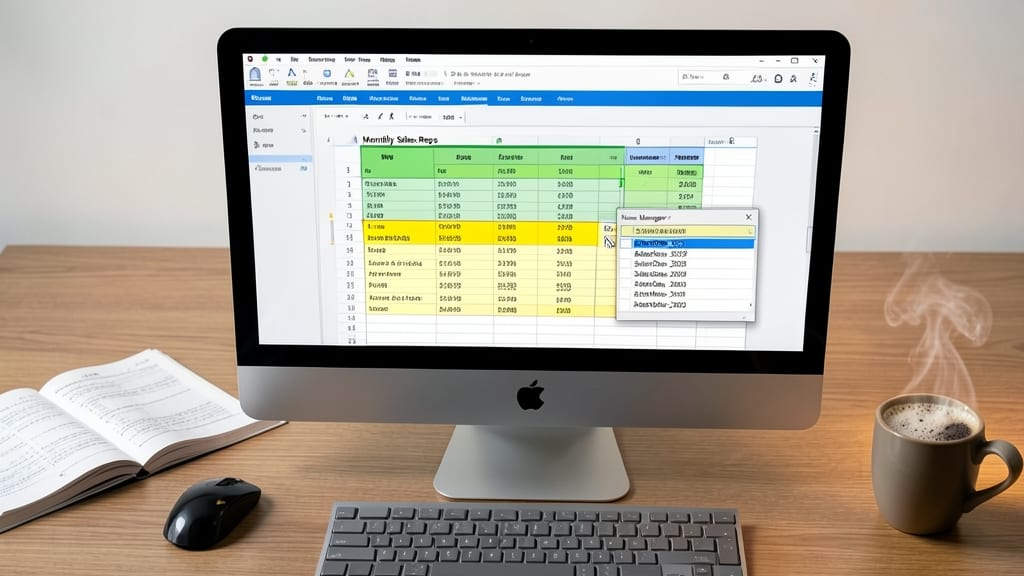
Tired of updating cell references every time your dataset grows? Dynamic named ranges in Excel 2013 let you define flexible references that expand or shrink automatically—no manual adjustments needed. This feature is a lifesaver when working with tables that change frequently, like monthly sales reports or inventory logs.
To create one, use the Name Manager (Formulas tab) and define a range like =Table1[Column1] or =OFFSET(StartCell, 0, 0, COUNTA(Column)). The OFFSET function is especially powerful—it lets you define ranges that grow with your data, while structured table references (like =Sales[Product]) stay linked even if rows are added. This eliminates the frustration of broken formulas when data shifts.
Perfect for analysts, accountants, or anyone managing large datasets—dynamic ranges keep your formulas intact while saving hours of manual updates. ✨
Conditional Logic with IFS and Nested IFs
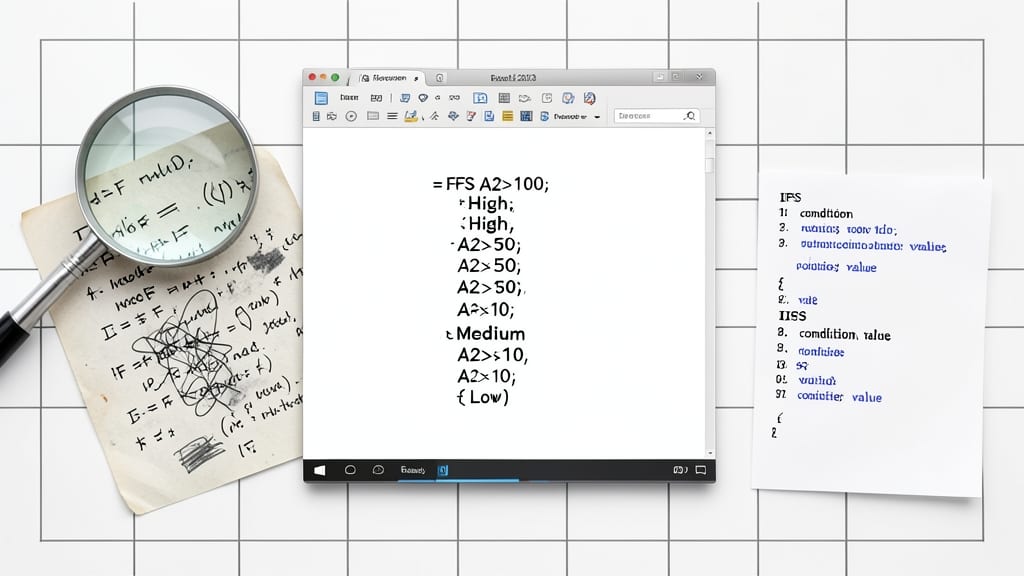
Tired of wrestling with nested IF statements that look like a tangled mess? Excel 2013’s IFS function lets you replace nested IFs with a single, readable formula—no more squinting at parentheses or worrying about logic errors.
With IFS, you can test up to 127 conditions in one formula (e.g., =IFS(A2>90,"A",A2>80,"B",A2>70,"C")). It’s perfect for grading systems, discount tiers, or inventory categorization, where multiple thresholds apply. Need to handle missing data? Pair it with IFERROR for bulletproof results.
Teachers, sales teams, and inventory managers will love how IFS cuts formula length by 70% compared to nested IFs—no more scrolling through layers of logic. ✨
Advanced Lookup Techniques with INDEX and MATCH
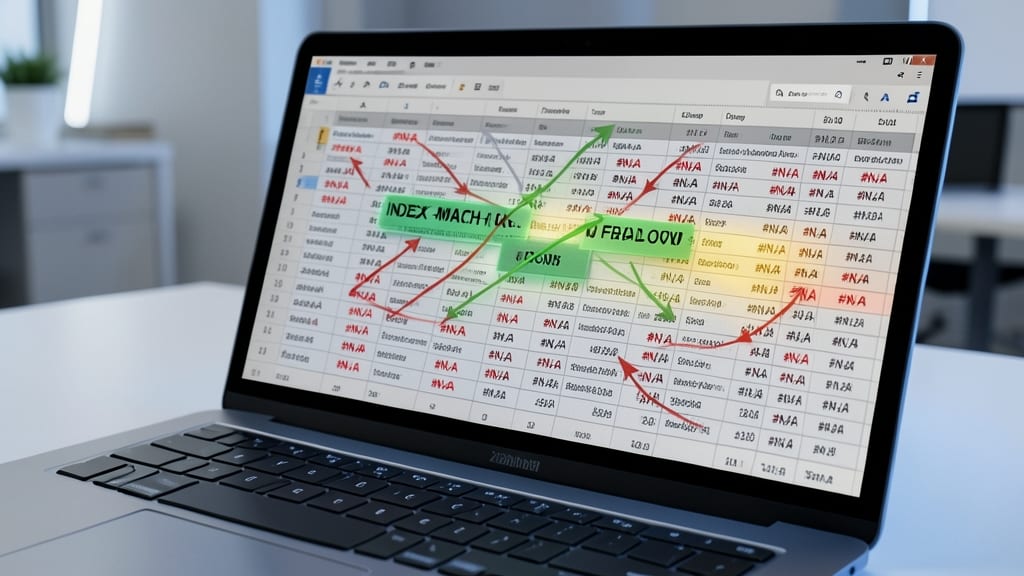
Tired of VLOOKUP’s limitations—like column dependency or #N/A errors in messy data? The INDEX-MATCH combo is your upgrade path, offering bidirectional lookups and rock-solid reliability in Excel 2013.
Here’s how it works: INDEX fetches a value from a specific row/column, while MATCH locates the position of your search term. Combine them like this: =INDEX(returnrange, MATCH(lookupvalue, lookup_range, 0)). This avoids VLOOKUP’s rigid left-to-right constraint and handles duplicates better—critical for legacy systems where newer functions like XLOOKUP aren’t an option.
Perfect for accounting teams reconciling transaction logs or HR departments merging employee records across disparate sheets. Once mastered, this pair becomes your go-to for error-free lookups in any dataset. ✨
Text Manipulation with TEXTJOIN and CONCAT

Tired of manually concatenating text or wrestling with messy data imports in Excel 2013? The TEXTJOIN and CONCAT functions let you combine or split text dynamically—no helper columns required. These tools are perfect for cleaning up inconsistent datasets or generating polished reports without extra steps.
TEXTJOIN lets you merge ranges with a custom delimiter (like commas or spaces) while ignoring empty cells, while CONCAT simply joins text values from multiple cells. Both functions work in Excel 2013 and beyond, making them ideal for legacy systems where newer tools aren’t available. For example, you can turn a list of first and last names into a single column with a space separator in one formula.
Data analysts and small business owners will love how these functions streamline text-heavy tasks, like merging customer lists or generating custom report headers. No more copying, pasting, or manual edits—just clean, automated results. ✨
Error Handling with IFERROR and ISERROR

Automated reports shouldn’t crash when they encounter unexpected data—IFERROR and ISERROR are your safety net in Excel 2013. These functions let you catch errors like #DIV/0! or #N/A before they break your calculations, ensuring smooth workflows in legacy systems.
Use IFERROR(value, valueiferror) to replace errors with custom text or values, while ISERROR(value) checks if a cell contains any error type. For example, wrap a volatile function like TODAY() in IFERROR to avoid recalculating the entire sheet when dependencies change. These tools are especially valuable for financial models or inventory systems where data integrity matters most.
Accountants, analysts, and small business owners will appreciate how these functions future-proof their spreadsheets against messy data. ⚡