
Hardware
Did you know your keyboard's F1-F12 keys hold powerful shortcuts that can transform your workflow? These hidden functions save time, boost productivity, and unlock features you never knew existed—whether you're using Windows, Linux, or productivity software.
F1 Key: Instant Help System Access
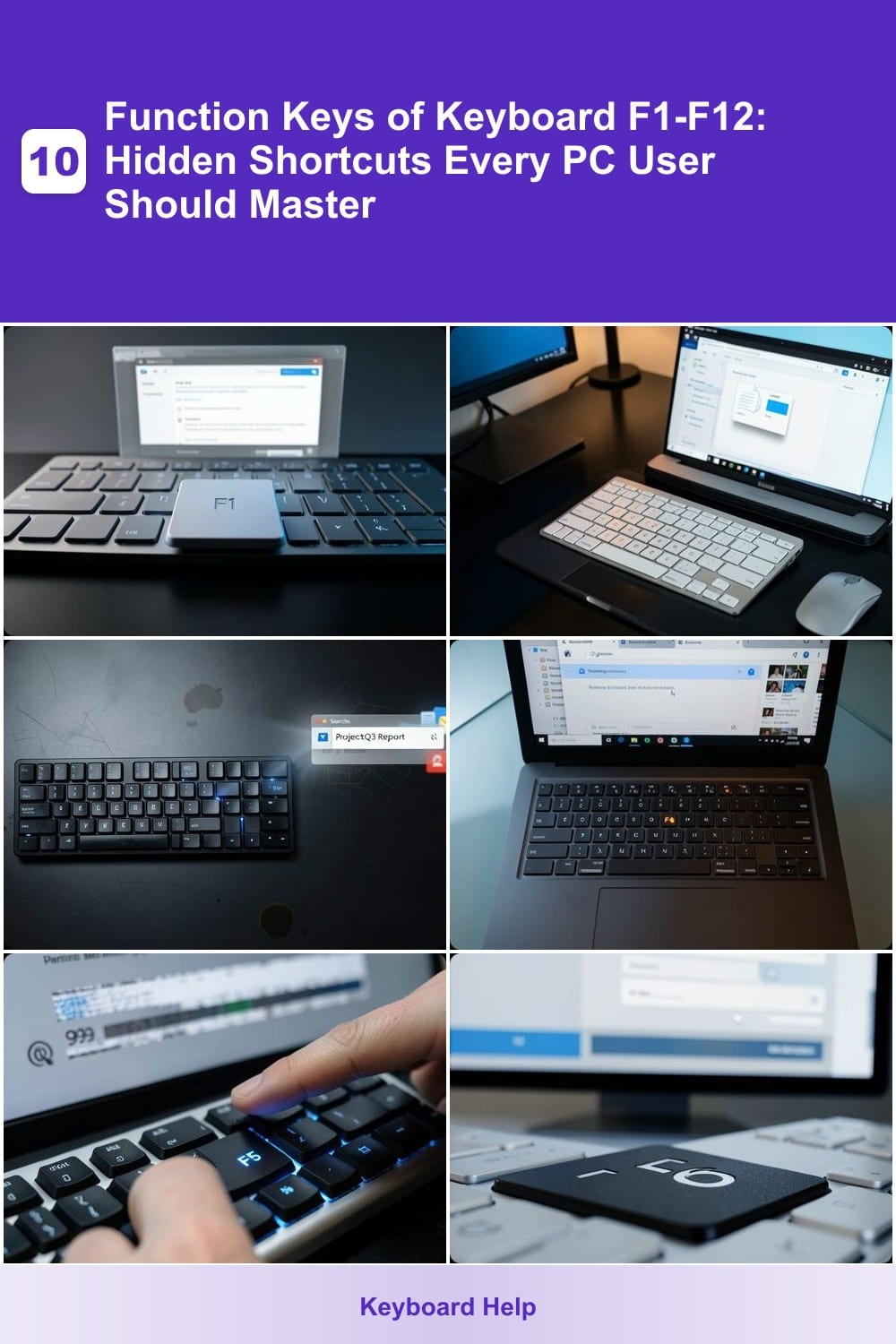
Stuck troubleshooting an error or curious about a new app’s features? The F1 key is your instant lifeline—press it to summon built-in help documentation for almost any application, from Windows itself to complex software like Photoshop or Excel.
This universal shortcut bypasses online searches and opens context-specific guides without leaving your workflow. On Windows, it launches the Help and Support Center, while macOS users get the Mac Help Viewer. Even in games or specialized tools, F1 often triggers in-app tutorials or error explanations—saving you time and frustration.
Perfect for new users learning shortcuts or power users debugging issues, F1 is the one key you’ll reach for daily once you discover its potential. ✨
F2 Key: Rename Files and Folders
Tired of the extra clicks to rename files in Windows? The F2 key is your secret weapon—just press it once to instantly rename any file or folder without navigating menus.
This shortcut works across Windows Explorer, File Explorer, and third-party file managers, letting you edit filenames directly. No need to right-click, hover over "Rename," or waste time scrolling—just type and hit Enter to save. It’s especially useful when organizing photos, documents, or project files where batch renaming would otherwise be tedious.
Perfect for content creators, developers, and office workers who juggle multiple files daily. Master this one and watch your workflow speed up dramatically. ⚡
F3 Key: Search Files and Applications

Tired of digging through folders to find that one document? The F3 key is your secret weapon for instant file and app searches in Windows.
Pressing F3 instantly opens the Windows Search bar, letting you type queries to locate files, emails, or programs without navigating menus. It works across File Explorer, the Start Menu, and even some third-party apps like Outlook. No more clicking through endless directories—just type, and Windows delivers results in seconds.
Perfect for busy professionals or anyone juggling multiple projects, this shortcut saves minutes daily. Try it next time you’re hunting for a file! ⚡
F4 Key: Address Bar or Command Prompt
Tired of clicking through menus to reach the address bar? The F4 key is your secret weapon for instant navigation—whether you're browsing the web or managing files. In most browsers, it highlights the URL bar so you can type a new address without lifting your hands from the keyboard, while in File Explorer, it opens the address bar for quick navigation between folders.
But here’s the power-user twist: F4 also triggers the command prompt in applications like Notepad or older Windows versions, letting you execute commands directly. This makes it invaluable for developers or anyone who frequently jumps between typing URLs and running scripts. The key’s versatility shines when you combine it with other shortcuts, like Ctrl+F4 to close tabs or windows.
Perfect for web developers, sysadmins, and power users who want to streamline workflows. Give it a try—you’ll wonder how you ever lived without it! ⚡
F5 Key: Refresh Web Pages and Data

Stuck on a stubborn web page that won’t load? The F5 key is your instant refresh button—universal across browsers and operating systems to reload content, clear caches, or reset forms in one tap.
Pressing F5 triggers a hard refresh (bypassing cached data), while holding Ctrl+F5 (Windows) or Cmd+Shift+R (Mac) forces a full cache bypass. It also resets form inputs in applications like Google Docs or CRM tools, saving you from manual re-entry when troubleshooting connectivity hiccups.
Developers, customer support reps, and casual users all rely on this shortcut to debug issues faster. Try it next time a page freezes—no more waiting for the spinner to disappear! ⚡
F6 Key: Cycle Through Screen Elements

Tired of tabbing through every field in a long form? The F6 key is your secret weapon for zero-config navigation between address bars, search boxes, and form fields—no mouse required.
Pressing F6 cycles focus automatically through all interactive elements on a webpage or in applications like Chrome, Firefox, or Adobe Acrobat. Need to fill out a multi-step registration form? Instead of clicking each field, just hit F6 repeatedly to jump straight to the next input. It even works in Windows File Explorer to navigate between address bars and folder panes.
Perfect for data entry professionals, developers testing forms, or anyone frustrated by repetitive clicking. Master this shortcut, and you’ll breeze through forms in seconds. ✨
F7 Key: Spell Check in Microsoft Office
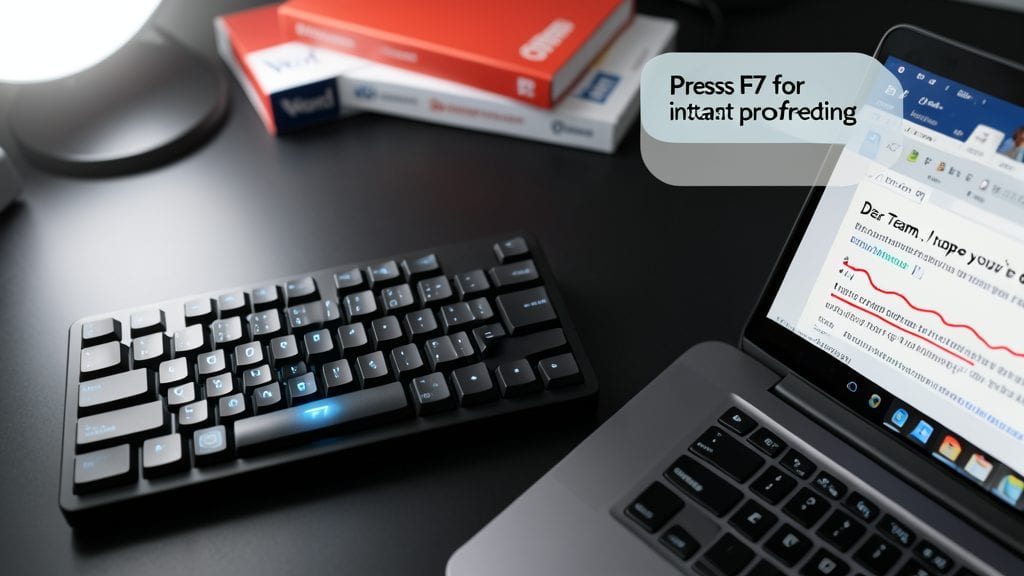
Tired of sending emails or documents with embarrassing typos? The F7 key is your secret weapon for instant spell-checking in Microsoft Office—no more waiting for the review menu or clicking through ribbons.
Pressing F7 triggers a full proofread in Word, Outlook, PowerPoint, and Excel, flagging spelling, grammar, and even contextual errors in real time. It’s especially useful for last-minute checks before hitting Send or printing—just one tap saves minutes of manual review. Works across Windows and Mac versions of Office, so you’re covered no matter your setup.
Perfect for professionals, students, and anyone who writes emails or reports, this shortcut turns a potential embarrassment into a polished document with zero effort. ⚡
F8 Key: Boot Menu and Safe Mode

When your PC refuses to boot normally, F8 becomes your secret weapon. Pressing it repeatedly during startup unlocks the Windows Boot Menu, giving you control over how your system loads—whether you need to troubleshoot a failed update, test hardware, or access Safe Mode for diagnostics.
This key triggers a menu with options like Safe Mode, Last Known Good Configuration, or Command Prompt—tools that can revive a frozen system or help remove malware. On older PCs, it also lets you select a different boot device (e.g., USB or DVD drive) without diving into BIOS settings. Just hold it down before Windows starts loading.
IT professionals and gamers rely on F8 most, but even casual users will appreciate it when a system crash leaves them stranded. No more rebooting blindly—this one key puts you back in control. 💻
F11 Key: Full-Screen Mode Toggle
Need to watch a video or give a presentation without distractions? The F11 key is your secret weapon for instant full-screen mode in browsers. With a single tap, you eliminate toolbars, tabs, and ads—maximizing your viewing area for movies, gaming, or work.
Works universally across Chrome, Firefox, Edge, and Safari, and even toggles full-screen in some media players. No need to hunt for the tiny icon in the top-right corner—just press F11 and enjoy a distraction-free experience. It also works in reverse, exiting full-screen just as quickly.
Perfect for casual users watching YouTube, professionals delivering slideshows, or gamers who want to avoid accidental clicks. ⚡
F12 Key: Developer Tools and Save As
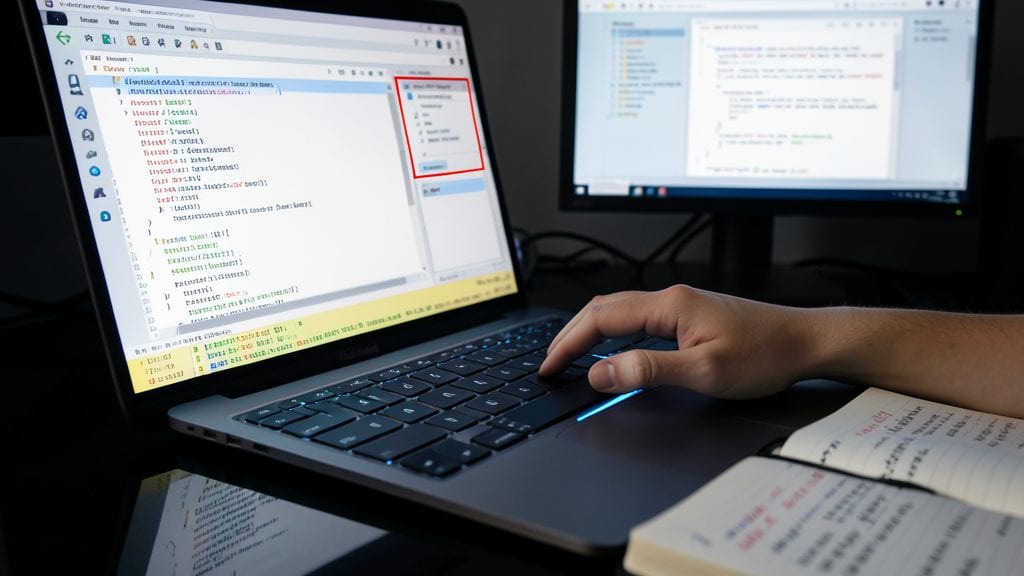
Stuck debugging a stubborn CSS issue or need to save a web page for later? The F12 key is your secret weapon—it’s the fastest way to open browser developer tools in Chrome, Firefox, Edge, and Safari, giving you instant access to inspect elements, debug JavaScript, and tweak styles on the fly.
Beyond coding, some applications (like Notion or Evernote) use F12 to save web pages as drafts—perfect for content creators who want to preserve articles for offline reading or research. In Windows, it can also trigger the "Save As" dialog in certain programs, streamlining your workflow without extra clicks.
Web developers and digital creators will love this shortcut for its speed and versatility, while casual users might discover it’s a hidden gem for quick page saves. ⚡