
Tip & Trick
Mastering Microsoft 365 Word can transform how you create, edit, and share documents. These seven proven tips and tricks will help you work faster, organize better, and leverage hidden features most users overlook—perfect for professionals and students alike.
Quick Parts Gallery for Reusable Content
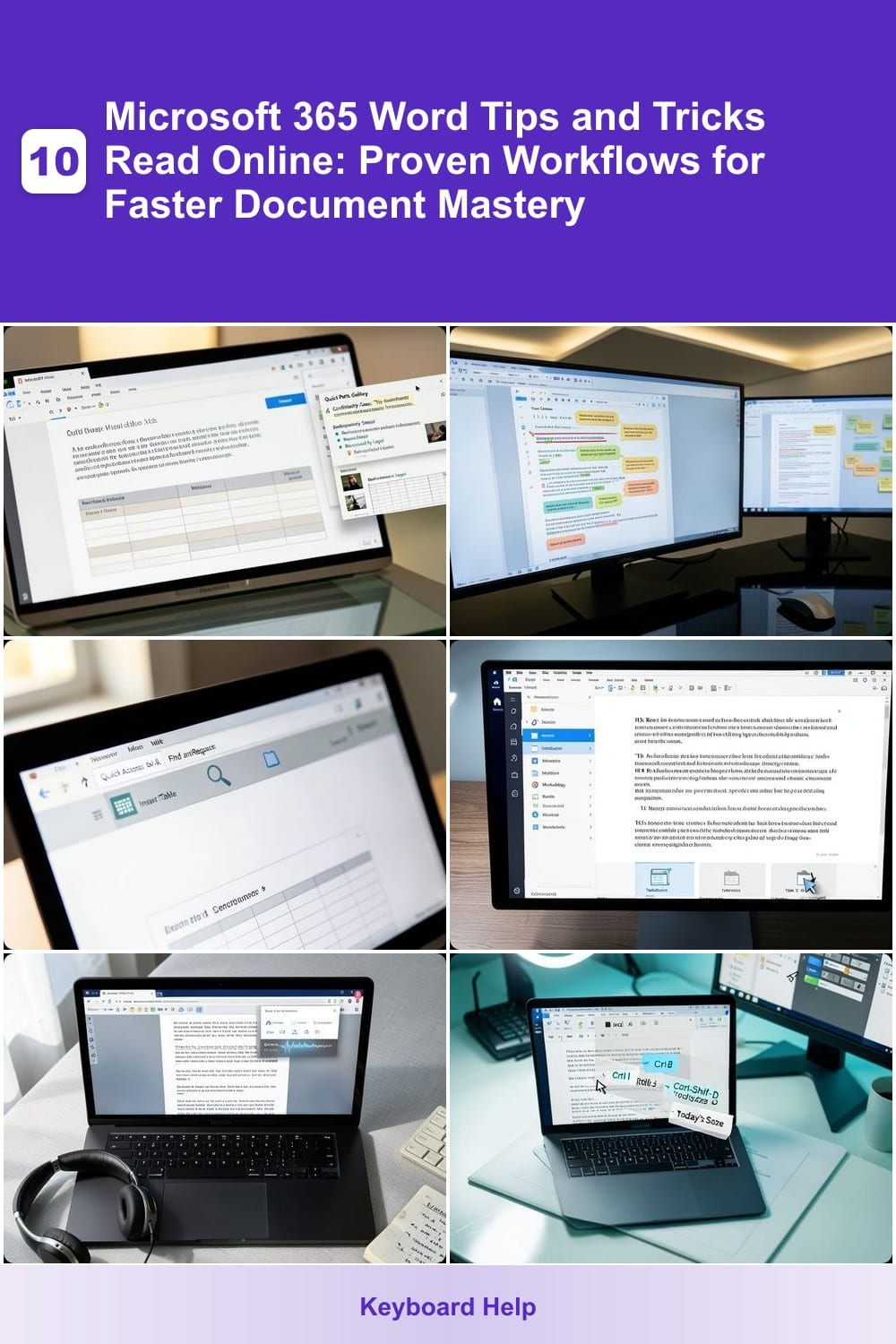
Tired of retyping the same disclaimers, legal clauses, or formatted tables every time you start a new document? Microsoft Word’s Quick Parts Gallery lets you save and reuse content with just a few clicks, turning repetitive tasks into one-click insertions.
To get started, highlight the text, table, or graphic you want to reuse, then navigate to Insert > Quick Parts > Save Selection to Quick Parts Gallery. Name it (e.g., "Confidential Notice" or "Project Timeline") and categorize it for easy retrieval later. Once saved, access your snippets via the Quick Parts dropdown in the Insert tab—no more hunting through old files or recreating layouts from scratch.
This feature is a game-changer for legal professionals, academics, or anyone drafting reports with standardized sections. Spend less time formatting and more time focusing on the content that matters. ✨
Track Changes with Comments and Highlights
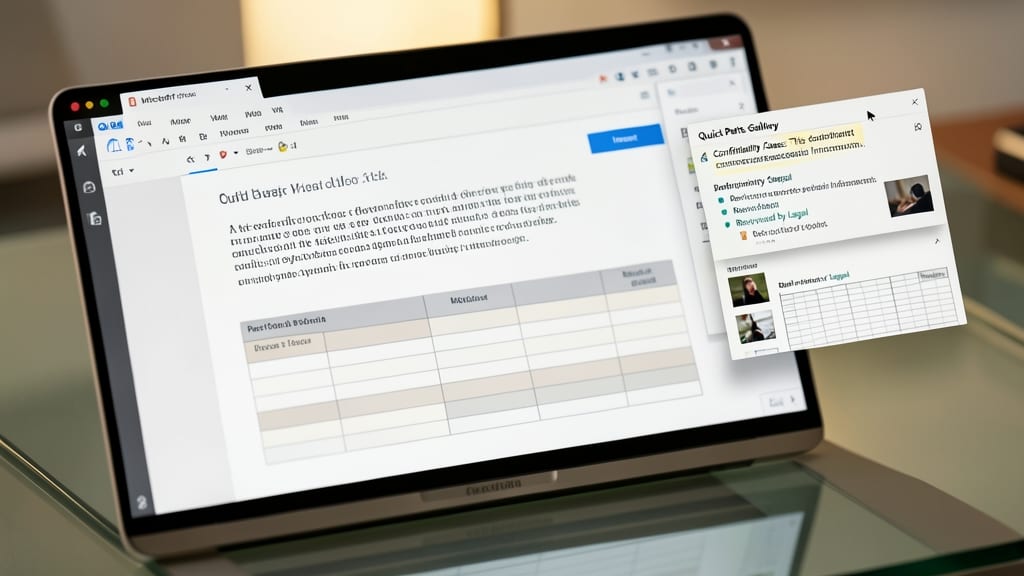
Collaborative editing just got smarter with Track Changes—but most users miss the real power hidden in comments and conditional formatting. While basic track changes mark edits, these tools let you annotate feedback directly in the document and visually flag sections needing attention.
Use comments to leave detailed feedback without cluttering the main text—perfect for explaining revisions or asking questions. Pair this with conditional formatting highlights (like yellow or blue shading) to instantly mark sections for review, making it crystal clear what needs action. The Review tab in Word gives you all the tools in one place, so you can toggle between changes, comments, and highlights effortlessly.
This combo is a game-changer for legal teams, academic writers, or any group working on shared documents. Skip the back-and-forth emails and keep everything organized in one place. ✨
Customize Quick Access Toolbar for Speed
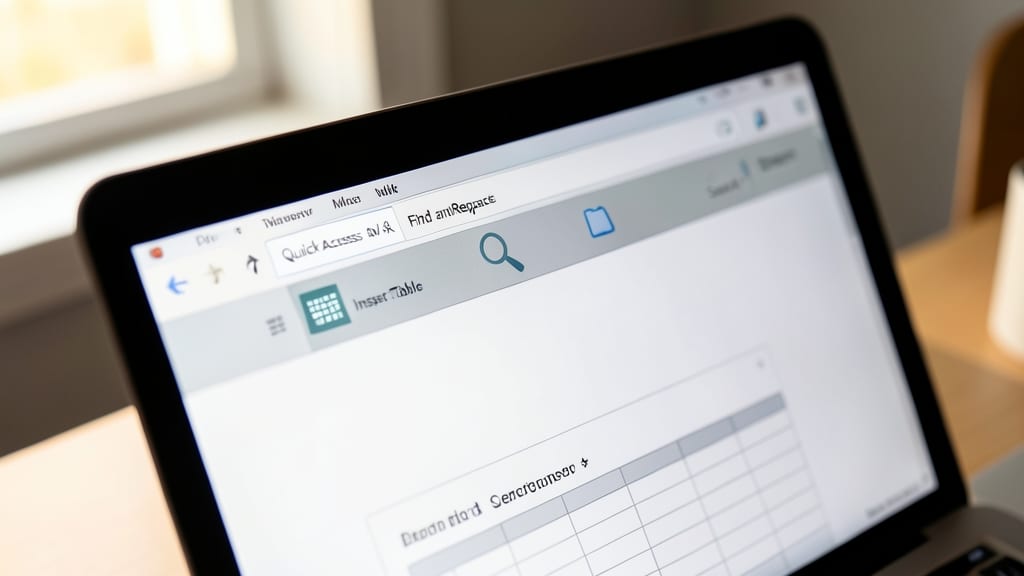
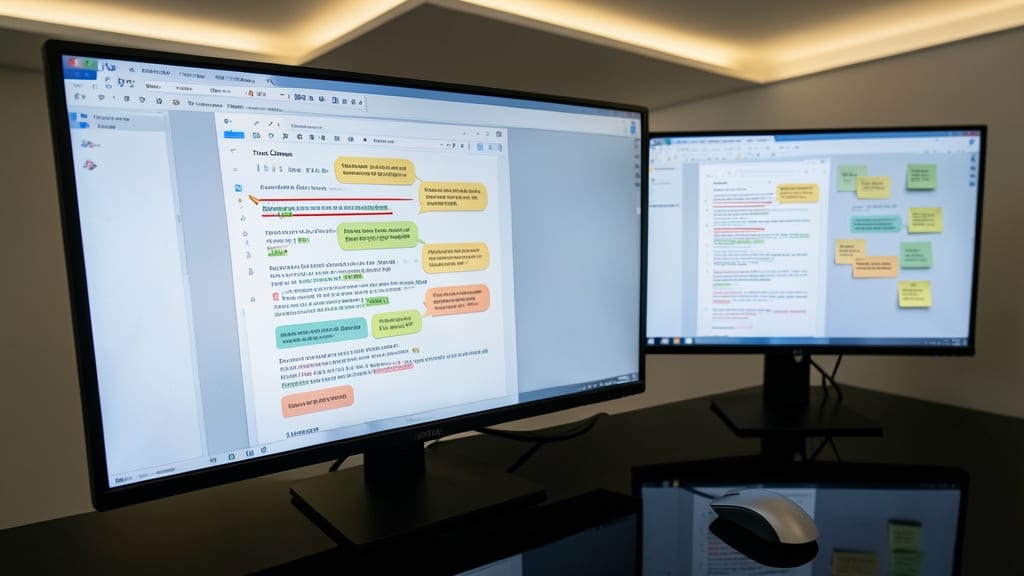
Tired of hunting through menus for commands like Insert Table or Find and Replace? The Quick Access Toolbar lets you drag and drop your most-used tools right to the top of the screen—cutting navigation time to seconds.
Right-click the toolbar to customize it, then add commands like Save As, Undo, or even Macros for instant access. Pro tip: Pin frequently used tabs (e.g., Review or Home) to avoid switching ribbons mid-task. This setup turns repetitive workflows into one-click actions, ideal for legal drafts or data-heavy reports.
Perfect for power users who spend hours in Word daily—this tweak turns your toolbar into a personal productivity hub. ✨
Use Navigation Pane for Large Documents
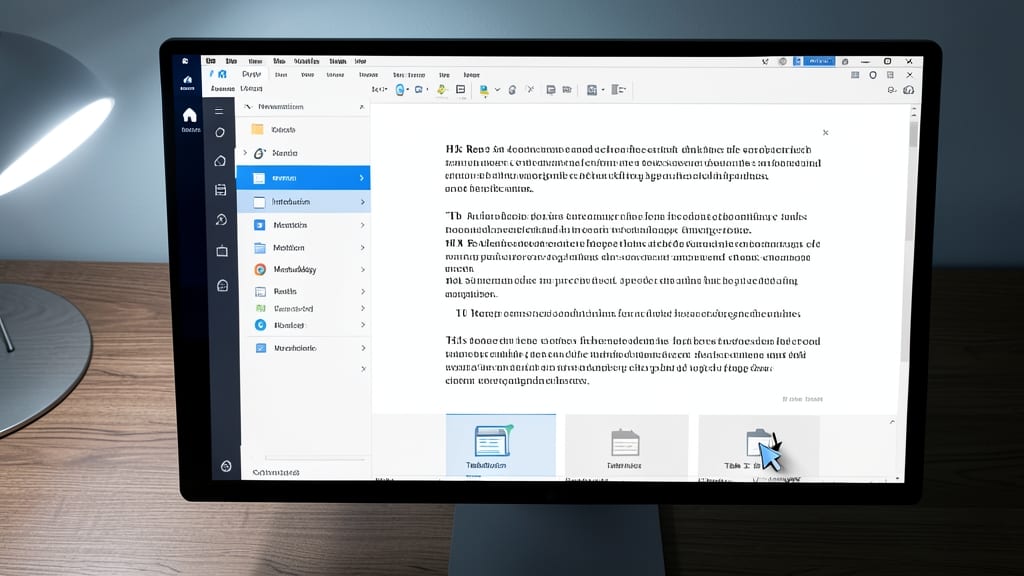
Tired of losing your place in 50-page documents or struggling to find that one critical section? The Navigation Pane in Microsoft 365 Word acts like a built-in table of contents, letting you instantly jump to headings, pages, or even specific tables—no more endless scrolling.
Enable it with View > Navigation Pane (or press Ctrl+F) to reveal a three-tab interface: Headings, Pages, and Results. Click any heading to teleport there instantly, or use the Pages tab to navigate by page number—ideal for legal briefs, research papers, or technical manuals. You can even search for keywords across your entire document using the Results tab.
This feature is a lifesaver for anyone working with multi-section documents, especially writers who need to cross-reference content or editors reviewing lengthy reports. Try it next time you’re drowning in a document—your sanity will thank you. ✨
Convert Text to Speech for Proofreading
Struggling to spot typos or awkward phrasing in your writing? Microsoft Word’s built-in text-to-speech (TTS) reader lets you listen to your document aloud, revealing errors your eyes might miss—especially useful for non-native English speakers or those who process information better aurally.
To enable it, simply navigate to Review > Dictate (or Home > Read Aloud in newer versions) and select your preferred voice (including natural-sounding neural voices). Adjust the speed to 120-150 words per minute for clarity, then let Word read your text while you follow along. This feature works offline and syncs with OneDrive for cloud-based documents.
Ideal for students, ESL learners, or professionals revising reports, this trick turns passive reading into an active proofreading session. Give it a try—your ears might catch what your eyes skipped! ✨
Master Keyboard Shortcuts for Efficiency
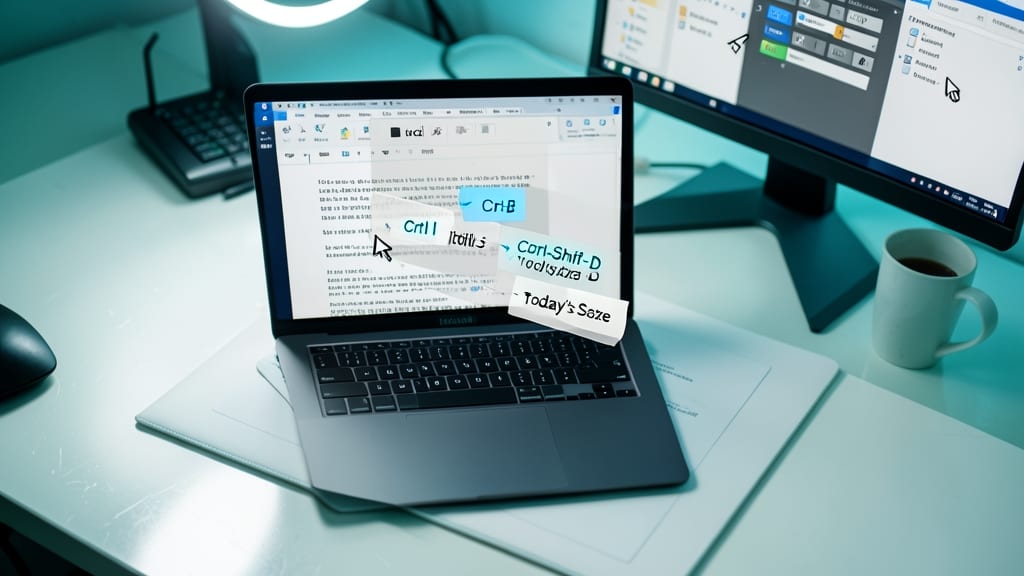
Tired of breaking your workflow to hunt for formatting tools or dates? Microsoft 365 Word’s keyboard shortcuts can cut your editing time in half—no mouse required. These underused combos let you format text, insert dates, or navigate menus with just a few keystrokes, keeping your focus where it belongs: on your content.
Try Ctrl+Shift+F to toggle formatting marks (like tabs and spaces) on/off instantly, or Alt+Shift+D to auto-insert today’s date—no manual typing needed. For power users, Ctrl+F3 cycles through selected text in a document, while Ctrl+Shift+P applies paragraph formatting with one press. These shortcuts work seamlessly across Windows and Mac, and most require zero setup—just memorize and go.
Perfect for writers, students, or professionals drafting long documents, these shortcuts turn repetitive tasks into effortless habits. Once mastered, you’ll wonder how you ever worked without them. ⚡
Collaborate with Real-Time Co-Authoring

Imagine working on a project with your team—without the back-and-forth emails or version confusion. Microsoft 365 Word’s real-time co-authoring lets multiple users edit the same document simultaneously, with live cursor tracking and instant change visibility.
Open any Word document in your browser, share the link, and watch as colleagues’ edits appear in real time. You’ll see color-coded avatars for each contributor, live typing indicators, and even conflict resolution tools to merge changes seamlessly. Perfect for brainstorming sessions or last-minute group projects, this feature works across Windows, Mac, and mobile—no plugins required.
Remote teams, student groups, and busy professionals will love this zero-config collaboration tool. Just share the link, and start editing together—no more "finalfinalv3.docx" chaos. ✨