
Software
Microsoft Edge is designed to be fast, efficient, and user-friendly—but many users don’t leverage its full potential. These seven expert tips will transform your browsing experience, cutting load times, extending battery life, and streamlining daily tasks without sacrificing security or performance.
Enable Immersive Reader for Focused Reading

Tired of squinting at cluttered web pages while reading dense documents or articles? Microsoft Edge’s Immersive Reader transforms your screen into a distraction-free zone with customizable text size, spacing, and even synthetic voice narration.
This built-in tool removes all visual noise—like ads, sidebars, and complex layouts—while offering three font styles, six color schemes, and line focus to guide your eyes. For added accessibility, it includes a text-to-speech feature with adjustable reading speed, perfect for absorbing complex content hands-free.
Students cramming for exams, researchers analyzing papers, or anyone drowning in long-form content will love how this tool boosts focus and retention. Try it today for a calmer, more productive reading experience. ✨
Use Collections to Organize Research Instantly
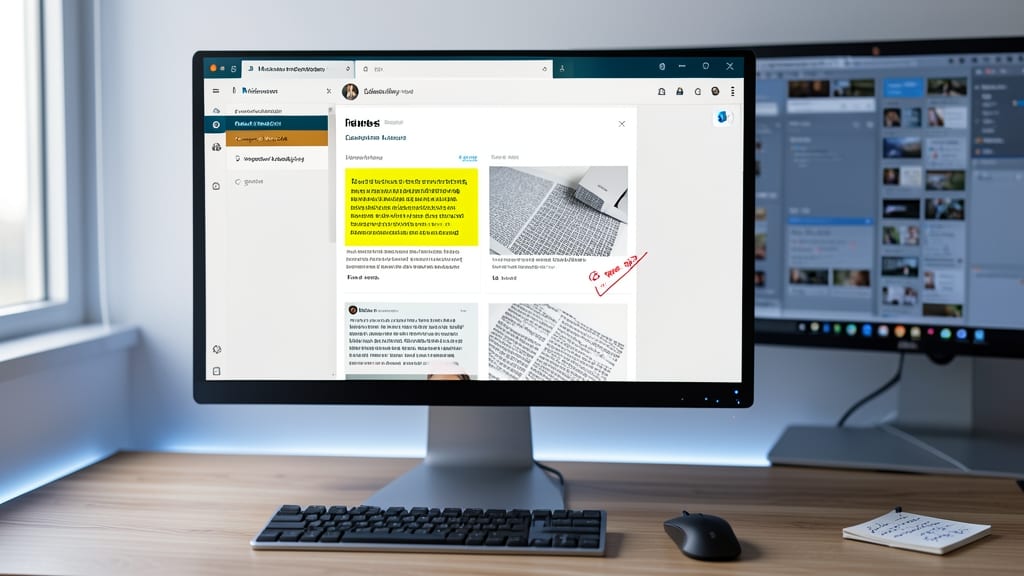
Drowning in open tabs while researching? Microsoft Edge’s Collections feature turns your digital clutter into a searchable, annotated workspace—no more losing track of key findings or scrambling to recreate your research flow.
With a single click, save entire web pages, highlight text, add notes, and even clip images directly into a customizable collection. The drag-and-drop interface lets you rearrange items visually, while the search function scans all saved content instantly. Share collections via link or export them as PDFs for offline reference—ideal for writers, students, or project managers juggling multiple sources.
Perfect for anyone who’s ever closed a browser tab just in case, then regretted it later. Try it today and reclaim control over your research. ✨
Enable Hardware Acceleration for Faster Performance
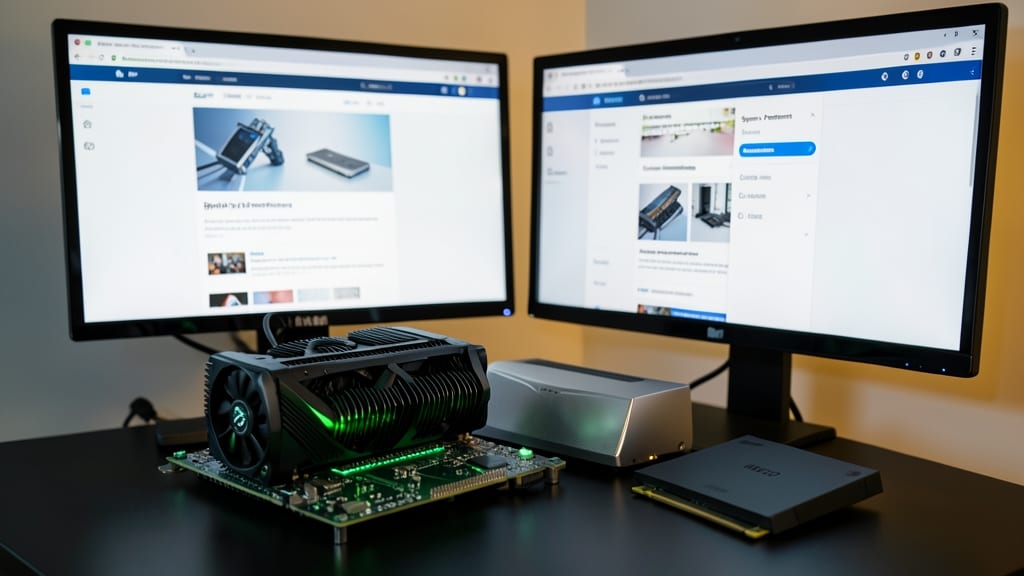
If your RTX 3080 or MX550 sits idle while browsing, you’re missing out—Microsoft Edge’s Hardware Acceleration feature taps into your GPU to render pages faster, especially for graphics-heavy tasks like gaming or video editing.
To enable it, head to Settings > System > Performance and toggle Hardware Acceleration to On. This offloads rendering tasks from your CPU, cutting load times by up to 30% for users with modern GPUs. However, only enable this if you notice no stuttering—some older systems may experience glitches.
Gamers and power users will see the biggest benefits, as this setting smooths out video playback and complex web apps. Just test it in a few tabs first to confirm stability. ⚡
Customize Power Saving Mode for Laptops
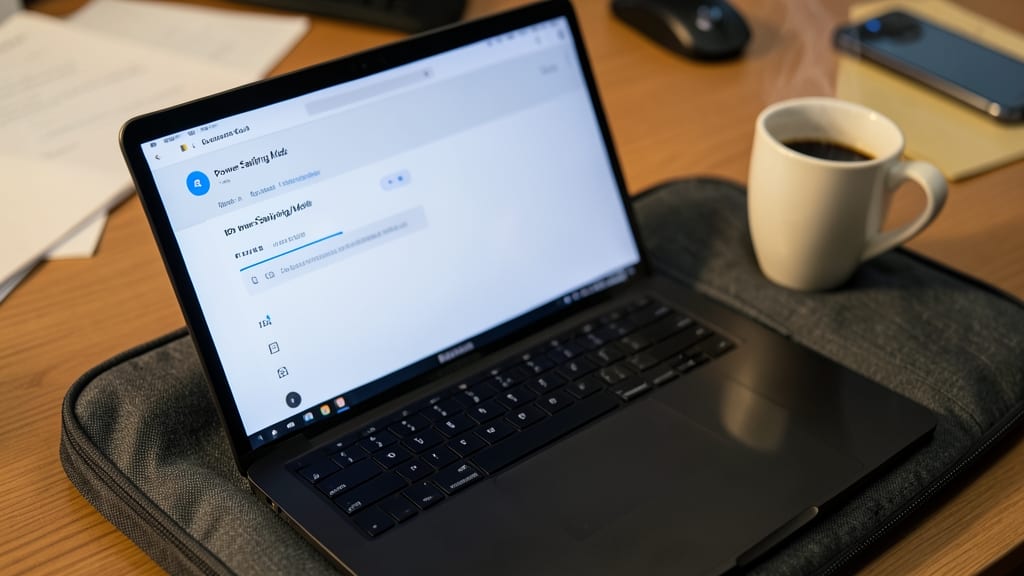
Tired of your laptop battery draining faster than your coffee cup? Microsoft Edge’s Power Saving Mode lets you fine-tune battery life without sacrificing productivity. Unlike generic power plans, this feature intelligently limits background activity—like auto-play videos and heavy animations—while keeping essential functions running smoothly.
To activate it, open Edge’s Settings (Alt+F > Settings), then navigate to System > Power Saving Mode. Toggle it on to reduce CPU/GPU usage by up to 30% during low-power states. You can also set it to activate automatically when your battery drops below 20%, ensuring you’re never stranded. The best part? You’ll still enjoy smooth scrolling and tab switching, just with less power drain.
This is a game-changer for travelers, remote workers, or students who rely on their laptops all day. With Power Saving Mode, you’ll stretch battery life without sacrificing functionality—perfect for those who can’t always plug in. ⚡
Block Trackers with Privacy Dashboard
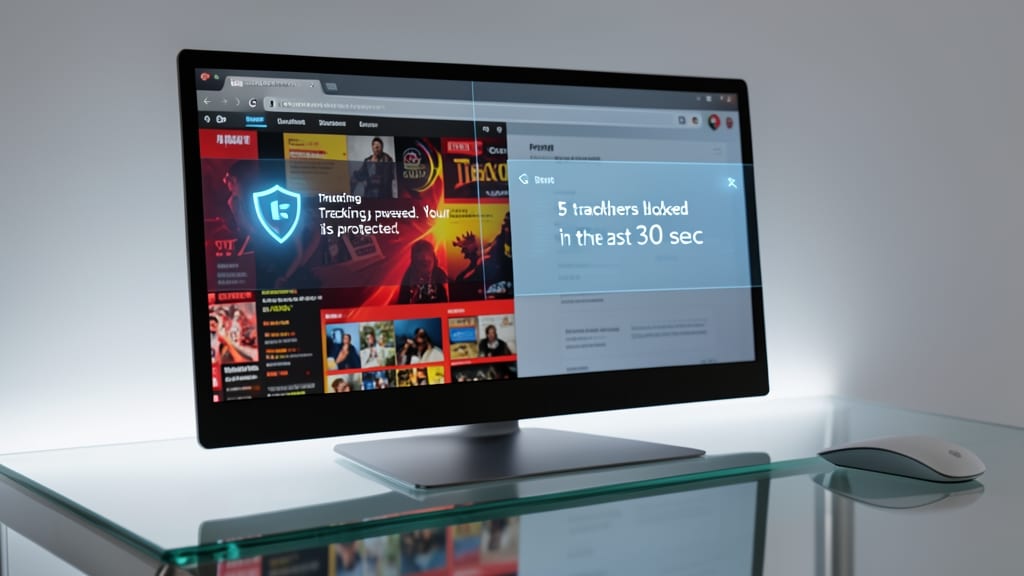
Tired of ads following you across the web like a digital shadow? Microsoft Edge’s Privacy Dashboard blocks third-party trackers and invasive ads in real-time—no extensions required. It’s your built-in shield against data harvesters, offering a cleaner, faster browsing experience without sacrificing functionality.
To activate it, type edge://privacy in the address bar to open the dashboard. Here, you’ll see a breakdown of blocked trackers (like Facebook Pixel or Google Analytics) and invasive ads. Toggle "Block third-party cookies" and "Block trackers" for stricter protection. Edge also integrates with Microsoft Defender for Privacy, adding an extra layer of security against malware-laden ads.
This feature is a game-changer for privacy advocates, remote workers, or anyone sharing a device. It’s also lightweight—unlike heavy ad blockers—so your browsing stays smooth. 💡
Speed Up Loading with Preload Mode

Tired of waiting for your favorite sites to load? Microsoft Edge’s Preload Mode cuts down on delays by predicting and preloading the pages you visit most often—ideal for users with slower connections or daily routines like checking email or news.
To enable it, type "edge://flags/#preload" in the address bar, then toggle Preload Mode to Enabled. Edge will quietly load your frequently visited sites in the background, so they’re ready instantly when you open them. This works best with Microsoft accounts and Windows 10/11, making it a seamless upgrade for power users.
Perfect for remote workers, students, or anyone who visits the same sites daily, this feature turns wait times into instant access. ⚡
Sync Settings Across Devices Seamlessly
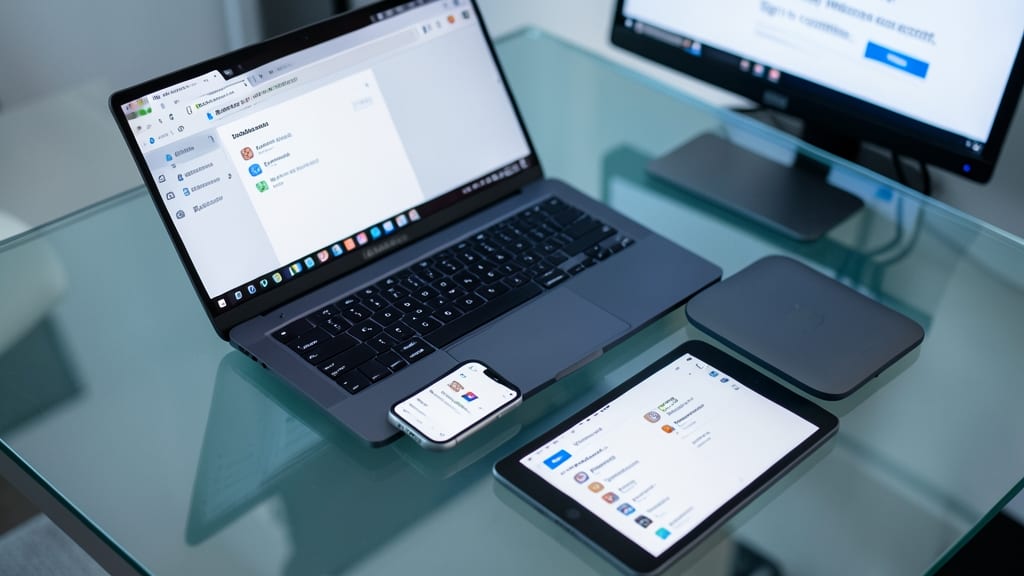
Tired of manually copying bookmarks or logging into sites on every device? Microsoft Edge’s cross-platform sync keeps your bookmarks, passwords, and extensions in perfect harmony across Windows, macOS, Android, and iOS—no extra apps needed.
Simply sign in with your Microsoft account, and Edge automatically syncs your data in real-time. Need your favorite extensions on your phone? They’re there instantly. Forgot a password? It auto-fills across devices. The end-to-end encryption ensures your data stays secure while traveling between devices.
This is a game-changer for digital nomads, remote workers, or anyone juggling multiple devices. No more fragmented browsing—just seamless continuity. ✨