
Hardware
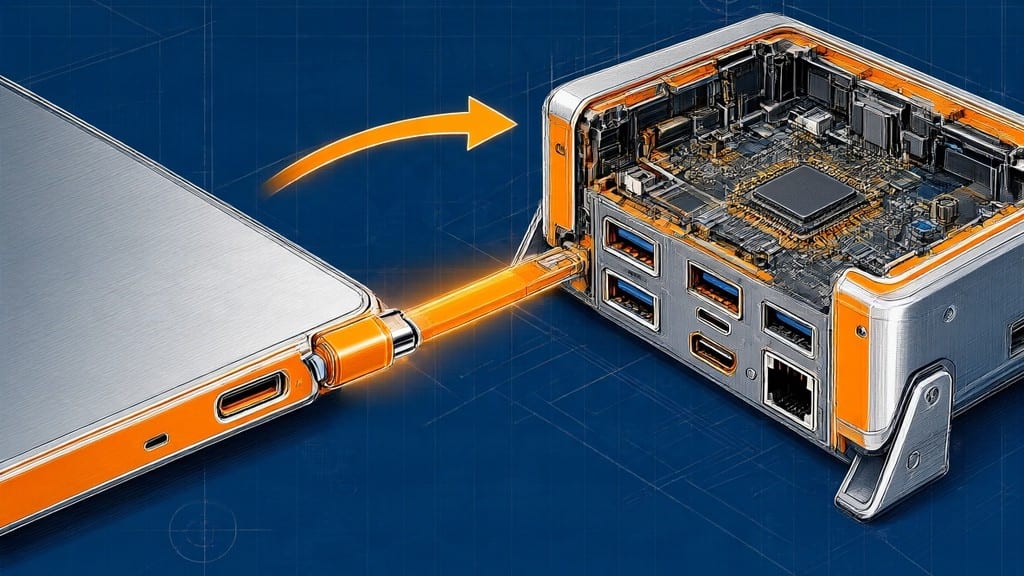
The Microsoft Surface Pro 8 includes one USB-C port with Thunderbolt 4 support and USB 3.2 Gen 2 (10Gbps), replacing the older USB-A ports found on previous models. This single port handles charging, data transfer, and video output, requiring adapters for legacy USB devices. Microsoft also offers optional USB hubs to expand connectivity.
The Surface Pro 8’s single USB-C port packs a punch with Thunderbolt 4 capabilities, letting you transfer files at 40Gbps while powering dual 4K monitors—something older USB versions couldn’t handle.
I’ve found this especially useful for video editing or running multiple displays without lag, though you’ll need a USB-C to HDMI adapter for older setups.
Microsoft’s official hubs (like the Surface Dock) add four USB-A ports, but third-party options can be more budget-friendly if you’re not using all the Pro’s features.
What’s clever is how this port handles everything—charging, data, and video—without sacrificing speed. That said, if you’re used to plugging in multiple devices at once, you’ll quickly learn to prioritize your essentials or invest in a good hub.
For me, the trade-off is worth it for the sleek design and future-proofing, but I always keep a USB-A adapter in my bag for emergencies.
Microsoft’s decision to streamline ports reflects modern laptop trends, but it does mean carrying a few extra adapters if you’re not fully in the USB-C ecosystem. The good news? Most modern peripherals (like keyboards or mice) now use USB-C, so the shift feels less jarring than it used to.
Still, if you’re a power user, a multi-port hub with USB-A might be your best friend.
💡 In This Article
- Surface Pro 8’s USB-C Port: Thunderbolt 4 Features and Speed
- Expanding Surface Pro 8 Connectivity with USB Hubs and Adapters
Surface Pro 8’s USB-c port: Thunderbolt 4 features and speed
The Surface Pro 8’s single USB-C port isn’t just another fast connection—it’s a powerhouse thanks to Thunderbolt 4 technology, which combines USB 3.2 Gen 2 (10Gbps) with PCIe 3.0 lanes for data transfer speeds up to 40Gbps.
This means you can transfer a 1-hour 4K video (about 17GB) in roughly 10 seconds—four times faster than USB 3.2 Gen 2 alone. The key difference lies in Thunderbolt’s ability to use PCIe lanes for data transfer, while USB 3.2 relies solely on USB protocols.
This port also supports power delivery up to 100W, enough to charge your Surface Pro 8 fully in about 2.5 hours while simultaneously powering external devices like monitors or hard drives.
For video output, Thunderbolt 4 can drive two 4K displays at 60Hz simultaneously, or even a single 8K display at 60Hz. That’s a game-changer for designers or video editors who need multiple high-resolution screens without performance drops.
Compare this to USB 3.2 Gen 2, which maxes out at 60W power delivery and can only handle one 4K display at 60Hz.
Here’s where it gets practical: if you’re connecting older USB devices (like a USB 2.0 flash drive or USB-A printer), you’ll need adapters since the Surface Pro 8 dropped traditional USB-A ports.
Microsoft’s official USB-C to USB-A adapter works, but it’s limited to USB 2.0 speeds (480Mbps)—not ideal for high-speed transfers. For legacy devices, a USB hub with built-in USB 3.2 ports is the better solution, though it may require an external power source for stability.
What most users don’t realize is how Thunderbolt 4’s daisy-chaining works—you can connect up to six devices in a chain (like a monitor, hard drive, and dock) without losing speed or reliability. This is thanks to Thunderbolt’s ability to handle multiple data paths simultaneously.
For example, you could stream a 4K video from an external SSD while charging your tablet and displaying content on two monitors—all from that single port. The trade-off? You’ll need compatible Thunderbolt devices to unlock these features fully.
Microsoft’s design choice here reflects industry trends toward single-port efficiency, but it does require users to adapt. If you’re used to plugging in multiple USB-A devices at once, the Surface Pro 8’s port consolidation might feel restrictive at first.
However, the performance gains—especially for power users—make it a worthwhile upgrade. For instance, my Surface Dock (which adds four USB-A ports) turns this limitation into a non-issue for my workflow, but it’s an extra $150 investment.
One final tip: if you’re buying adapters or hubs, prioritize Thunderbolt 4-certified devices to avoid speed bottlenecks. A non-certified hub might advertise USB 4 speeds but still throttle performance.
For example, the CalDigit TS4 hub delivers full Thunderbolt 4 speeds, while cheaper alternatives might drop to USB 3.2 limits. Always check the specs before purchasing!