
Tip & Trick
Microsoft Teams is a powerhouse for collaboration—but most users only scratch the surface. These 10 underutilized tips and tricks for 2023 will transform how you manage meetings, organize files, and streamline workflows like a productivity pro.
Master Keyboard Shortcuts for Instant Actions
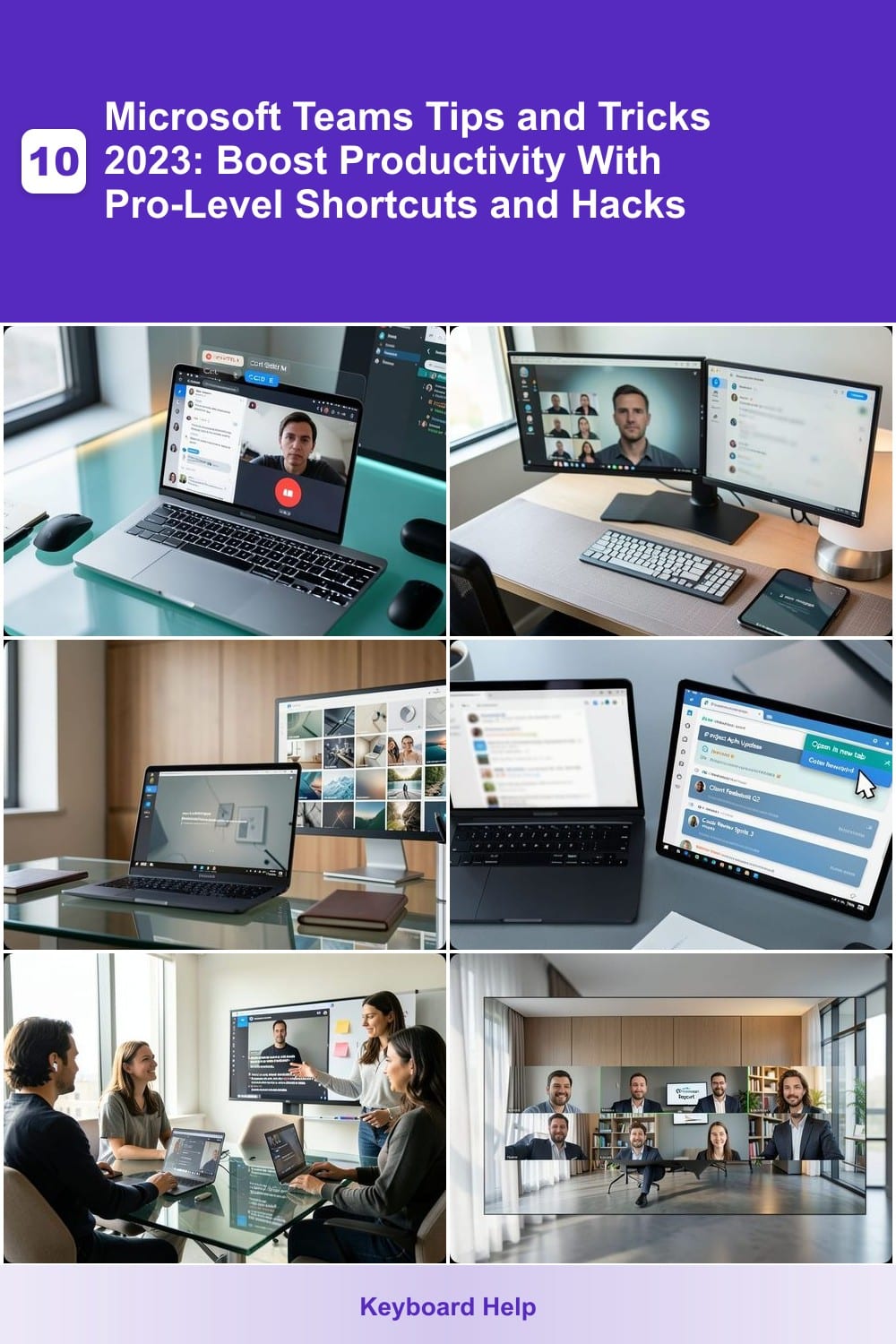
Tired of reaching for the mouse every time you need to switch between chats, mute a meeting, or search files in Microsoft Teams? These 15 essential keyboard shortcuts let you navigate like a pro—no mouse required. Whether you're typing up meeting notes or managing a chaotic chat thread, these shortcuts cut down on wasted time and clicks.
Start with Ctrl+K to search across chats and files instantly, or use Ctrl+Shift+M to mute/unmute during calls without fumbling for the mic icon. For power users, Ctrl+Shift+P opens the command palette for advanced actions like pinning chats or creating new teams. Teams even supports custom shortcuts—right-click any action in the UI and select "Add shortcut" to assign your own keys. The best part? These work across Windows, Mac, and web, so you’re covered no matter your setup.
This trick is a game-changer for remote workers, developers, and anyone drowning in notifications. Spend less time clicking and more time getting things done—your fingers (and sanity) will thank you. ⚡
Use Focus Mode to Reduce Meeting Distractions
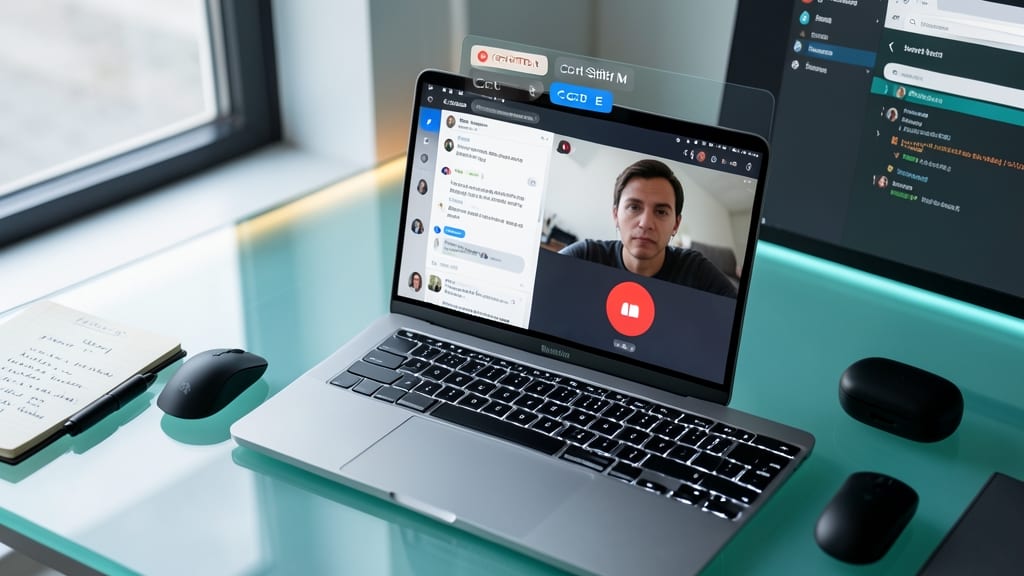
Tired of getting pulled away from meetings by constant notifications or side chats? Microsoft Teams’ Focus Mode is your secret weapon for uninterrupted collaboration. With just a few clicks, you can silence all non-meeting alerts and blur distracting chat windows—keeping your attention locked on the conversation at hand.
To enable it, join a meeting, then click the three dots (...) in the top-right corner and select Focus Mode. This instantly mutes notifications, blurs background chats, and even lets you customize which windows to hide. The best part? It works in private and team meetings, so you’ll never miss a beat while staying distraction-free. Perfect for remote workers juggling multiple tasks.
Whether you’re leading a brainstorming session or just trying to focus during a client call, Focus Mode ensures you’re present—without the chaos. Give it a try next time you’re in a meeting! ✨
Schedule Meetings with Custom Backgrounds
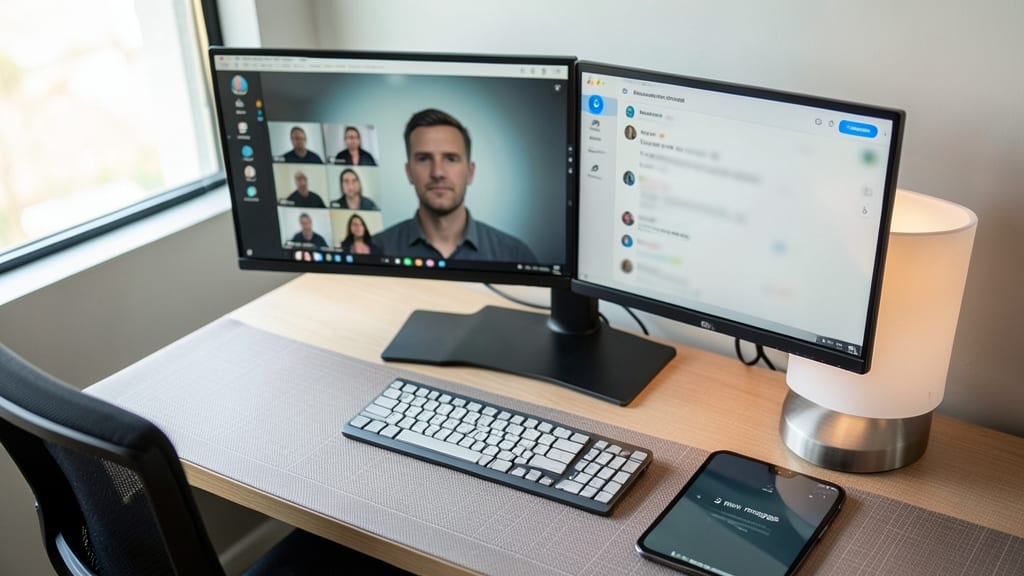
First impressions matter—even in virtual meetings. Elevate your professionalism by setting a custom virtual background that reflects your brand or personal style, ensuring every call feels polished and intentional.
Microsoft Teams lets you choose from pre-loaded images or upload your own high-resolution photos/videos (up to 10MB). Pro tip: Use a blurred or solid-color background to reduce bandwidth usage during calls while keeping distractions at bay. For teams, branded backdrops (like a company logo or office space) reinforce identity instantly.
This trick is ideal for remote teams, freelancers, or client-facing roles where presentation matters. Skip the default "blur" effect and make every meeting uniquely yours—without sacrificing performance. ✨
Organize Channels with Tabs for Quick Access
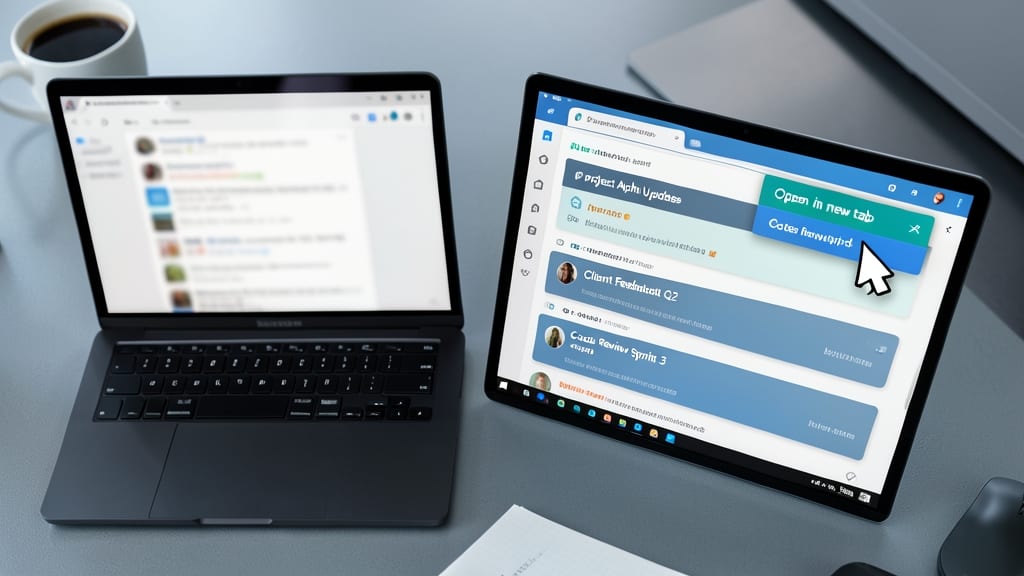
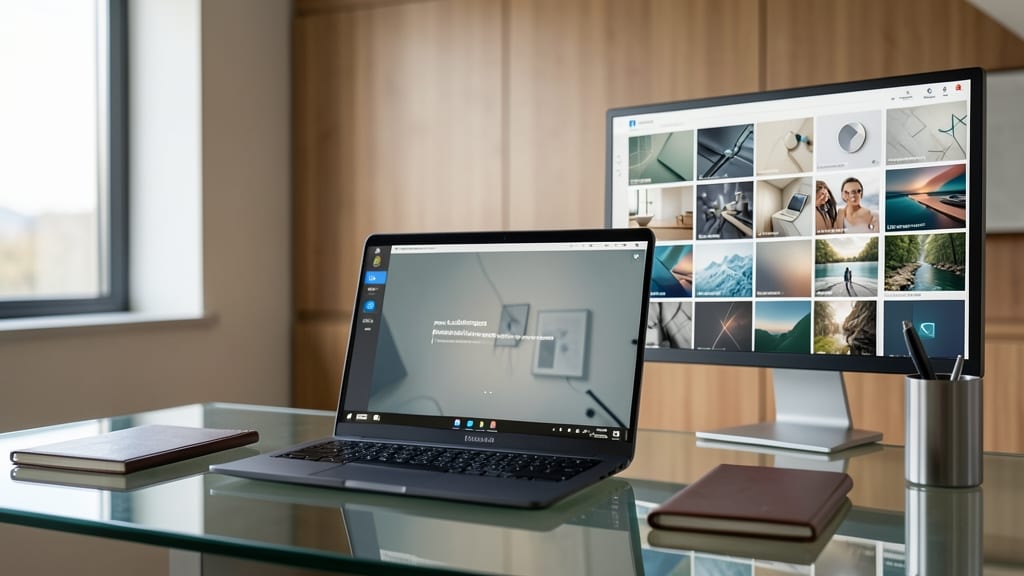
Drowning in endless scrolls through channels? Microsoft Teams’ tab feature lets you group related conversations—like project updates, client feedback, or code reviews—into one organized view, cutting clutter instantly.
Simply right-click any channel header and select "Open in new tab" to create a dedicated space. Pin your most active tabs to the top for one-click access, or use color-coding to visually separate tasks (e.g., red for urgent, blue for brainstorming). Teams even syncs tabs across devices, so your workflow stays seamless whether you’re on desktop or mobile.
This trick is a game-changer for marketing teams juggling campaigns or dev teams tracking sprints—no more losing critical messages in the noise. Try it today and reclaim your focus! ✨
Enable Live Captions for Better Accessibility

Struggling to follow meetings with background noise or language barriers? Microsoft Teams’ live captions feature turns spoken words into real-time text—no extra hardware or apps needed. It’s a game-changer for teams with diverse communication needs, from international colleagues to hearing-impaired participants.
To enable it, join a meeting, click the three dots (More actions) in the meeting controls, then select Turn on live captions. Captions appear at the bottom of your screen in multiple languages, including English, Spanish, French, and more. The feature uses AI-powered speech recognition to transcribe conversations with near-real-time accuracy, ensuring no one misses critical details.
This trick is ideal for educators, HR teams, or global organizations where clear communication is key. It’s also perfect for developers reviewing code or legal teams documenting discussions—just enable it once, and it works for every meeting. ✨
Use the 'Together Mode' for Virtual Team Bonding

Tired of staring at a grid of faces during meetings? Together Mode in Microsoft Teams turns virtual calls into a shared workspace, making remote collaboration feel more natural and engaging.
This feature arranges participants side-by-side in a virtual office layout, complete with customizable backgrounds like cozy cafes or sleek meeting rooms. It’s perfect for brainstorming sessions where visual cues—like whiteboards or shared documents—matter more than just talking. Plus, the zero-config setup means you can enable it with a single click before your next meeting. 🌟
Remote teams, educators, and creative groups will love how this reduces screen fatigue while fostering connection. Try it for your next brainstorming session! ✨
Automate Routine Tasks with Power Automate
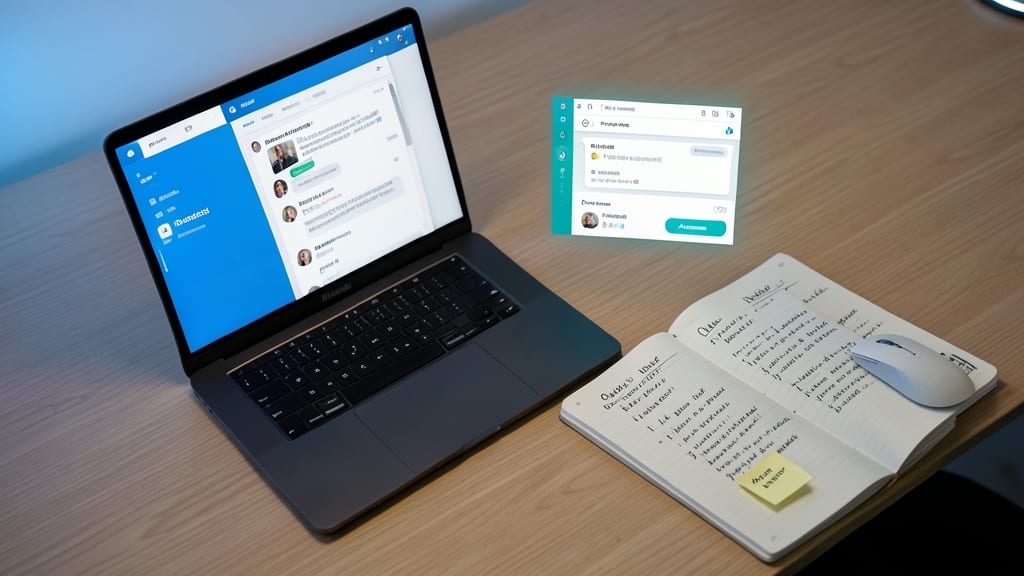
Tired of manually saving meeting notes or chasing down action items? Microsoft Power Automate bridges the gap between Teams and your workflows, turning repetitive tasks into seamless automations with just a few clicks.
Connect Teams to Power Automate to auto-save meeting notes directly to OneNote or SharePoint, send follow-up reminders via email or Teams messages, or even log tasks into Planner. The integration is zero-config for basic flows, while advanced users can build custom triggers like "When a new file is shared in a channel, notify the team lead." Compatible with 300+ apps, including Outlook, Excel, and Dynamics 365, it’s the ultimate tool for admins drowning in manual work.
Perfect for project managers, HR teams, or IT admins, Power Automate turns Teams into a fully automated command center—freeing up hours weekly for what truly matters. 🌟
Customize Your Status with Emoji Reactions
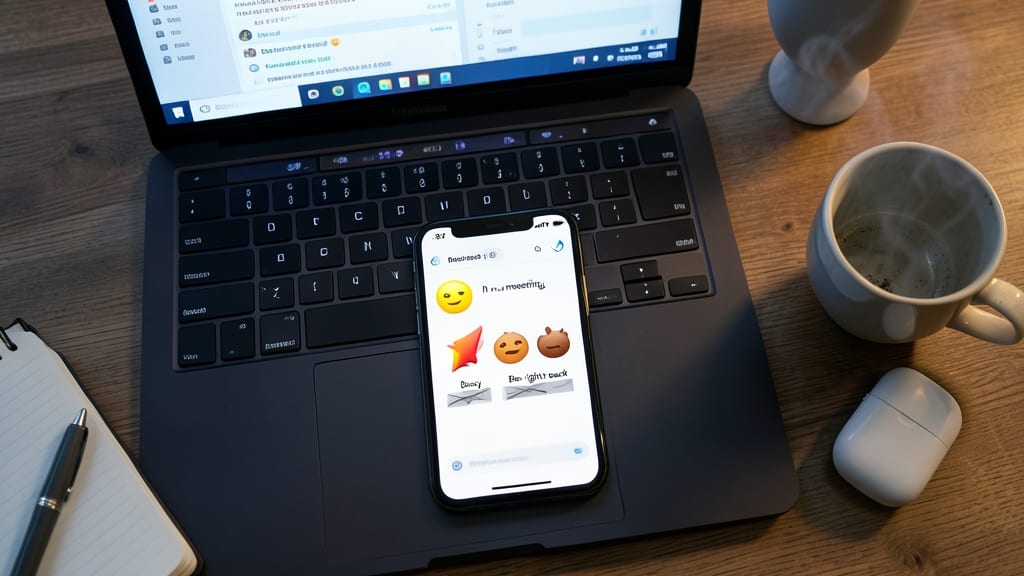
Tired of vague status updates like "In a meeting" or "Busy"? Microsoft Teams now lets you replace text statuses with emoji reactions—so your colleagues instantly know whether you’re 🎯 focused, 🚀 in a crunch, or ☕ taking a break. This feature turns your availability into a visual language, cutting down on follow-up messages.
To set it up, click your profile photo, then select the three-dot menu next to your status. Choose from a library of emojis (or add custom ones) to reflect your current state. The best part? These reactions sync across all your devices, so your team always sees your real-time intent—no explanation needed. Perfect for remote teams juggling multiple time zones or projects.
Developers debugging late at night, sales teams closing deals, or anyone who hates typing "BRB" will love this zero-effort communication upgrade. ⚡
Record Meetings with Automatic Transcripts
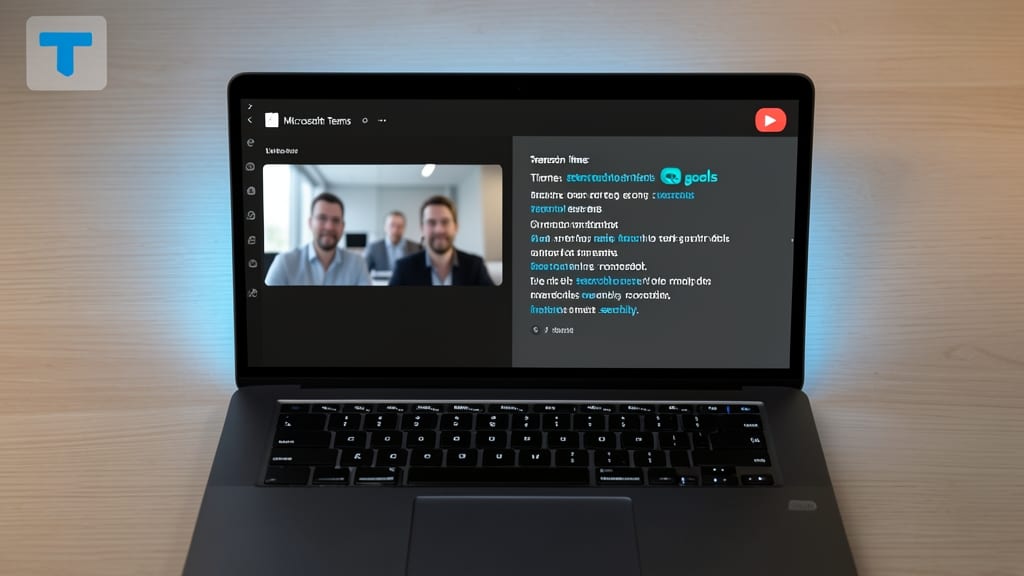
Tired of sifting through meeting recordings to find key details? Microsoft Teams now offers automatic transcripts for recorded meetings, turning audio into searchable text in real time.
Simply enable the recording feature during your meeting, and Teams will generate a time-stamped transcript with speaker identification. You can search for keywords, share the transcript directly, or even export it as a Word or text file. This feature works seamlessly with Microsoft 365 subscriptions, ensuring accuracy for up to 10 hours of audio.
Legal teams, educators, and professionals who rely on precise records will love this time-saver. No more manual note-taking—just a fully searchable, organized transcript ready for review. ✨
Share Files Directly from Teams Chats
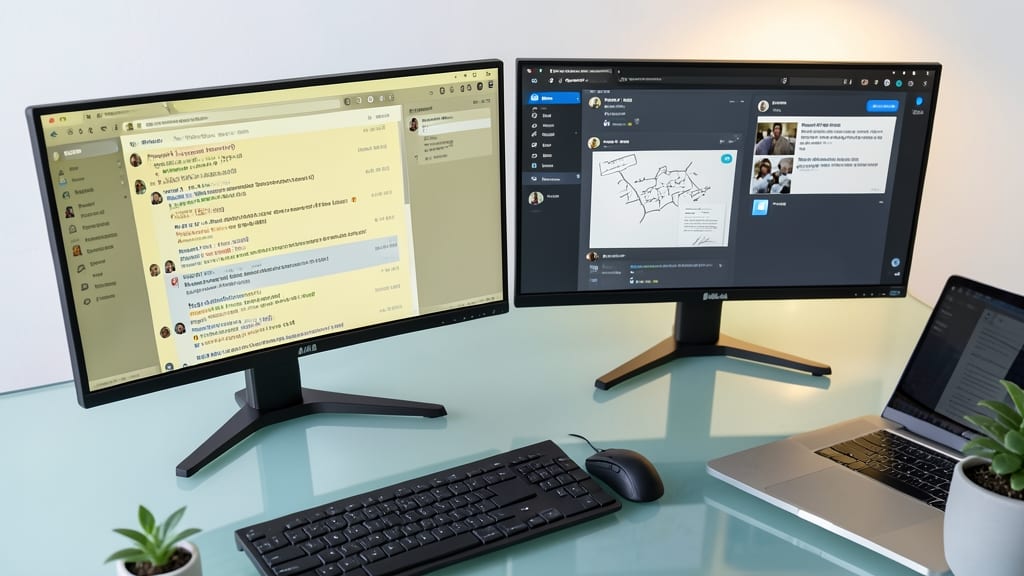
Tired of sifting through endless email threads just to find that one file? Microsoft Teams lets you share files, screenshots, and even entire folders directly in chats—no email required. This feature cuts through the clutter, keeping all project assets in one place where your team already communicates.
Simply drag and drop files into chats, or use the three-dot menu to attach screenshots or entire folders (up to 2GB per upload). Teams also supports real-time previews for documents, images, and spreadsheets, so collaborators can review content without downloading. For large teams, this means fewer lost emails and more streamlined workflows.
Perfect for creative teams, developers, or sales professionals who juggle multiple files daily. Say goodbye to "Did you send me that?" follow-ups and hello to instant collaboration. ✨