
Tip & Trick
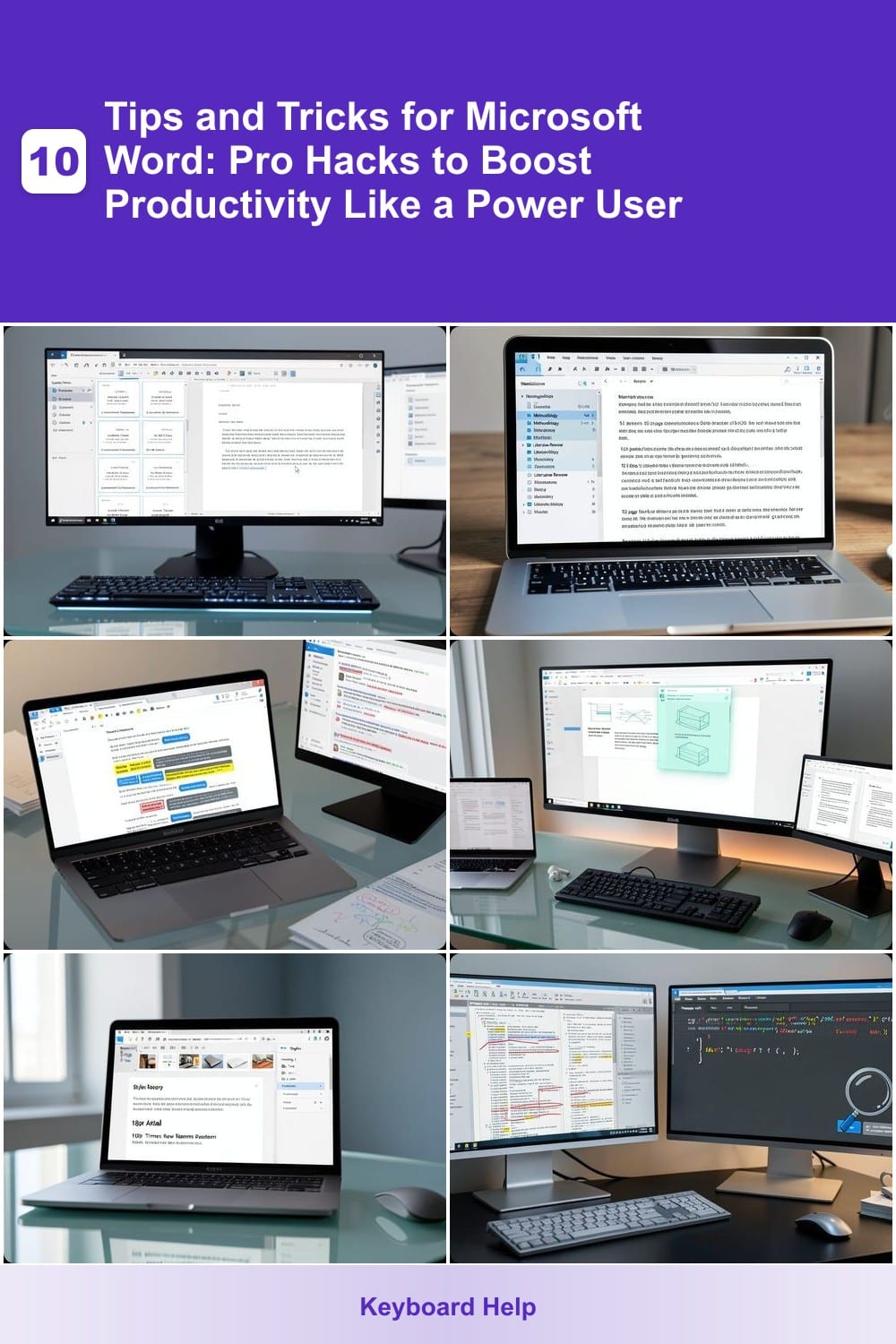
Microsoft Word is the backbone of productivity for millions, yet most users only scratch the surface of its capabilities. These 10 power-user hacks will transform how you work—from lightning-fast formatting to hidden automation tools—saving you hours every week.
Quick Parts Gallery for Repeated Text
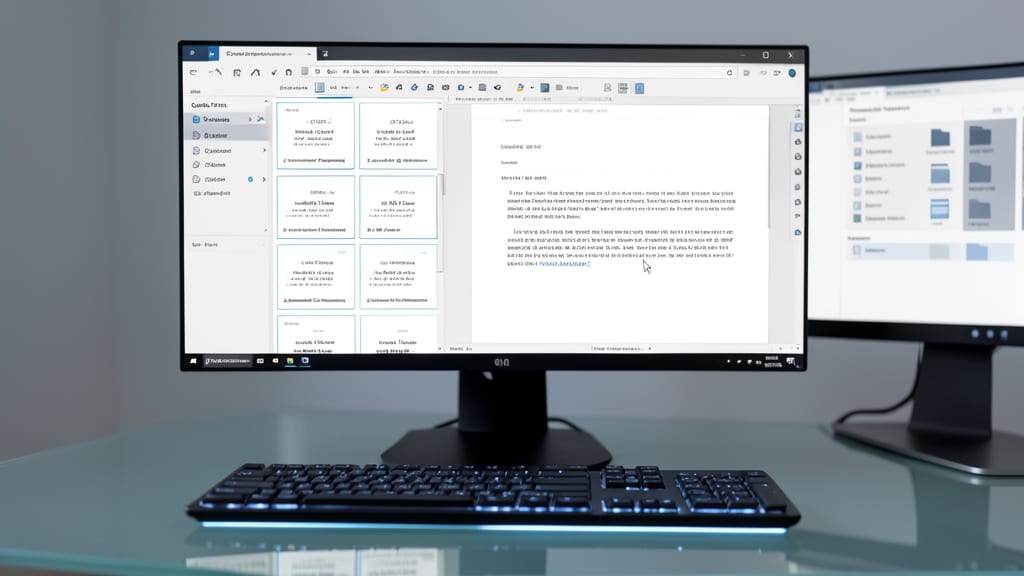
Tired of retyping the same disclaimers, legal clauses, or standard responses? The Quick Parts Gallery in Microsoft Word is your secret weapon for instant text reuse—no more manual copy-pasting or hunting through old documents.
To get started, type your reusable text (like a copyright notice or email boilerplate), then highlight it and click Insert > Quick Parts > Save Selection to Quick Parts Gallery. Once saved, access it anytime via Insert > Quick Parts—or use the Ctrl+F3 shortcut to insert it instantly. You can even organize snippets into custom categories for a clutter-free workflow. Need to update a template? Change it once in the gallery, and every instance in your documents updates automatically.
This trick is a game-changer for legal teams drafting contracts, HR professionals handling onboarding docs, or marketers sending consistent email templates. Spend less time typing and more time focusing on what matters. ✨
Navigation Pane for Large Documents
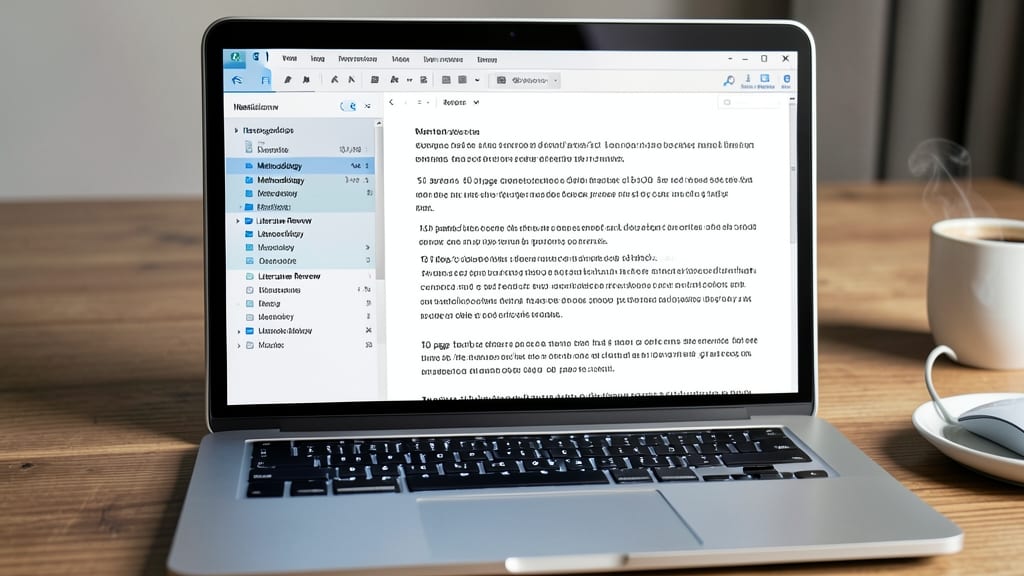
Struggling to find a specific section in a 50-page grant proposal or 100-page thesis? The Navigation Pane in Microsoft Word transforms document navigation from a scavenger hunt into a structured roadmap. With just a few clicks, you can collapse or expand headings, instantly jump to key sections, and even search for specific terms across your entire document.
To access this power tool, press Alt + F, then O (or go to View > Show > Navigation Pane). The collapsible outline view displays all headings (Level 1 through Level 9), letting you drill down to subsections without scrolling. Pro tip: Use Ctrl + Click to open multiple sections simultaneously in a split view—perfect for cross-referencing data or comparing related sections.
This trick is a game-changer for academics, grant writers, and researchers who juggle dense documents daily. Spend less time searching and more time writing—your future self will thank you. ✨
Track Changes with Comments
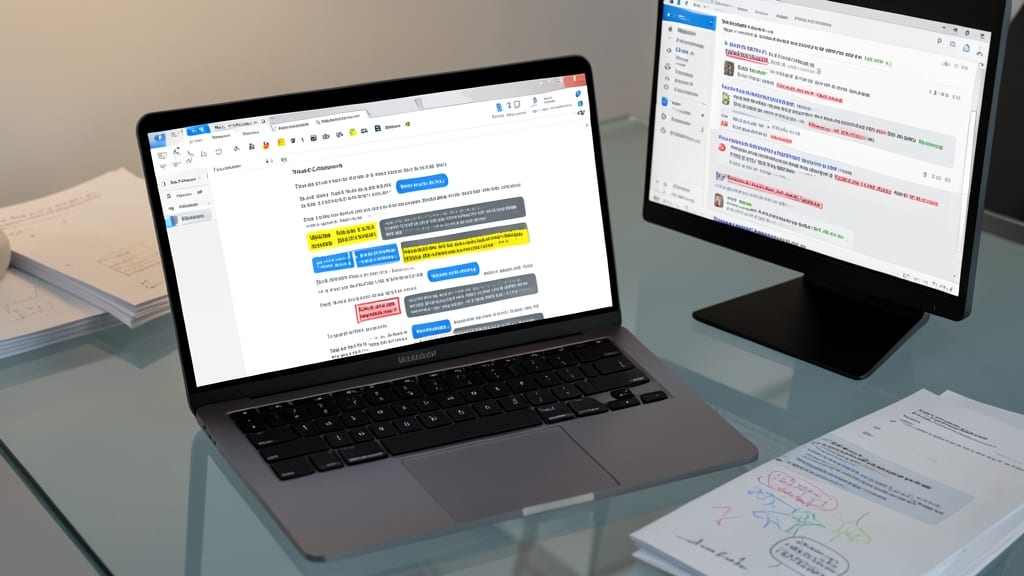
Ever sent a document back for review, only to receive a messy email chain with scattered feedback? Track Changes with Comments turns chaotic revisions into a structured workflow—letting you pin feedback directly to the exact text needing attention.
Enable it via Review > Track Changes > Show Markup, then right-click any change to insert a comment. These appear as threaded conversations tied to deletions, edits, or insertions, complete with @mentions for team members. The Accept/Reject buttons streamline final approvals, while the Final Showing Markup option locks edits for clean handovers. Perfect for legal redlines or editorial passes where context matters as much as the change itself.
This is the secret weapon for remote teams or anyone juggling multiple reviewers—no more "Did you see my email about this?" confusion. Just open the document, follow the comments, and watch collaboration click. ✨
Macros to Automate Repetitive Tasks
Tired of repeating the same formatting steps or data entry tasks every time you open a document? Macros in Microsoft Word can record and replay complex actions—like generating reports, formatting tables, or even inserting boilerplate text—with just one click. This hidden power tool turns hours of manual work into minutes, making it a game-changer for professionals drowning in repetitive tasks.
To get started, press Alt + F8 to open the macro dialog, then record your actions using the Developer tab (enable it in File > Options > Customize Ribbon). Once recorded, assign a shortcut or button to run your macro instantly. For example, automate applying styles to a 50-row table or generating a monthly report template—no coding skills required! Advanced users can even edit the VBA (Visual Basic for Applications) code for custom logic.
This trick is a lifesaver for accountants crunching numbers, data analysts formatting spreadsheets, or anyone stuck in manual data entry hell. Once you automate one task, you’ll wonder how you ever lived without it. ✨
Styles for Consistent Formatting
Tired of spending minutes manually adjusting fonts, spacing, and alignment in every document? Styles in Microsoft Word let you define once and apply instantly—like a visual template system for typography.
Create custom styles for headings, body text, or even footnotes by selecting text, clicking the Styles pane (Home tab), and modifying fonts like Calibri 11pt or Garamond 12pt with precise line spacing. Save these as reusable Quick Style Sets (e.g., "Corporate Report" or "Academic Paper") and switch between them in seconds. Need to update 50 pages? Change one style, and Word applies it everywhere—no more global replace headaches.
Publishers, legal teams, and anyone who juggles multiple document types will love this. Start with Word’s built-in styles, then tweak them to match your brand’s voice—consistency guaranteed. ✨
Find and Replace with Wildcards
Tired of manually fixing inconsistent data or hunting through thousands of pages for formatting errors? Microsoft Word’s wildcard search lets you automate complex text replacements with regex-like precision—no coding required.
Enable it by pressing Ctrl+H, clicking "More" in the Find and Replace dialog, and checking "Use wildcards." Now you can replace all dates in "MM/DD/YYYY" format with a single search (\#/\#/\#\#\#\#), or strip inconsistent spacing using patterns like ^l (start of line) or l$ (end of line). The ? symbol matches any single character, while * replaces any sequence—ideal for cleaning up legal contracts or migrating datasets.
Perfect for data analysts, legal teams, or anyone wrestling with messy documents. Master this, and you’ll save hours on manual edits—no more eyeball-scrolling through thousands of pages. ✨
Document Properties for Metadata
Ever spent hours tracking down who last edited a document or where a specific version lives? Document Properties in Word lets you embed invisible but powerful metadata—like author names, revision history, and custom keywords—directly into your files. This hidden layer ensures every document carries its own audit trail without extra emails or spreadsheets.
Access it via File > Info > Properties, where you can add fields like title, subject, keywords, and custom properties (e.g., "Project Code: WRD-2024"). These fields sync with search functions, making it easy to filter documents in folders or enterprise systems. For researchers, this means automated citation tracking, while project managers can tag milestones or deadlines—all without altering the visible content.
Perfect for teams managing collaborative documents, this trick turns Word into a lightweight document management system. No more lost revisions or unclear authorship—just built-in accountability. ✨
Split Screen for Side-by-Side Editing
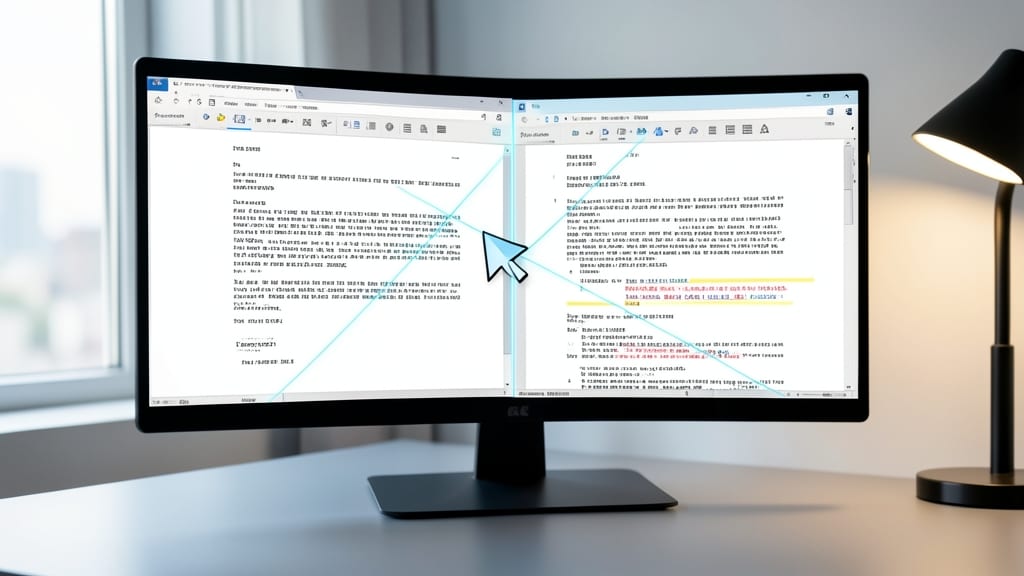
Need to compare two versions of a contract, manuscript, or translation side by side? Microsoft Word’s split-screen view lets you open two documents simultaneously—no extra tabs or windows required. Simply drag the document edge to resize the split and toggle between views with a click, making it perfect for bilingual editing or legal document reviews.
This feature works seamlessly with Word 2013 and later, including the desktop version (Word Online lacks this). You can even sync scrolling between documents to track changes line-by-line, and the split supports both horizontal and vertical layouts. For translators, technical writers, or anyone juggling parallel documents, this eliminates the back-and-forth of switching files.
Ideal for professionals who need precision—like legal teams comparing drafts or editors refining translations—this trick cuts editing time in half. Try it next time you’re stuck toggling between files! ✨
Shape and Text Box Tricks
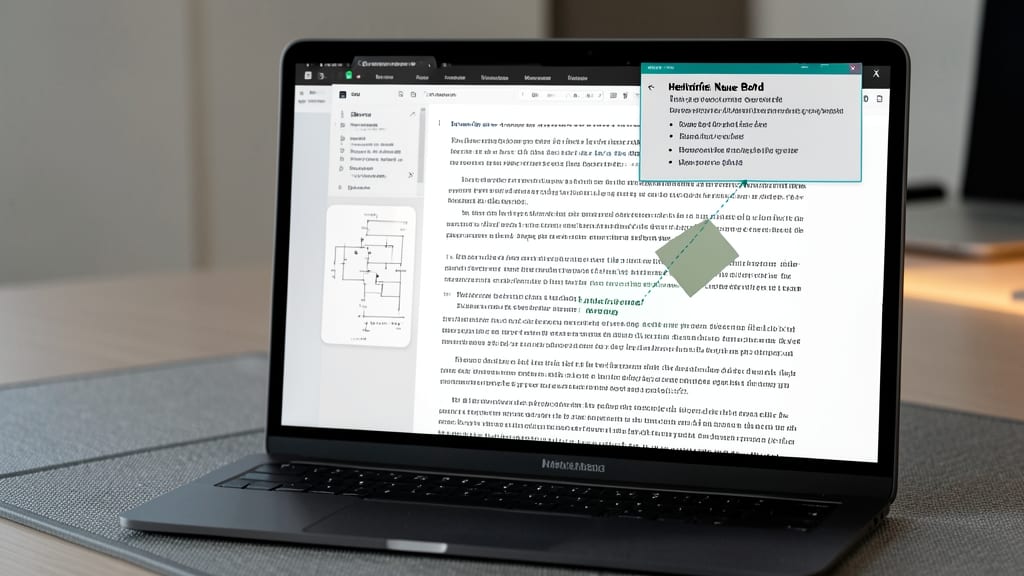
Tired of staring at endless blocks of text? Word’s shape and text box tools let you design dynamic layouts that make complex ideas pop—without switching to PowerPoint or Canva.
Anchor text boxes to specific points (like corners or edges) so they stay put when you edit content. Combine them with custom shapes (flowcharts, callouts, or even custom icons) and use the Wrap Text feature to flow content around visuals. Pro tip: Group shapes together and lock them to prevent accidental moves—perfect for infographics or step-by-step guides.
Trainers, educators, and visual thinkers will love this for creating interactive training manuals or non-linear presentations. Even marketers can use it to design eye-catching social media graphics directly in Word. ✨
Keyboard Shortcuts for Speed
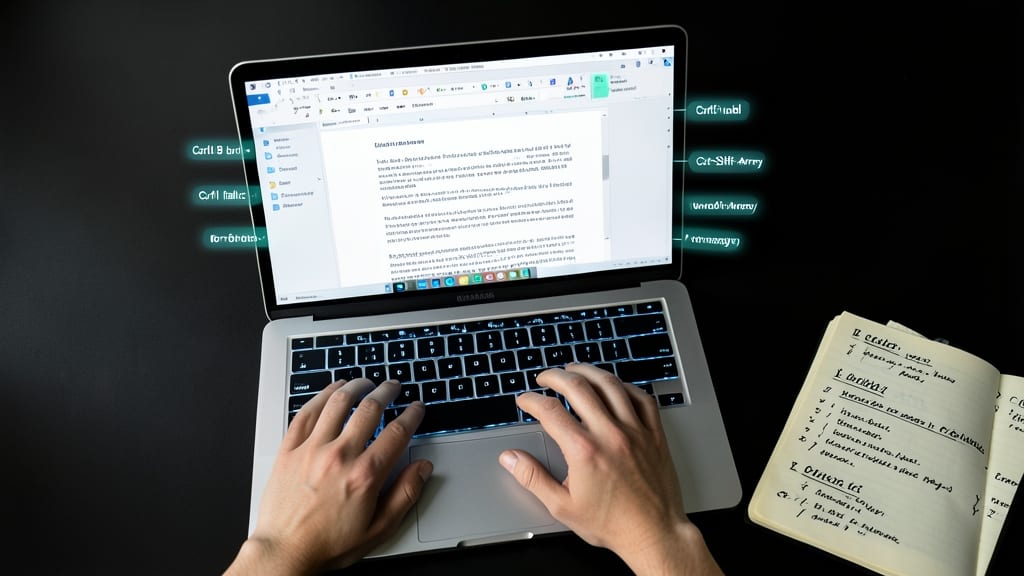
Tired of reaching for your mouse every time you need to format text or jump between tasks? Microsoft Word’s keyboard shortcuts can cut your workflow time in half—no mouse required. These 20 essential shortcuts cover navigation, formatting, and editing, so you’ll spend less time clicking and more time creating.
Start with Ctrl+B (bold) and Ctrl+I (italic) for instant formatting, then master F4 to repeat your last action. Need to navigate faster? Ctrl+Page Up/Down lets you zip between pages, while Ctrl+Shift+Arrow Keys extends selections perfectly. For power users, Alt+Shift+F toggles the Developer tab (great for macros), and Ctrl+Shift+F opens the Find tool with a single keystroke. Print previews? Just hit Ctrl+F2—no more hunting for the menu.
Journalists, developers, and anyone who types for hours daily will love these shortcuts. Print them out and stick them under your monitor—your fingers (and back) will thank you. ⚡