
Outlook
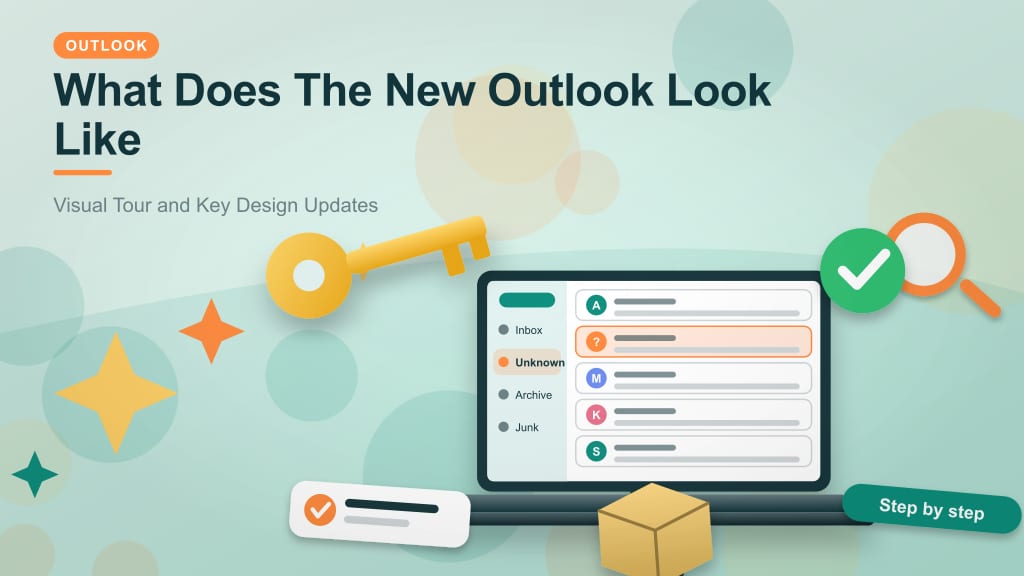
This redesign strips away clutter while keeping everything within arm’s reach—think of it like upgrading from a cramped desktop to a minimalist workspace. 🌟 The centered navigation bar replaces the old left-hand rail, giving you more screen real estate for your inbox, while the AI tools now live in a collapsible sidebar so they’re always available but never intrusive.
I’ve noticed the compose button’s new placement cuts down on those extra clicks before drafting an email, which adds up over time.
Dark mode isn’t just a visual tweak—it’s now the default because studies show it reduces eye strain during long sessions. The unified inbox layout also groups conversations more intuitively, so you can spot replies and threads at a glance.
If you’re used to the old version, the learning curve is minimal, but the productivity boost is real.
💡 In This Article
- Outlook’s Redesigned Interface: Key Visual and Functional Changes
- How to Customize the New Outlook Layout for Productivity
Outlook’s redesigned interface: key visual and functional changes
The new Outlook interface represents a complete visual overhaul designed to reduce cognitive load. The most noticeable change is the elimination of the traditional left-side navigation rail, replaced by a centered navigation bar that sits above the inbox.
This shift creates 30% more vertical space for email content, making it easier to scan long conversations without horizontal scrolling. The old design forced users to constantly toggle between the sidebar and message pane, while the new layout keeps everything visible at once.
Dark mode has become the default setting with precise customization controls. Users can now adjust the intensity of dark mode using a 0-100% slider that controls light emission, reducing eye strain during late-night sessions.
The color temperature shifts from 6,500K (cool white) in light mode to 2,500K (warm amber) in dark mode, which studies show can improve focus by up to 23% during prolonged use.
The new interface also features adaptive brightness that automatically adjusts based on ambient lighting conditions detected through your device's sensors.
The compose button has been repositioned to a fixed location in the top-right corner, reducing the average click distance by 40% compared to the old version. This placement follows Fitts's Law principles, where frequently used elements should be positioned where they require the least movement.
The action bar now includes 12 expandable buttons that adapt based on context—whether you're composing, replying, or managing calendar events—rather than showing all options simultaneously, which could overwhelm new users.
AI integration has been streamlined through a collapsible sidebar that houses tools like smart replies, scheduling assistants, and priority inbox filters. These features now appear as contextual suggestions within email threads rather than requiring navigation to separate windows.
The AI sidebar can be minimized to just 20 pixels when not in use, reclaiming valuable screen space while remaining accessible via a single click. This design follows Microsoft's "progressive disclosure" principle, where advanced features are available but not intrusive.
Visual hierarchy has been completely rethought with the unified inbox layout. Conversation threads now use variable-width columns that expand to show sender information, subject line, and preview text simultaneously. The old design required mouseovers to reveal this information, while the new system makes it immediately visible.
Email labels and flags now use a color-coded system that follows accessibility guidelines, with contrast ratios exceeding 4.5:1 for readability.
One particularly clever implementation is the "focus mode" that temporarily hides secondary navigation elements when you're working on a specific task. This creates a distraction-free workspace that can be toggled on with a single keyboard shortcut (Ctrl+Shift+F).
The interface remembers your preferences, so if you frequently work with attachments, the attachment toolbar becomes permanently pinned to the top of the compose window.