
Outlook
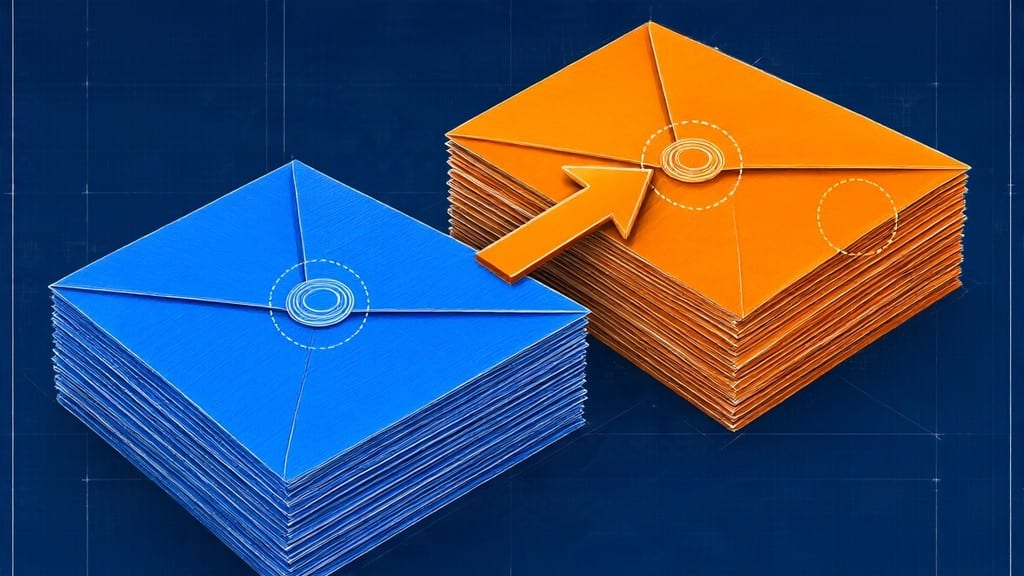
Focused Inbox in Outlook is a smart email sorting tool that automatically separates priority messages—like meeting requests, replies to your emails, and important notifications—from other emails into two distinct folders: 'Focused' and 'Other'.
This tool uses AI to scan your email habits and learn what matters most to you—think of it as a personal assistant that flags urgent requests while tucking away less critical updates. 💫 I’ve seen it work best when you tweak the settings to match your workflow, like adding frequent contacts to the "Focused" list or excluding marketing newsletters from clogging your main view.
What’s clever is how it adapts: the more you interact with certain senders, the smarter it gets at predicting what deserves your immediate attention. For example, if you always reply quickly to your manager’s emails, Focused Inbox will start prioritizing theirs automatically.
The real game-changer is the two-pane layout—no more scrolling through hundreds of emails to find the important ones. It’s especially useful for small business owners or anyone juggling multiple projects where time is money.
💡 In This Article
- How Outlook’s Focused Inbox Algorithm Works
- Customizing Focused Inbox for Better Productivity
How Outlook’s Focused Inbox algorithm works
Outlook’s Focused Inbox uses a machine learning model that continuously analyzes your email interactions to determine priority. The system scans three key factors: sender relevance (who you communicate with most), content analysis (keywords and urgency indicators), and your engagement history (how you respond to different types of messages).
For example, if you consistently reply within minutes to emails from your direct reports, the algorithm will start flagging those messages as high-priority automatically. This adaptive learning happens in real-time, adjusting its predictions based on your behavior patterns over weeks or months.
The algorithm prioritizes messages using a weighted scoring system that evaluates over 50+ variables, including response times, sender frequency, and email content structure. Meeting requests, for instance, get boosted because they contain clear action items and deadlines—Outlook detects words like "scheduled," "attending," or "RSVP" as urgency signals.
The system also tracks whether you open or reply to emails quickly, using that data to refine its predictions. What’s fascinating is how it handles exceptions: if you suddenly stop responding to a sender you normally prioritize, the algorithm gradually deprioritizes their messages until you re-engage.
Here’s what’s actually happening behind the scenes: Outlook’s AI processes your email data through a neural network that identifies patterns most users wouldn’t notice.
For instance, it might detect that you always reply to emails containing "urgent" in the subject line within 30 minutes, while marketing emails get ignored after 24 hours. The system then applies these learned behaviors to new incoming messages, predicting which ones deserve your immediate attention.
This is why Focused Inbox often gets smarter faster than traditional rule-based filters—it doesn’t just follow static rules; it evolves with your habits.
One clever feature is how the algorithm handles "gray areas." If Outlook isn’t sure whether an email belongs in Focused or Other, it uses a confidence threshold (typically 70%+) to decide. Emails that fall below this threshold might appear in both folders or get reviewed manually.
This prevents important messages from getting buried while keeping your inbox clean. The system also adapts to seasonal patterns—like increased priority for client emails during tax season—showing how deeply it integrates with your professional rhythm.
What most people don’t realize is that Focused Inbox doesn’t just look at your past behavior—it also analyzes the context of new emails.
For example, if you’ve previously marked emails from a specific domain as spam, the algorithm will be more cautious about flagging future messages from similar domains as high-priority. This contextual understanding is what makes the system feel almost human in its email triage decisions.
The more you use it, the more it refines its predictions, creating a personalized filtering experience that traditional email rules simply can’t match.
For small business owners like me, this means I can instantly see the three emails that truly need my attention among the daily noise—whether it’s a client asking about a project timeline or a team member requesting approval.
The system’s ability to learn and adapt has saved me hours weekly by eliminating the mental overhead of manual sorting. It’s like having a junior assistant who gets to know my workflow intimately over time. 💫