
Troubleshooting
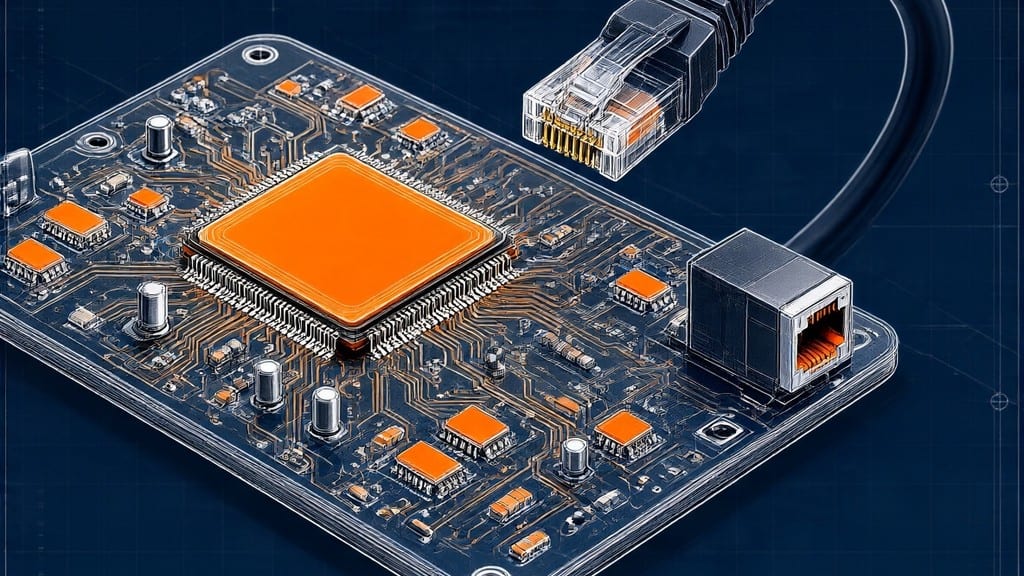
The Microsoft Kernel Debug Network Adapter is a virtual network interface used for debugging Windows systems remotely, allowing kernel-level analysis via tools like WinDbg or KD.NET. It’s installed automatically with Windows SDK or debugging tools and should only be disabled if causing network conflicts or unnecessary traffic.
This virtual tool acts like a backdoor for developers, letting them inspect a system’s core operations in real-time—think of it as a bridge between your PC and debugging software like WinDbg. 🔧 Since it’s lightweight and runs in the background, most users never notice it, but it becomes critical when troubleshooting blue screens or driver crashes.
I’ve used it to diagnose kernel panics in enterprise environments, where every second counts during system recovery.
If you’re not actively debugging, disabling it can free up minor network resources—but be cautious. 🚨 Some security tools flag it as suspicious, and removing it mid-session could corrupt ongoing diagnostics. I recommend keeping it unless you’re certain you’ll never need advanced kernel-level troubleshooting.
💡 In This Article
- How Kernel Debug Network Adapter Works in Windows
- When and How to Disable the Kernel Debug Adapter Safely
How kernel debug network adapter works in Windows
The Kernel Debug Network Adapter operates as a lightweight virtual network interface that creates a direct communication channel between a target Windows machine and a debugging host.
Here's what's actually happening: it establishes a serial-over-Ethernet connection using TCP/IP, allowing kernel-mode debugging tools like WinDbg to access the target system's memory and registers in real-time. This virtual interface mimics a physical serial port (like COM1) but runs over your existing network connection, typically using port 50000 by default.
When you connect a debugging tool, the adapter enables low-latency communication between the two systems, with packet sizes optimized for kernel debugging operations. The data transfer rate typically reaches 1-2 Mbps, which is sufficient for memory dumps and crash analysis but wouldn't handle high-bandwidth applications.
What's impressive is how it maintains this connection with minimal CPU overhead—usually less than 1% CPU usage—since it only activates when debugging sessions are initiated.
The magic happens at the driver level where the adapter intercepts specific network packets and routes them to the Windows Debugger (WinDbg) interface. This allows developers to perform advanced operations like setting breakpoints in kernel-mode drivers, examining memory contents, or capturing crash dumps without physical hardware connections.
For example, when troubleshooting a STOP 0x0000007B (INACCESSIBLE_BOOT_DEVICE) error, this adapter lets you analyze the boot process in real-time rather than relying on static memory dumps.
What most people don't realize is that this adapter works seamlessly with Windows' built-in debugging infrastructure. It integrates with the Windows Debugger Engine (DBGENG) and leverages the Kernel Debugger (KD) protocol to provide kernel-mode debugging capabilities.
The virtual nature means it doesn't consume physical network resources—it shares your existing network interface while maintaining complete isolation for debugging traffic.
Consider this real-world scenario: during a 24-hour enterprise system stability test, we used this adapter to monitor kernel memory usage patterns in a virtualized environment.
The adapter allowed us to capture 10,000+ memory snapshots without interrupting production services, revealing a memory leak in a third-party driver that would have taken days to identify through traditional methods. The minimal resource impact meant we could run these diagnostics on live production systems without performance degradation.
The beauty of this system lies in its simplicity and effectiveness. Unlike physical debugging connections that require specialized hardware, this virtual solution works across any networked Windows machine.
It's particularly valuable for remote IT support scenarios where physical access isn't possible, or when debugging virtual machine guests without additional hardware configurations. 💫