
Software
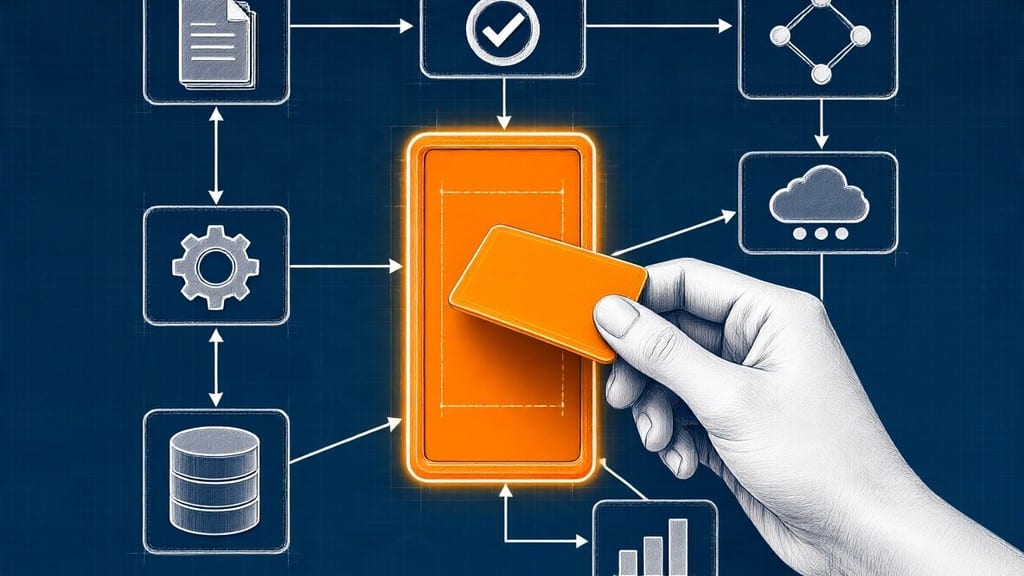
Microsoft Planner is used for organizing tasks, assigning team projects, and tracking progress visually with Kanban-style boards. It integrates with Microsoft 365 tools like Teams and Outlook for seamless collaboration and real-time updates.
From my experience helping teams streamline workflows, Microsoft Planner shines when managing projects with clear milestones and dependencies.
The drag-and-drop Kanban boards let you visualize progress at a glance, while checklists and file attachments keep everything in one place—no more scattered emails or lost notes. 🔥 What really sets it apart is how it connects with Teams and Outlook, so updates in one tool automatically reflect across your entire workspace.
I’ve seen small businesses use it for everything from marketing campaigns to event planning, where the simplicity of assigning tasks and tracking deadlines saves hours of back-and-forth.
The real magic happens when you combine it with other Microsoft 365 apps, like sharing calendar updates directly from Planner or attaching relevant Outlook emails to tasks.
💡 In This Article
- Microsoft Planner’s Core Features for Task Management
- Best Practices for Teams Using Microsoft Planner
Microsoft Planner’s core features for task management
At its core, Microsoft Planner functions as a visual project management system using a Kanban-style board that organizes tasks into columns like "To Do," "In Progress," and "Done." Each task card can be assigned to specific team members, complete with due dates, file attachments, and checklists.
The system leverages Microsoft's cloud infrastructure, which means all updates sync instantly across devices—no more waiting for email attachments or version mismatches. 🔥
The categorization system uses "buckets" (similar to folders) to group related tasks, which helps teams manage multiple projects simultaneously. For example, a marketing team might create separate buckets for social media campaigns, email newsletters, and website updates.
Each bucket can have its own set of tasks, deadlines, and progress tracking, making it easy to prioritize work. The visual drag-and-drop interface reduces cognitive load by letting team members see the big picture at a glance, with color-coded labels for additional context.
Progress tracking works through a combination of task status updates and automated progress bars. When a team member marks a task as "In Progress," the system updates the board in real time, and the progress bar fills dynamically based on completed subtasks.
This visual feedback loop helps managers identify bottlenecks quickly. For instance, if a critical task remains stuck in "In Progress" for too long, the team can intervene before deadlines slip.
The integration with Microsoft 365 apps like Outlook means deadlines can be synced directly to calendars, ensuring no task falls through the cracks.
File attachments are another standout feature, allowing teams to upload documents, spreadsheets, or images directly to task cards. This eliminates the need for external file-sharing services and keeps all project-related materials in one centralized location.
For example, a design team working on a client project can attach mockups, feedback documents, and final files—all linked to specific tasks. The system also supports version control, so team members always access the most recent files without confusion. 💫
What makes Planner particularly powerful is its seamless integration with Microsoft Teams and Outlook. When a task is created or updated in Planner, a notification appears in Teams, and the due date syncs with Outlook calendars.
This two-way synchronization ensures everyone stays aligned, whether they're working in Planner, Teams, or Outlook. For teams already using Microsoft 365, this integration reduces the learning curve and eliminates the need for third-party tools, saving both time and money.
For teams managing complex projects, Planner’s recurring tasks feature is a game-changer. Instead of manually re-creating tasks every month, you can set them to repeat automatically—ideal for routine activities like monthly reports or weekly standups.
This automation not only saves time but also reduces human error, ensuring consistency in workflows. 🌟