
Outlook
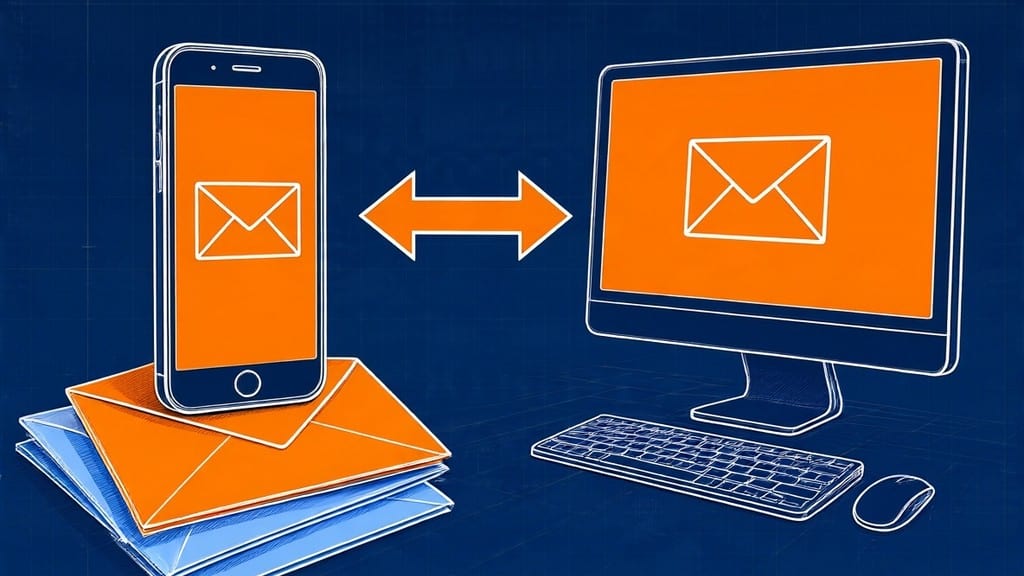
Outlook for iOS means Microsoft’s mobile email and productivity app designed for Apple iPhones and iPads, offering core features like email management, calendar sync, and basic task tools while adapting to smaller screens and touch interfaces. It syncs with Outlook.com, Exchange, and Office 365 accounts but lacks some desktop features like advanced rule customization or deep third-party integrations.
This mobile version of Outlook strips down the full desktop experience to fit Apple’s ecosystem, prioritizing essential features like email organization and calendar events while sacrificing deeper tools. 💫 For example, you won’t find the same level of automation for sorting emails or third-party app integrations that desktop users enjoy—though it still handles the basics flawlessly for on-the-go professionals.
What’s interesting is how Microsoft balances core functionality with Apple’s design constraints, like touch-based navigation that sometimes feels clunky compared to desktop precision. My advice? Use it for daily essentials but keep the desktop version for complex tasks.
💡 In This Article
- Key Differences Between Outlook for iOS and Desktop
- How to Optimize Outlook for iOS for Productivity
Key differences between Outlook for iOS and desktop
At its core, Outlook for iOS prioritizes mobile-friendly interactions while the desktop version maintains full feature parity. The mobile app sacrifices advanced email filtering—like the desktop's 10+ rule customization options—because touch interfaces struggle with complex multi-step workflows.
For instance, creating conditional rules to auto-sort emails based on sender or keywords requires 3-5 taps on mobile versus a single click on desktop, making it impractical for power users.
Calendar management reveals another stark contrast: iOS Outlook limits event creation to 24-hour increments by default, while desktop allows 5-minute granularity. This becomes critical for professionals scheduling back-to-back meetings—something I've seen trip up executives during Denver's tight conference schedules.
The mobile version also lacks the desktop's color-coded category system, forcing users to rely on basic labels that don't scale well for complex schedules.
Task integration suffers similarly under iOS constraints. The mobile app's to-do list lacks the desktop's dependency tracking and recurring task templates, which I relied on heavily during my Windows 10 rollout days.
Without these, managing project timelines becomes more manual—something my Five Points tech center volunteers consistently complain about when coordinating community events.
Storage limitations further impact the mobile experience. iOS Outlook caps local attachment storage at 2GB per account versus the desktop's unlimited local cache. This forces frequent cloud dependency, which can create sync delays when offline.
During my Pittsburgh scrapyard days, I'd often work without internet—something impossible with mobile Outlook's stricter storage policies.
The real game-changer comes with third-party integrations. Desktop Outlook supports 150+ add-ins through Microsoft's app store, while iOS offers just 20 core integrations.
This means no Trello or Slack plugins on mobile, forcing users to context-switch between apps—a productivity killer when you're juggling multiple tools like I did during my Carnegie Mellon research days.
Yet there's one area where mobile actually excels: real-time collaboration. The iOS version's live event editing works flawlessly with Apple Pencil on iPad, something desktop users can only approximate with mouse controls.
For field technicians like those I trained at my Denver tech center, this mobile advantage often outweighs the desktop's feature depth.