Software
Microsoft Teams isn’t just for businesses—it’s transforming classrooms worldwide. From seamless teacher-student communication to interactive lesson delivery, these 10 benefits show why educators are adopting Teams to create dynamic, connected learning environments.
Real-Time Classroom Collaboration Tools

Imagine a classroom where every student’s ideas flow freely in real time—no more waiting for turns or lost contributions. Microsoft Teams’ collaboration tools turn group projects into dynamic brainstorming sessions where multiple students edit documents, sketches, or mind maps simultaneously, just like a digital whiteboard session.
The Whiteboard app (built into Teams) lets students draw, annotate, and collaborate visually, while shared Word, Excel, and OneNote files enable live editing with version history tracking. For creative assignments, the Sticky Notes feature lets students post quick ideas in channels, and planner integration keeps group tasks organized. Teachers can even use live polls to gauge class consensus mid-discussion.
This is the perfect tool for creative writing workshops, STEM design challenges, or debate prep—where every voice matters. No more silent students or forgotten input; just active participation that transforms passive listeners into engaged contributors. ✨
Secure Video Conferencing for Hybrid Learning

Hybrid learning doesn’t have to mean hybrid chaos. Microsoft Teams turns virtual classrooms into secure, organized hubs where every student—whether in the room or logging in remotely—stays connected without sacrificing privacy or engagement.
With end-to-end encrypted meetings, teachers can host 4K@60fps video with up to 1,000 participants (or 300 with screen sharing), while breakout rooms replicate in-person group work seamlessly. The attendance tracking feature automatically logs participation, and screen-sharing with annotations lets you highlight key points during lessons—no extra tools required. Plus, Microsoft’s education-grade security ensures compliance with FERPA and COPPA, giving admins peace of mind.
This is the ideal solution for K-12 schools juggling in-person and remote students, or universities running hybrid labs and seminars. No more fragmented tools—just one platform that keeps everyone in sync. 💻
Integrated Office 365 Tools for Assignments
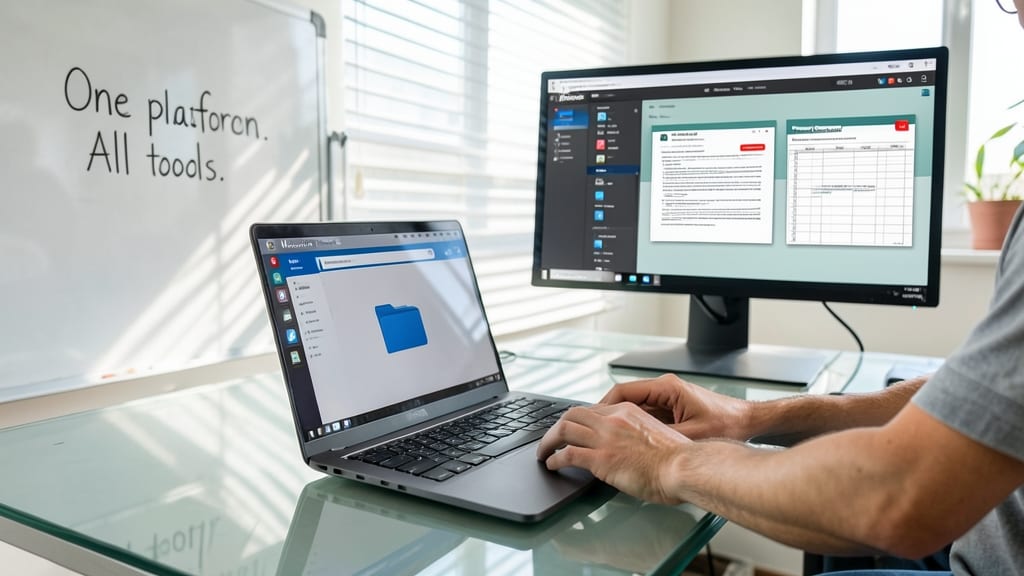
Tired of juggling emails, shared drives, and separate apps for assignments? Microsoft Teams’ deep integration with Office 365 eliminates the chaos by embedding Word, Excel, and PowerPoint directly into class channels.
Teachers can now create assignments, attach files, and set deadlines—all without leaving Teams. Students submit work directly through the platform, and grading tools like inline comments and rubrics streamline feedback. Plus, version history tracks changes automatically, so no work is ever lost. The OneDrive integration ensures all files sync securely across devices.
This is a game-changer for educators drowning in paperwork—especially those teaching math, science, or creative subjects where visuals and data matter. Say goodbye to scattered files and hello to a zero-config, all-in-one workflow. ✨
Parent-Teacher Communication Hub
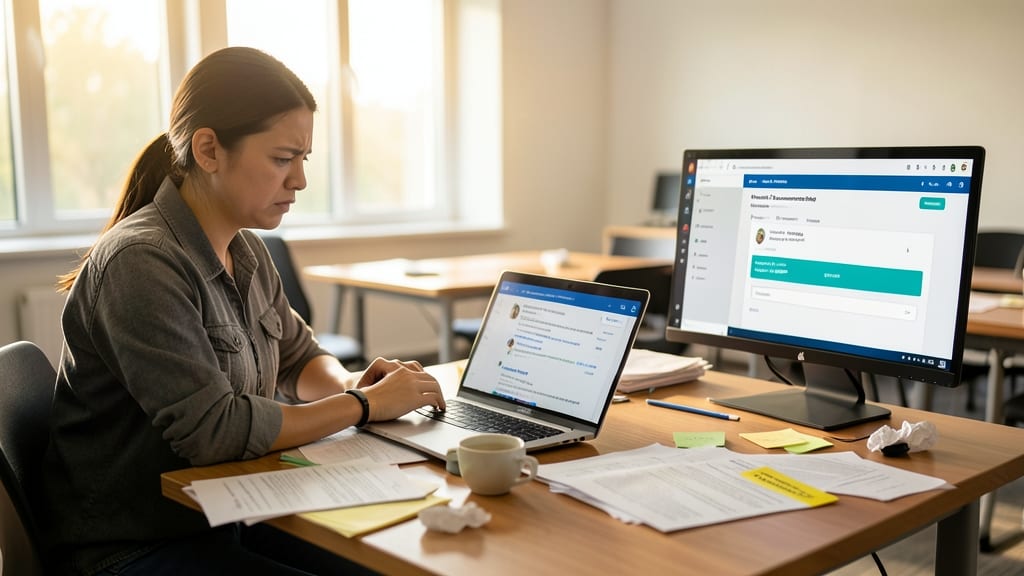
Tired of digging through endless email threads to find the latest grades or event updates? Microsoft Teams’ Parent-Teacher Communication Hub consolidates everything—from progress reports to homework reminders—into one organized, searchable space.
Teachers can share real-time grade updates via the Assignments tab, while dedicated channels keep parents informed about school announcements, volunteer opportunities, and PTA meetings. The @mention feature ensures critical messages stand out, and file-sharing lets parents access permission slips or event flyers instantly—no more lost paperwork or missed emails.
This feature is a game-changer for elementary schools and PTA groups, where parent engagement is key. It also cuts down on repetitive questions, freeing teachers to focus on what matters most: teaching. ✨
Interactive Classroom Polls and Quizzes

Turn passive lectures into lively discussions with Microsoft Teams’ built-in polling and quiz tools. These features let you create real-time assessments—whether it’s a quick multiple-choice check or a detailed survey—while instantly displaying results to the class, making lessons more interactive and data-driven.
The Forms integration lets you design quizzes with 10+ question types (multiple choice, true/false, grading scales) and even add images or videos. Results auto-populate into a shareable dashboard, so you can spot misconceptions fast and adjust teaching on the fly. No extra apps needed—everything works seamlessly within Teams.
Perfect for high school STEM teachers running lab simulations or elementary educators gauging reading comprehension—anyone who wants to replace guesswork with actionable insights. 🌟
Classroom Management with Breakout Rooms
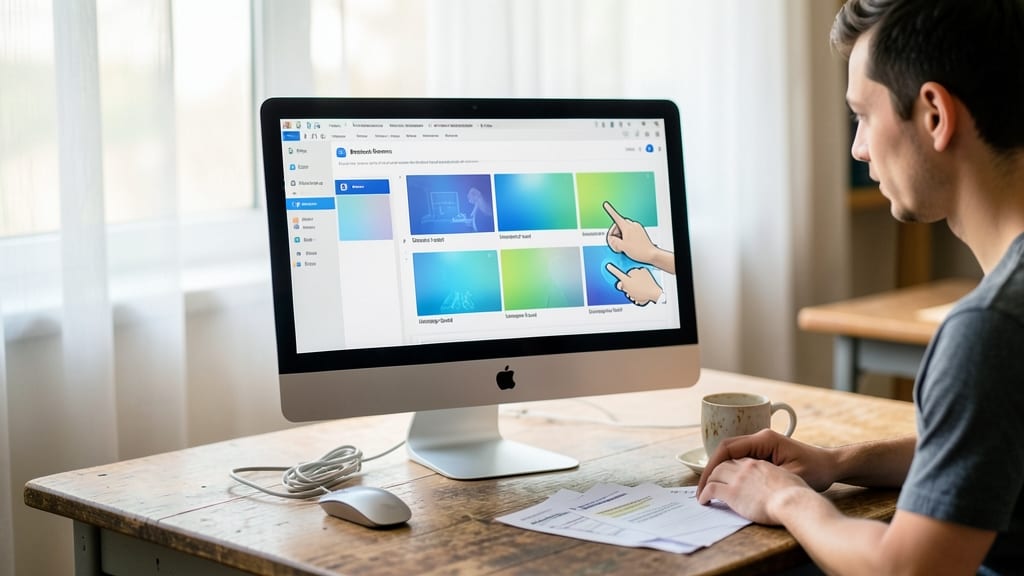
Need to recreate the energy of in-person group work without the chaos? Microsoft Teams’ breakout rooms let you split students into smaller virtual groups instantly—perfect for language practice, debate prep, or team-based problem-solving.
With just a few clicks, you can create up to 50 breakout rooms (scalable for any class size) and assign students randomly or manually. Teachers can monitor progress via a dashboard, jump into any room for support, and even set timers to keep discussions focused. The seamless transition between whole-class and small-group modes makes it ideal for interactive lessons.
Best for language teachers running conversation clubs, science educators hosting lab discussions, or debate coaches organizing team prep—all while keeping engagement high and tech stress low. ✨
Accessibility Features for All Learners
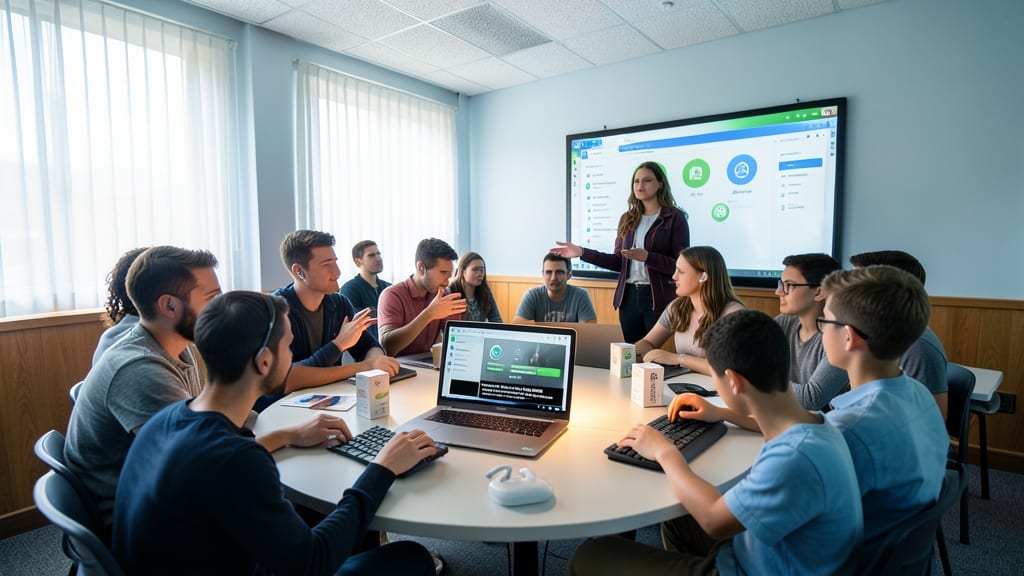
Every student deserves to fully participate in class—no exceptions. Microsoft Teams removes barriers with built-in accessibility tools designed to support diverse learning needs, from hearing impairments to visual challenges.
Enable live captions in real-time during video calls, letting students with hearing difficulties follow along effortlessly. Pair that with screen reader compatibility for those with visual impairments, and customizable text sizes (up to 200%) to reduce eye strain. The high-contrast mode further enhances readability for students with dyslexia or low vision, while keyboard shortcuts ensure seamless navigation for motor skill challenges.
These features aren’t just add-ons—they’re education equity standards in action, ensuring no student gets left behind in digital classrooms. Perfect for schools prioritizing inclusive learning environments where technology adapts to learners, not the other way around. ✨
Cloud-Based File Storage and Backup

Forget lost USB drives or frantic searches for misplaced assignments—Microsoft Teams’ OneDrive integration acts as an automatic safety net for all class materials. Every file uploaded to Teams channels is instantly backed up to the cloud, ensuring lectures, handouts, and student work remain safe from hardware failures or accidental deletions.
With 5TB of cloud storage included in Microsoft 365 Education, schools can store years of curriculum content without worrying about capacity. Students access assignments from any device—whether it’s a school-issued Chromebook, a home laptop, or even a tablet during travel—thanks to seamless syncing across platforms. The version history feature also lets teachers restore previous drafts if needed.
This is especially valuable for schools with 1:1 device programs or hybrid learning models, where continuity matters most. No more "I forgot my flash drive" excuses—just reliable, anywhere access to everything. ✨
Virtual Field Trips and Guest Speakers
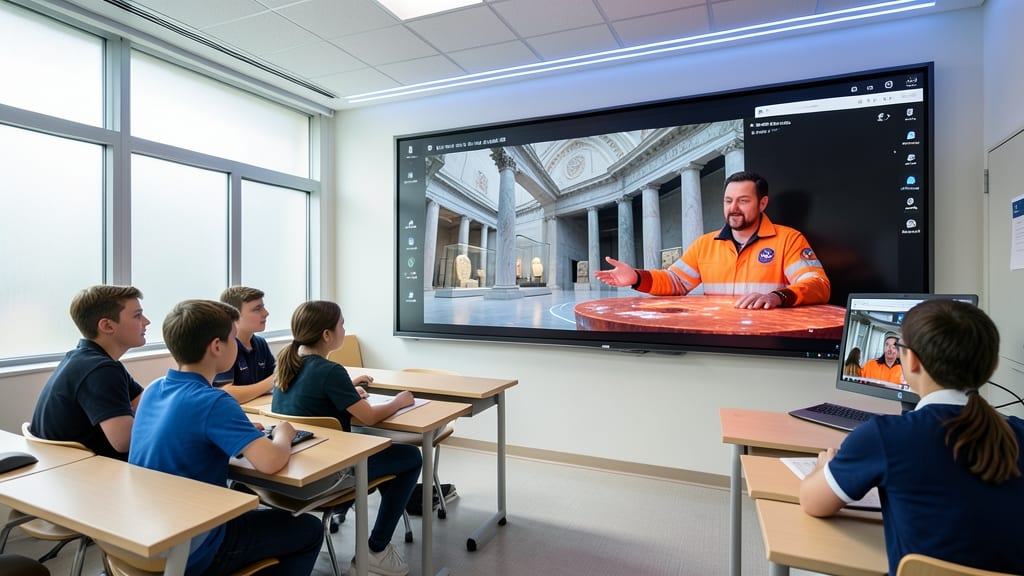
Forget dry textbooks—what if your students could meet a NASA engineer or explore the British Museum without leaving the classroom? Microsoft Teams makes it possible with virtual field trips and guest speaker integrations, turning lessons into immersive experiences.
Use the Meet Now feature to host live video sessions with experts, or schedule pre-recorded tours from institutions like the Smithsonian or National Geographic. The whiteboard tool lets presenters annotate in real-time, while screen-sharing displays interactive 3D models or historical artifacts. Teachers can even pre-load relevant resources in the Files tab to keep students engaged before, during, and after the session.
This is a game-changer for STEM educators (connecting students to labs or research facilities) and social studies teachers (bringing history to life with virtual museum walks). With minimal setup, you can spark curiosity that textbooks alone can’t match. ✨
Seamless IT and Admin Integration
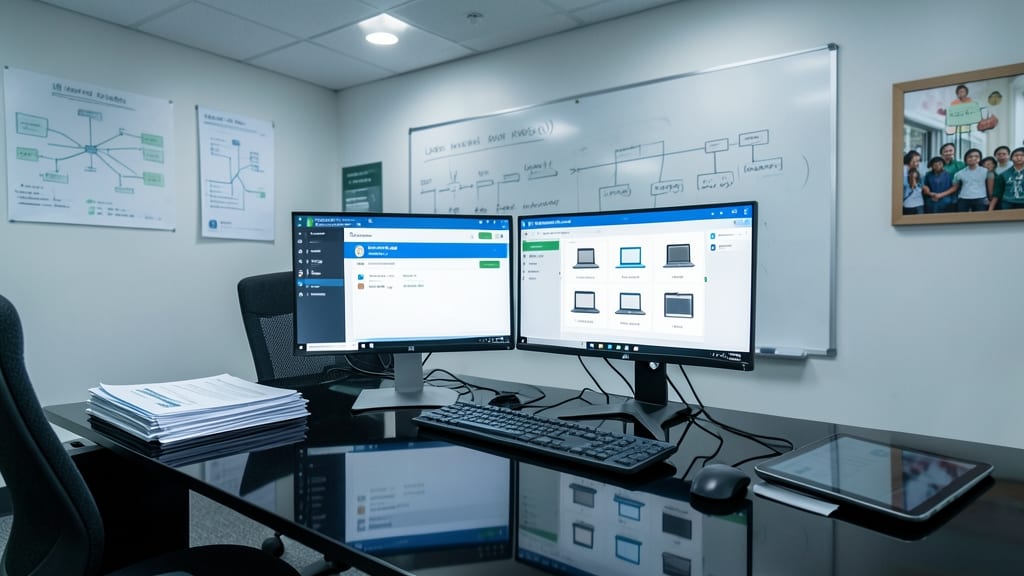
Overwhelmed by managing student accounts, device logins, and district compliance? Microsoft Teams for Education cuts through the chaos with built-in IT management tools designed specifically for schools. No more juggling separate systems—everything from single-sign-on (SSO) to device provisioning lives under one roof.
Deploy Microsoft Intune integration to remotely manage hundreds of devices, enforce security policies, and push updates in minutes. The Education Compliance Dashboard simplifies FERPA and COPPA adherence, while Azure Active Directory ensures only authorized users access sensitive data. For districts with limited tech staff, automated enrollment and self-service password resets slash helpdesk tickets by up to 40%.
This isn’t just about saving time—it’s about scaling securely. Schools using Teams report 30% fewer IT-related disruptions, freeing staff to focus on innovation instead of troubleshooting. Perfect for districts balancing tight budgets with growing tech needs. 💪