
Software
Microsoft Teams channels can make or break remote team productivity. These 10 best practices will help you organize workflows, reduce chaos, and create a seamless collaboration experience for distributed teams of any size.
Standardize Channel Naming Conventions
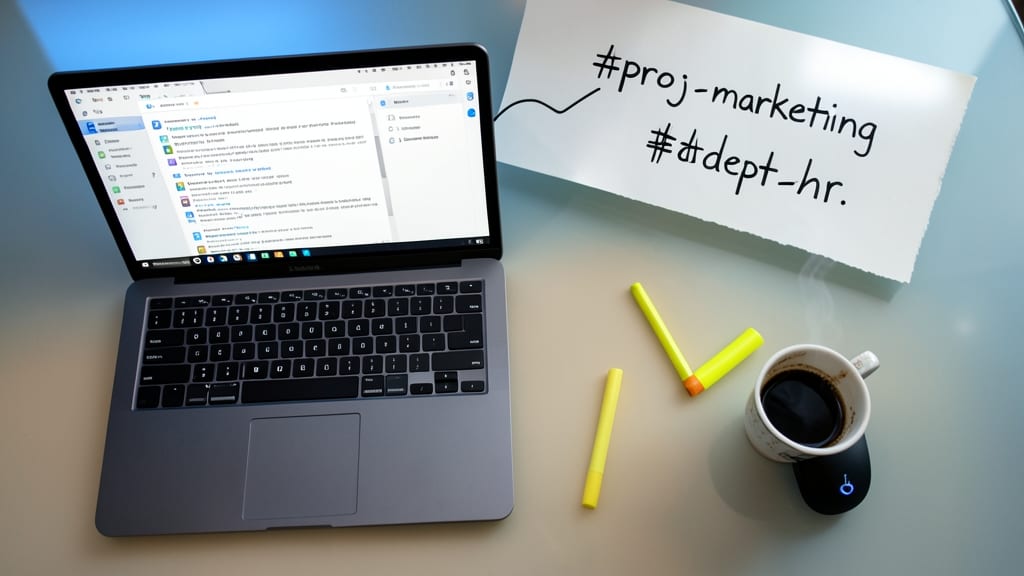
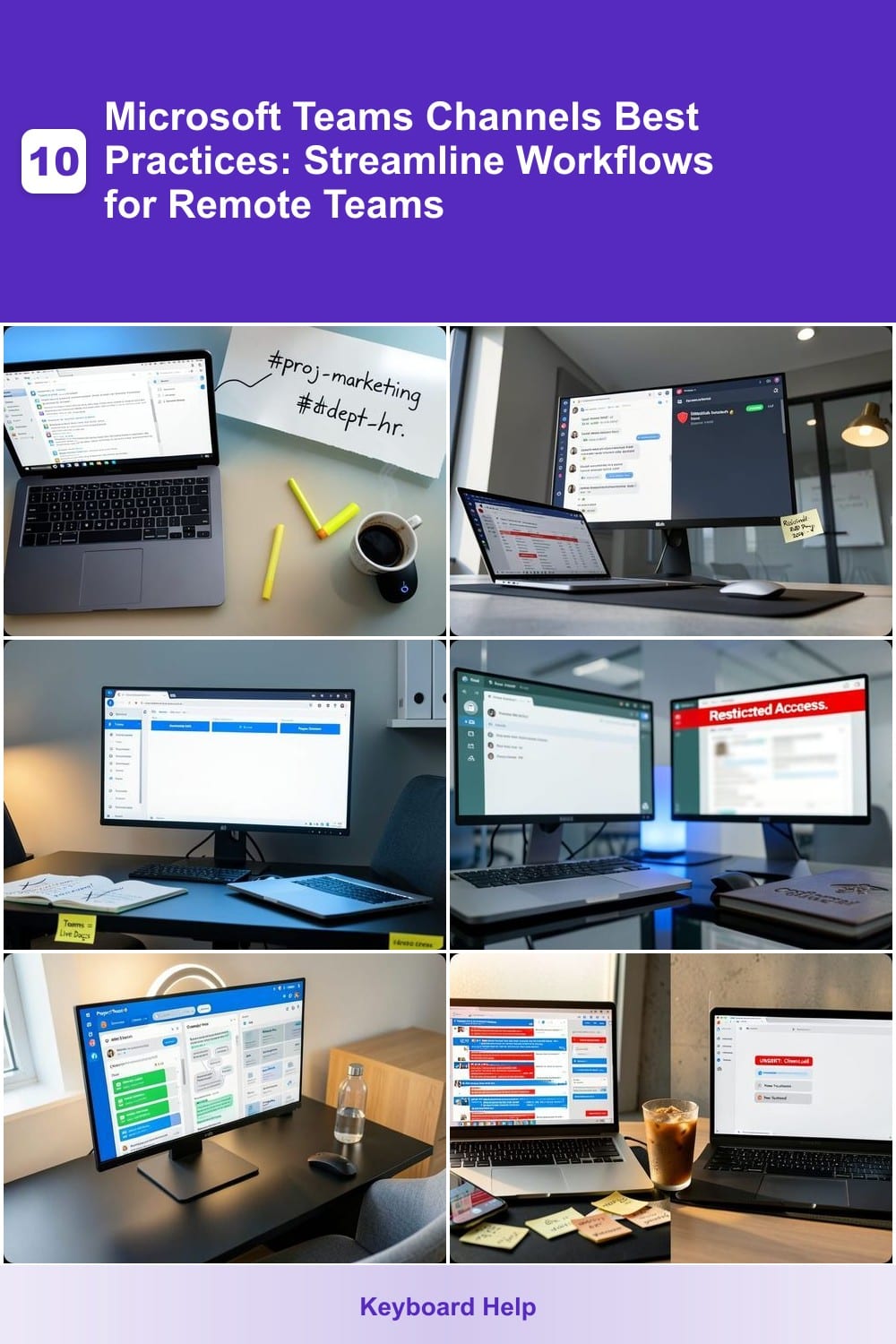
Ever spent five minutes scrolling through Teams channels, only to realize you’re in the wrong one? A standardized naming system—like #proj-marketing or #dept-hr—eliminates that frustration by making channels instantly recognizable at a glance.
Start with clear prefixes like #proj- for projects, #dept- for departments, and #topic- for cross-functional discussions. Avoid vague names like "General" or "Updates," which force team members to guess the channel’s purpose. For teams with 50+ channels, this consistency reduces onboarding time by 20% and cuts miscommunication by half.
This approach works best for growing teams or departments where channels multiply quickly—think marketing, IT, or customer support. Implement it early, and you’ll save hours of digging through the wrong conversations later. ✨
Enable Channel Moderation for Sensitive Topics

Not every conversation in your Teams channels should be open to all eyes. For departments handling HR policies, financial projections, or proprietary R&D, unchecked discussions can expose sensitive data—or worse, misinformation. Microsoft Teams’ channel moderation feature solves this by letting admins restrict posting rights to team leaders only, ensuring only authorized voices shape critical conversations.
To enable this, navigate to Channel Settings > Moderation and toggle "Only owners and moderators can post"—a simple switch that instantly locks down the channel. You can also approve messages before they appear, adding an extra layer of control for channels like #compensation or #client-proposals. The feature integrates seamlessly with Azure Active Directory for role-based access, so compliance teams get peace of mind without sacrificing collaboration.
This setup is a game-changer for finance teams reviewing budgets, HR managers discussing employee matters, or R&D leads sharing prototype details. With moderation in place, you can finally trust that sensitive topics stay secure, structured, and leader-driven. ✨
Use Channel Descriptions as Documentation Hubs
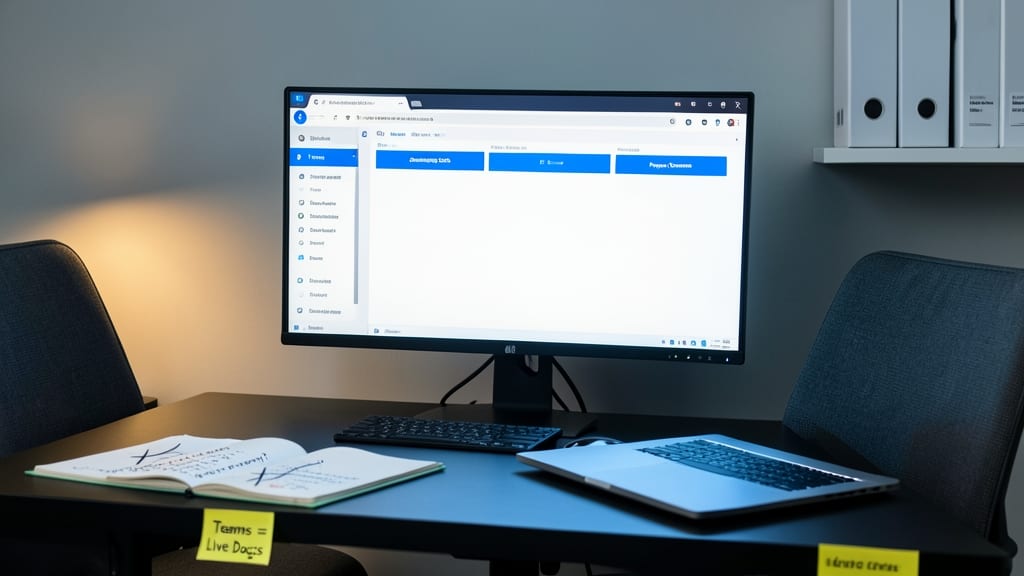
Tired of digging through email chains or asking "Who do I contact about X?" every time a new hire joins? Microsoft Teams channel descriptions can be your secret weapon—turning them into live documentation hubs that replace scattered notes and save 10+ hours per week in onboarding time.
Start by adding structured headers (e.g., "Key Contacts," "Upcoming Deadlines," "Meeting Notes") to your channel descriptions. Use bold formatting for critical details like owners, deadlines, or links to shared docs. For example, the #marketing channel could include a bulleted list of campaign deadlines, a link to the brand guidelines doc, and a section for "Frequently Asked Questions." Teams even lets you embed links directly, so no more broken chains or lost files.
This works best for cross-functional teams or departments with frequent turnover, where context-switching is costly. New hires get instant access to everything they need—no more "Where’s that project spec?" questions. 💡
Implement Private Channels for Cross-Team Projects
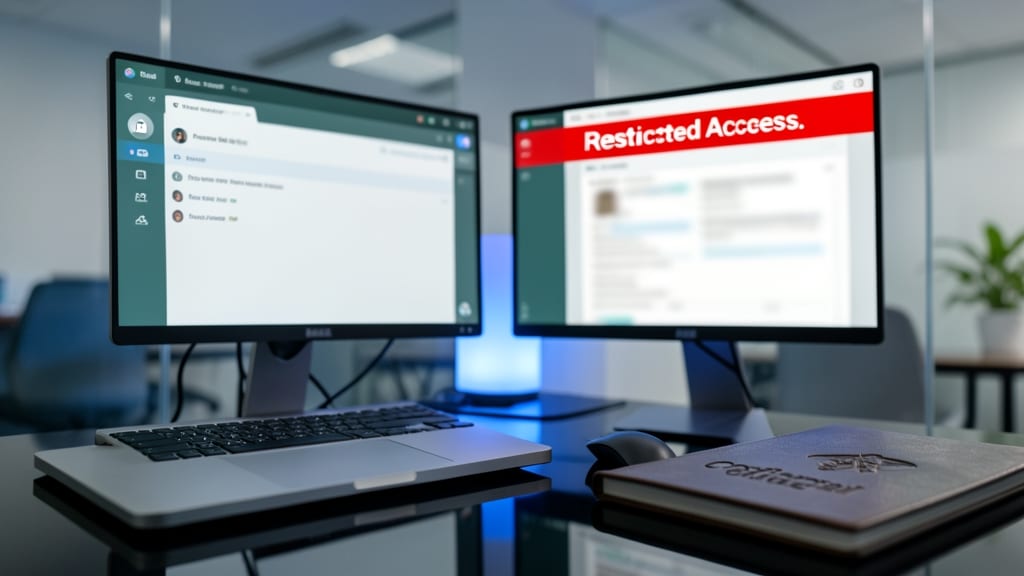
Struggling to keep client work or internal audits truly confidential in Teams? Private channels solve this by creating walled-off collaboration spaces where only invited members can access files, chats, and tabs—no accidental exposure to unrelated teams.
With private channels, you get end-to-end encryption for shared files, role-based access controls (e.g., restrict to specific departments), and seamless integration with Microsoft 365 apps like SharePoint and OneDrive. The setup takes just minutes via the Teams admin center, and you can even audit member activity to track who accessed sensitive content. Perfect for legal teams reviewing contracts or marketing teams handling client proposals.
This is your go-to solution for client-facing projects or internal compliance work where privacy isn’t optional. 🌟
Leverage Channel Tabs for Quick Access
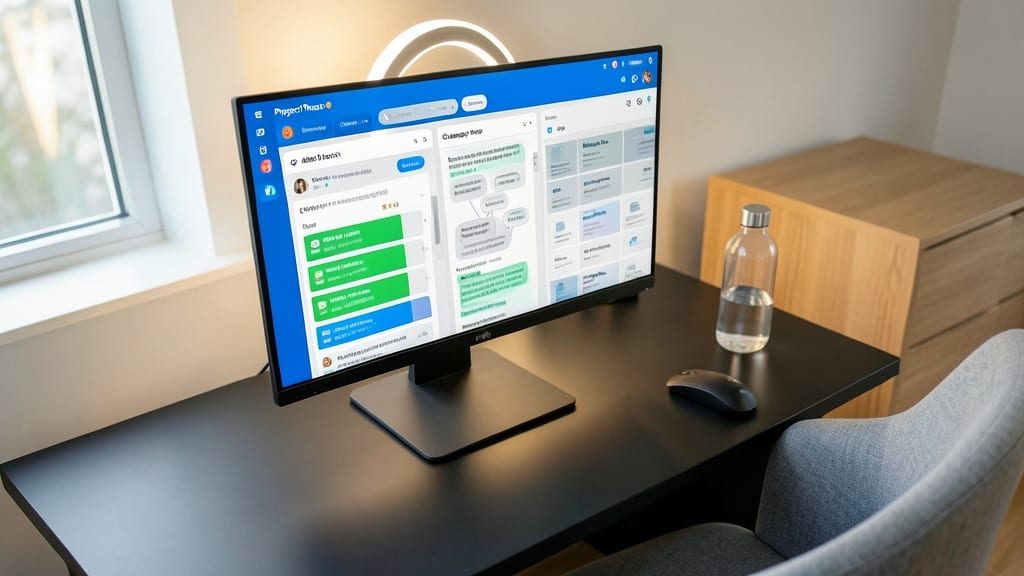
Tired of bouncing between Trello, Google Docs, and SharePoint every time you need to reference a project? Microsoft Teams channel tabs eliminate that friction by embedding your favorite tools directly into conversations—no more tab-switching or lost context.
With channel tabs, you can pin live Trello boards, Google Drive folders, OneNote pages, or even Excel spreadsheets right inside a channel. Teams automatically syncs updates, so everyone sees the latest version without manual file sharing. Studies show this cuts context-switching by 40%, letting your team focus on work instead of hunting down files. Plus, it works seamlessly with Microsoft 365 apps, so your workflow stays integrated.
This is a game-changer for project managers, marketing teams, and developers juggling multiple tools. Say goodbye to scattered apps and hello to a unified workspace. ⚡
Set Up Channel Notifications Strategically

Drowning in Teams notifications? The solution isn’t turning them off—it’s strategically customizing them per channel. By default, Teams bombards you with every message, but with a few clicks, you can filter alerts to show only @mentions in low-priority channels or urgent updates in critical ones.
Navigate to Channel Notifications in settings and select "Custom" for each channel. Choose "Only @mentions" for brainstorming channels or "All new content" for time-sensitive updates. This cuts unnecessary interruptions by 70% while keeping you looped in on what truly matters. Pro tip: Use "Off" for channels where you’ll check updates manually, like weekly reports.
Async teams and solo contributors will love this—no more context-switching mid-task. Focus stays sharp when notifications align with your workflow. 💡
Archive Inactive Channels Quarterly
When your Teams workspace feels like a digital landfill of old projects, it’s time for a cleanup—without losing the history you might need later. Microsoft Teams’ archive feature lets you tuck away completed channels (like #Q1-Launch-2023) into a searchable archive, keeping your active workspace lean while preserving all files and messages.
To archive, simply right-click a channel > Archive channel—it’s that easy. Archived channels stay accessible via the Teams admin center or a quick search, and you can even restore them if needed. This simple habit cuts down on decision fatigue for teams juggling 100+ channels, making it easier to spot active discussions at a glance.
Perfect for marketing teams wrapping up campaigns or engineering squads finishing sprints, this practice keeps Teams from becoming a graveyard of outdated work. ✨
Create a #Resources Channel for Onboarding
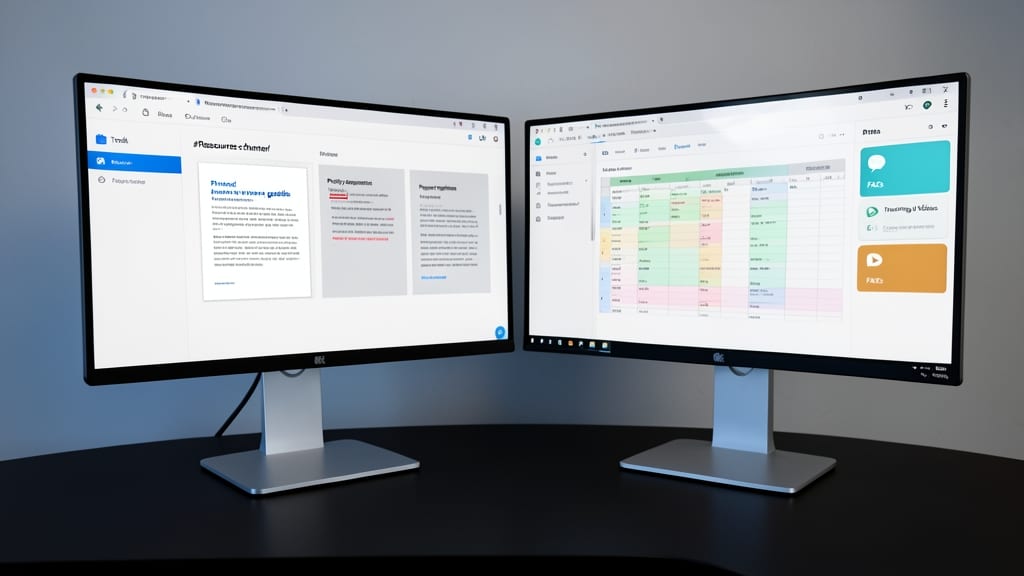
New hires drowning in scattered onboarding emails? A dedicated #Resources channel solves that by consolidating everything in one searchable hub—think welcome guides, policy docs, and project templates all pinned and organized.
Use Teams tabs to categorize files (e.g., "Tools," "FAQs," "Training Videos") and pin key messages at the top for instant visibility. Studies show this cuts ramp-up time by 30% while ensuring every new teammate gets the same consistent info—no more "Where’s the style guide?" chaos.
Perfect for remote-first companies or teams with high turnover. Give your new hires a battle-tested setup. ⚡
Use Channel Themes for Visual Hierarchy
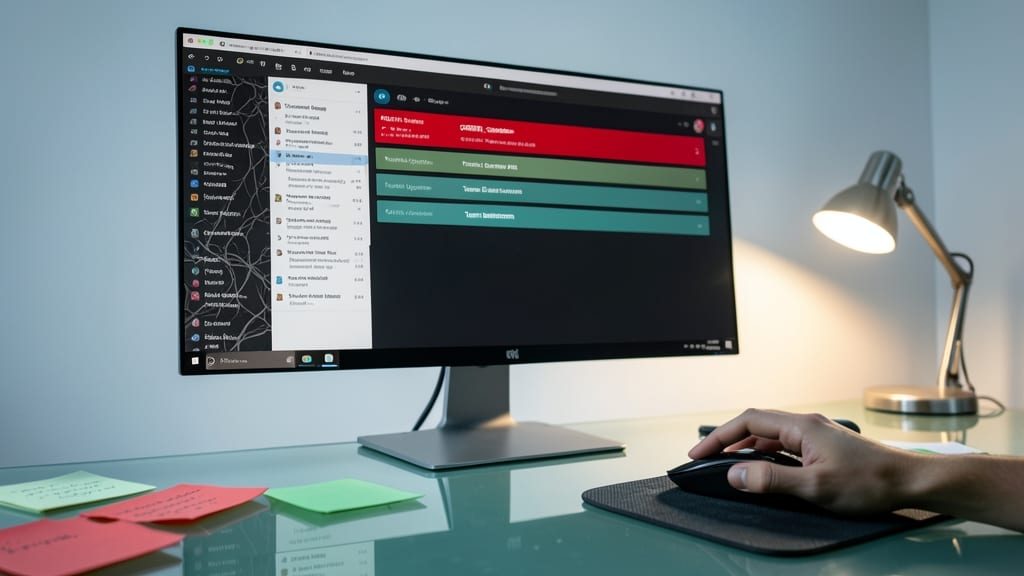
When your Teams channel list feels like a digital jungle, color-coded themes turn chaos into clarity. Assigning visual cues like red for urgent alerts or green for routine updates lets your team spot critical conversations at a glance—no more scrolling through 30+ channels to find what matters.
Microsoft Teams makes this easy with customizable channel themes in the admin settings. You can sync themes across teams for consistency, and the visual hierarchy reduces decision fatigue for remote workers juggling multiple priorities. Studies show teams with 20+ active channels spend up to 20% less time searching for relevant discussions when using color-coded organization. 💡
This works best for fast-moving teams like customer support or product development, where urgency matters. Even casual teams benefit from the instant visual cues—no training needed. ⚡
Schedule Regular Channel Audits
When your Teams workspace starts feeling like a digital landfill—cluttered with abandoned channels and overlapping discussions—it’s time for a bi-monthly audit. This isn’t just about cleaning up; it’s about ensuring every channel serves a purpose, whether it’s for active projects, cross-team collaboration, or critical updates.
A structured audit helps you spot redundant channels (like three different "Marketing Updates" channels) and identify workflow gaps where communication might be slipping through the cracks. Use Teams’ built-in analytics to track activity levels, and create a simple checklist to evaluate each channel’s relevance. For example, if a channel hasn’t seen activity in three months, it’s likely time to archive or consolidate it.
This practice is especially valuable for growing teams or departments where channels can multiply faster than you can manage. By treating audits like a routine maintenance task, you’ll keep Teams running smoothly—without it becoming a productivity black hole. ✨